
There is a particular kind of frustration that comes with plugging an SD card into your laptop, waiting for that familiar little notification, and getting absolutely nothing.
The card is inserted, the USB-C hub is connected, and your computer seems perfectly happy to ignore the whole situation.
Meanwhile, your photos, important documents, drone footage, or hours of 4K video are sitting somewhere inside a tiny piece of plastic that suddenly feels rather uncooperative.
If your SD card is not reading through a USB-C hub, don’t assume the card has failed just yet. The problem could be a loose connection, an incompatible file system, an overloaded hub, or simply a storage device that hasn’t mounted correctly.
Thankfully, many of these issues can be fixed without buying new equipment or risking your files.
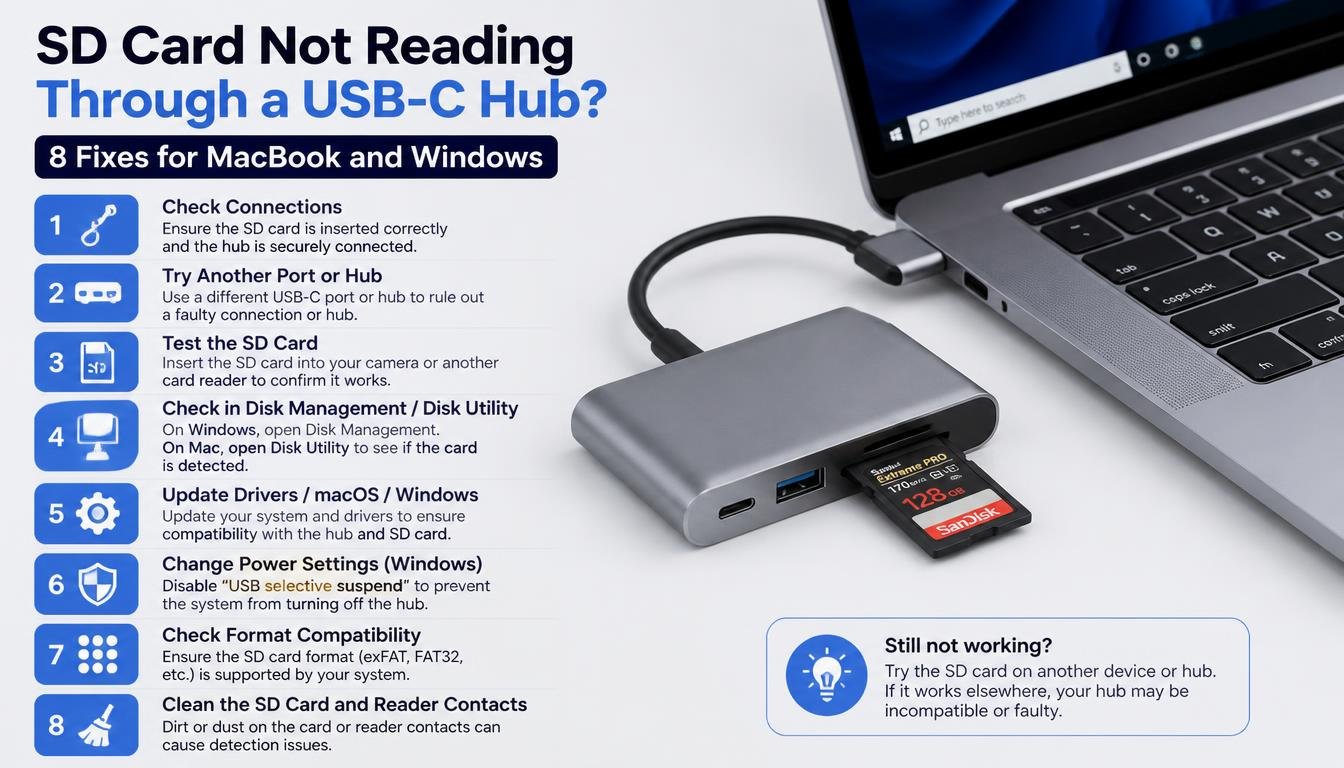
This guide explains eight practical fixes for SD card not reading through USB-C hub problems on MacBook and Windows computers.
We’ll cover basic hardware checks, Finder and Disk Utility settings, Windows Disk Management, file system compatibility, and ways to protect your data while troubleshooting.
The goal is simple: get your card recognized again, understand what went wrong, and avoid repeating the same little technology drama next week.
Why Is Your SD Card Not Reading Through a USB-C Hub?
Before changing settings or downloading recovery software, it helps to understand where the problem might be hiding. A USB-C hub is a middleman between your computer and your storage card, and sometimes that middleman isn’t doing its job properly.
Your USB-C hub SD card reader may have a hardware fault, the USB-C port might not support the expected data connection, or the card itself may have developed file system errors.
A microSD card can also fail to make proper contact inside its adapter, even when everything looks normal from the outside.
There are a few common clues worth noticing:
- If several SD cards fail in the same hub, the hub or computer connection is a likely suspect.
- If one card fails in every reader you try, the card itself may be damaged or incompatible.
- If the card appears in Disk Utility or Disk Management but not in your usual file browser, the computer may detect the hardware but struggle to mount or display its volume.
- If the card works until you connect an HDMI display, external SSD, charger, and several other accessories, the hub’s power or connectivity may be part of the problem.
A little detective work saves time here. Most importantly, don’t format the card just because your computer suggests it. Formatting can make existing files harder to recover, especially if the card contains photographs or important work that has not been backed up.
Fix 1: Check the SD Card, Adapter, and USB-C Connections
The simplest fix is often the one we overlook because we’re already mentally preparing for a complicated technical repair.
Start by removing the SD card from the hub. Inspect the metal contacts for visible dirt, moisture, or damage. If the card looks dusty, use a clean, dry, lint-free cloth gently. Avoid liquids, scraping tools, or blowing moisture into the card slot.
Next, reconnect the USB-C hub directly to your MacBook or Windows laptop. If you were using another adapter, extension cable, or docking station, remove it temporarily.
Every extra connection introduces another possible point of failure, and we don’t need a whole chain of accessories confusing the issue.
For microSD cards, check the adapter too. A microSD card can sit slightly crooked in a full-size SD adapter, or the adapter may have worn contacts even though the tiny card is perfectly healthy.
Try these quick checks:
- Remove and reinsert the SD card carefully, making sure it sits fully inside the correct slot.
- Confirm that you’re using the SD slot rather than a similar-looking microSD or TF slot.
- Check whether the hub’s USB-C connector is firmly seated in the laptop.
- Try another USB-C port if your computer has more than one.
- If you’re using a full-size SD adapter, test another compatible adapter.
If the hub has separate SD and microSD slots, check the manufacturer’s instructions before attempting to read both cards at once. Some readers support simultaneous access, while others have shared circuitry or limitations that affect how the slots operate.
A physical connection problem is especially likely if the card appears and disappears whenever the hub moves. If that happens, stop wiggling the connector to keep it working; an unstable connection can interrupt transfers and increase the risk of file corruption.
Fix 2: Disconnect Other Devices and Restart the Connection
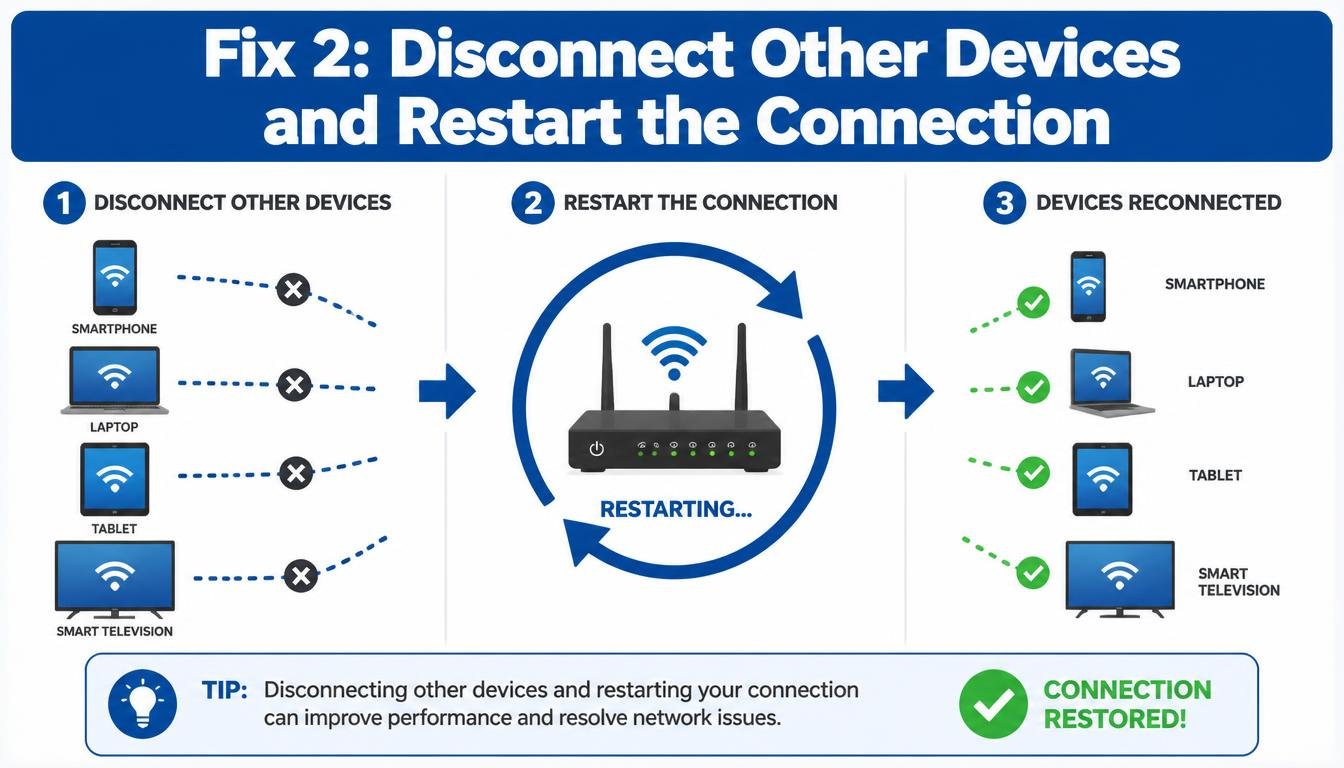
USB-C hubs are convenient little multitaskers. One moment they’re charging your laptop, sending a 4K display signal, powering a keyboard, and transferring files to an external SSD. The next moment, the card reader refuses to cooperate.
Not every hub has a power problem, and a normal USB-C hub should generally handle supported devices without drama. However, certain combinations of accessories, cable limitations, firmware issues, or inadequate power can cause external devices to disconnect or behave unpredictably.
To test whether your USB-C hub SD card slot is not working because of another connected device, simplify the setup.
- Disconnect external SSDs, USB drives, HDMI displays, and other accessories.
- If the hub has a Power Delivery (PD) charging input, follow its instructions and check whether it is receiving adequate power.
- Disconnect the hub from your laptop, wait a few seconds, and reconnect it.
- Restart your computer if the card still isn’t detected.
- Insert the SD card only after the hub has reconnected successfully.
For a MacBook, check whether the card becomes visible after the restart. On Windows, look for a connection sound or a new device in the system’s storage tools.
You can also test the hub with a simple USB drive. If the USB drive works but the SD slot doesn’t, the card reader section may be the issue rather than the hub’s entire USB connection.
One useful detail: USB-C describes the connector shape, not a guarantee that every port or hub offers identical data speeds and capabilities. Check your laptop and hub specifications if the problem keeps returning, especially when using high-speed cards or several demanding devices at once.
Fix 3: Make Your SD Card Visible in Finder on MacBook
If your SD card is not showing up on MacBook, don’t assume macOS has failed to recognize it. Sometimes the card is connected and mounted, but Finder simply isn’t displaying external storage where you expect it to appear.
Start with Finder settings.
Open Finder, then choose Finder > Settings. On some older macOS versions, this option is called Finder Preferences. Under the General tab, check whether external disks are enabled for display on the desktop.
Then open the Sidebar tab and make sure external disks are selected under the relevant Locations section.
Now check Finder’s sidebar and desktop again. If the card appears, open it and see whether your files are accessible.
If nothing changes, continue to Disk Utility in the next fix rather than repeatedly removing the card. A missing Finder icon doesn’t necessarily mean the card has disappeared from the system entirely.
This is a particularly useful distinction for photographers importing RAW images or content creators moving 4K video files. You might be ready to transfer a whole day’s work, but the storage volume isn’t appearing in the place you normally look.
Remember that Finder settings only control visibility in Finder. They won’t repair a physically damaged card, fix an unsupported file system, or make a faulty hub suddenly work.
Fix 4: Use Disk Utility to Mount or Check the Card
Disk Utility is one of the most useful tools when an SD card appears in Disk Utility but not Finder. It can show whether macOS detects the physical storage device and whether its volume is mounted.
Open Spotlight Search with Command + Space, type Disk Utility, and launch the application. If necessary, choose View > Show All Devices to display the available storage devices and their volumes.
Look for your SD card in the sidebar. Be careful to distinguish the physical card from the volume listed beneath it, particularly if several external drives are connected.
If the volume is present but appears unmounted, select the volume and click Mount. If it mounts successfully, return to Finder and check whether your files are available.
If the card is detected but produces errors, Apple’s First Aid tool may help identify or repair certain file system problems. Select the relevant volume and choose First Aid, following the on-screen instructions.
Repair options can modify file system structures, so if the card contains irreplaceable files and appears corrupted, consider making a suitable image or consulting a data recovery professional before attempting repairs.
Here are the main situations to look for:
- Physical device and volume visible: The Mac recognizes the card, but the volume may not be mounted.
- Physical device visible, volume missing: The partition or file system may be damaged, unsupported, or absent.
- Card absent from Disk Utility: The problem may involve the hub, port, reader, card, or its electrical connection.
- Volume mounted but inaccessible: File system errors, permissions, or other storage issues may be involved.
Disk Utility can be helpful, but it isn’t a magic recovery button. If the card repeatedly disconnects, reports an incorrect capacity, or causes read errors, stop repeated repair attempts and protect the data first.
Fix 5: Find the Missing Card in Windows Disk Management
Windows users often encounter a slightly different version of the same problem: the SD card is connected, but it doesn’t appear in File Explorer.
When your SD card is not showing up on Windows, open Disk Management to see whether Windows recognizes the underlying storage device.
Right-click the Start button and select Disk Management. Alternatively, search for “Create and format hard disk partitions” in the Start menu.
Allow the list of disks and volumes to load. Look for a removable disk whose capacity matches your SD card. Be cautious when several external storage devices are attached; don’t make changes to a drive unless you’re sure you’ve identified the correct one.
The status shown in Disk Management can reveal the next step.
If the card has a healthy partition but no drive letter
Windows may recognize the card but fail to assign a drive letter. If the volume is healthy and compatible, right-click it and select Change Drive Letter and Paths, then choose Add or Change as appropriate.
Pick an unused drive letter and confirm. Open File Explorer to see whether the card now appears.
This is a common solution when an SD card appears in Disk Management but not File Explorer. However, don’t change partition settings if the card contains inaccessible files and the volume’s condition is uncertain.
If the card appears as RAW
A RAW label generally means Windows cannot recognize the file system as a usable volume. It does not automatically prove that every file has been lost.
If you need the files, don’t format the card or run destructive repair commands. Disconnect unnecessary devices, avoid further writes, and consider professional recovery or a reputable recovery process that works from an image of the card.
If the card shows Unallocated or Not Initialized
These labels can indicate partition damage, missing partition information, or an incorrectly identified device. Do not initialize or create a new volume simply to make the card visible if the existing data matters.
Initializing, repartitioning, or formatting can overwrite information needed for recovery. First confirm that you’ve selected the SD card, not another disk, and decide whether data recovery is the priority.
Disk Management is valuable because it tells you whether Windows sees the storage device at all. That information helps separate a reader connection issue from a partition or file system problem.
Fix 6: Check File System Compatibility Before Formatting
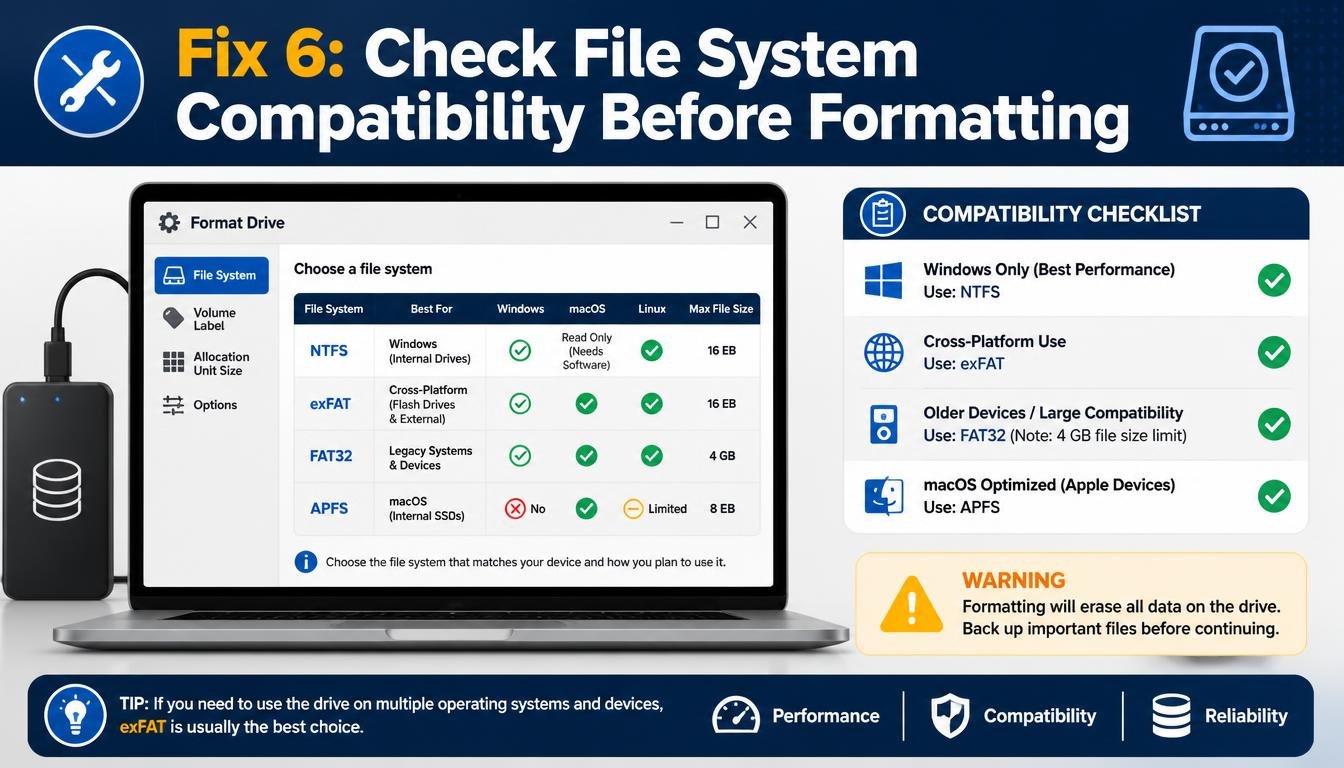
An SD card can work perfectly in a camera, tablet, or another computer and still refuse to open on your current laptop. Sometimes, the reason is the file system rather than the USB-C hub.
Common file systems include FAT32, exFAT, NTFS, and APFS. They each have different compatibility characteristics, and not every operating system handles them in the same way.
exFAT for Mac and Windows is often a practical choice for removable storage shared between modern macOS and Windows computers. It supports files larger than 4 GB and is widely supported by current systems. FAT32 is also widely compatible, but individual files cannot exceed approximately 4 GB.
NTFS is native to Windows, while standard macOS installations can generally read NTFS but do not provide built-in full NTFS write support. APFS is designed for Apple’s ecosystem and isn’t natively supported for ordinary read-and-write access on Windows.
The correct choice also depends on the device that created the card. Cameras, drones, action cameras, and Android devices may require particular formats or directory structures.
If your card contains files you need, do not format it as a first troubleshooting step. Formatting typically removes the existing file system structures and can complicate recovery.
Instead, check the card’s status in Disk Utility or Disk Management. If the card is readable on another device, copy the files to a safe location before making any changes.
When the card is empty, backed up, or no longer needed in its existing format, formatting may be reasonable. Choose the file system based on the devices that will use the card, and consult the camera or device manufacturer’s recommendations where applicable.
Fix 7: Update Compatibility, Drivers, and System Software
Sometimes the SD card and hub are both functional, but your computer isn’t handling the connection properly. Operating system updates, device drivers, and hub compatibility can all play a part, especially on Windows systems with multiple USB controllers or older hardware.
Start with the basics: install appropriate operating system updates, restart the computer, and test the hub again. If your hub manufacturer provides firmware updates or compatibility guidance for your specific model, consult its official support documentation before installing anything.
On Windows, open Device Manager by searching for it in the Start menu. Expand the relevant categories, such as Disk drives and Universal Serial Bus controllers, and check whether the card reader or an unknown device appears when you connect the hub.
A warning symbol can indicate a device or driver problem. If you identify the actual reader or controller involved, use Windows Update or the laptop or hub manufacturer’s official driver package. Avoid downloading random driver installers from unfamiliar sites.
On MacBook, macOS generally handles standard USB storage readers without a separate driver. If the card reader has special software requirements, check the manufacturer’s instructions. Otherwise, focus on macOS updates, the USB-C connection, and Disk Utility rather than installing unnecessary utilities.
Also check the specifications for your particular hub. A model advertising 4K HDMI, 100W Power Delivery, multiple USB-A ports, and SD/microSD readers may offer several useful functions, but the exact capabilities and simultaneous-use limitations depend on the model.
If the reader works on another computer but consistently fails on yours, system compatibility becomes a more plausible explanation. If it fails everywhere, suspect the reader or card instead.
Fix 8: Test a Dedicated SD Card Reader and Protect Your Files
When you’ve tried the previous fixes and your USB-C hub still refuses to read the card, it’s time to isolate the hardware.
A dedicated USB-C SD card reader connects the card directly to a compatible USB-C port, bypassing the SD reader built into your hub. This makes it an excellent diagnostic tool, as well as a useful alternative for people who regularly transfer large photo or video collections.
Try the same SD card in a dedicated reader. If it works immediately, your hub’s card reader may be faulty or incompatible with that card. If it still fails, test another known-working SD card in the dedicated reader.
This simple comparison helps narrow down the cause:
- The original card works in a dedicated reader: the hub’s reader or compatibility may be responsible.
- A second card works in the hub: the original card may be damaged or formatted in an unsupported way.
- No cards work in the hub, but work elsewhere: the hub is the leading suspect.
- The original card fails in every reader and device: card damage or file system corruption becomes more likely.
For photographers, videographers, and drone users, a separate reader can also make the workflow more reliable. You can transfer RAW photos to an external SSD, import footage for editing, and leave the hub’s other ports free for displays and accessories.
If you buy a replacement, look at SD and microSD compatibility, supported card capacities, UHS-I or other advertised speed support, operating system compatibility, and the manufacturer’s specifications.
A UHS-I card cannot achieve its full supported speed through a reader that doesn’t support the relevant interface, and real-world speeds also depend on the card itself.
Don’t choose a reader solely because it promises the highest number on the box. For everyday file transfers, reliable connections and proper compatibility matter just as much as advertised speed.
Most importantly, if the card contains valuable photographs or other irreplaceable data, stop experimenting once you suspect physical damage.
Avoid repeated formatting, unnecessary writes, and repeated repair attempts. Recovery becomes more difficult when the storage media is deteriorating or its file system is being modified.
How to Recover Files From an Unreadable SD Card Safely
Sometimes fixing the reader isn’t enough, because the card itself has a problem. If you’re dealing with a corrupted SD card, the next step depends on how important the data is and whether the card remains stable.
If the card can still be read on another device, copy the most important files to a separate drive first. Don’t move the only copy of important files; copy them and verify that the copies open correctly.
If the card repeatedly disconnects, reports the wrong capacity, becomes unusually hot, or produces persistent read errors, stop using it. A professional recovery service may be the safest option when the contents are irreplaceable.
For logical file system damage, recovery software may be able to locate files that the operating system cannot display normally. Choose reputable software, follow its documentation, and recover files to a different drive rather than back onto the affected card.
If possible, work from a sector-by-sector image of the card instead of repeatedly scanning the original. Imaging is not always possible when the card has physical damage, but it can reduce unnecessary handling of unstable media.
Never treat a formatting prompt as proof that formatting will solve the problem. It might make the card usable again, but it can also complicate the recovery of the files you’re trying to save.
How to Prevent SD Card Reading Problems in the Future
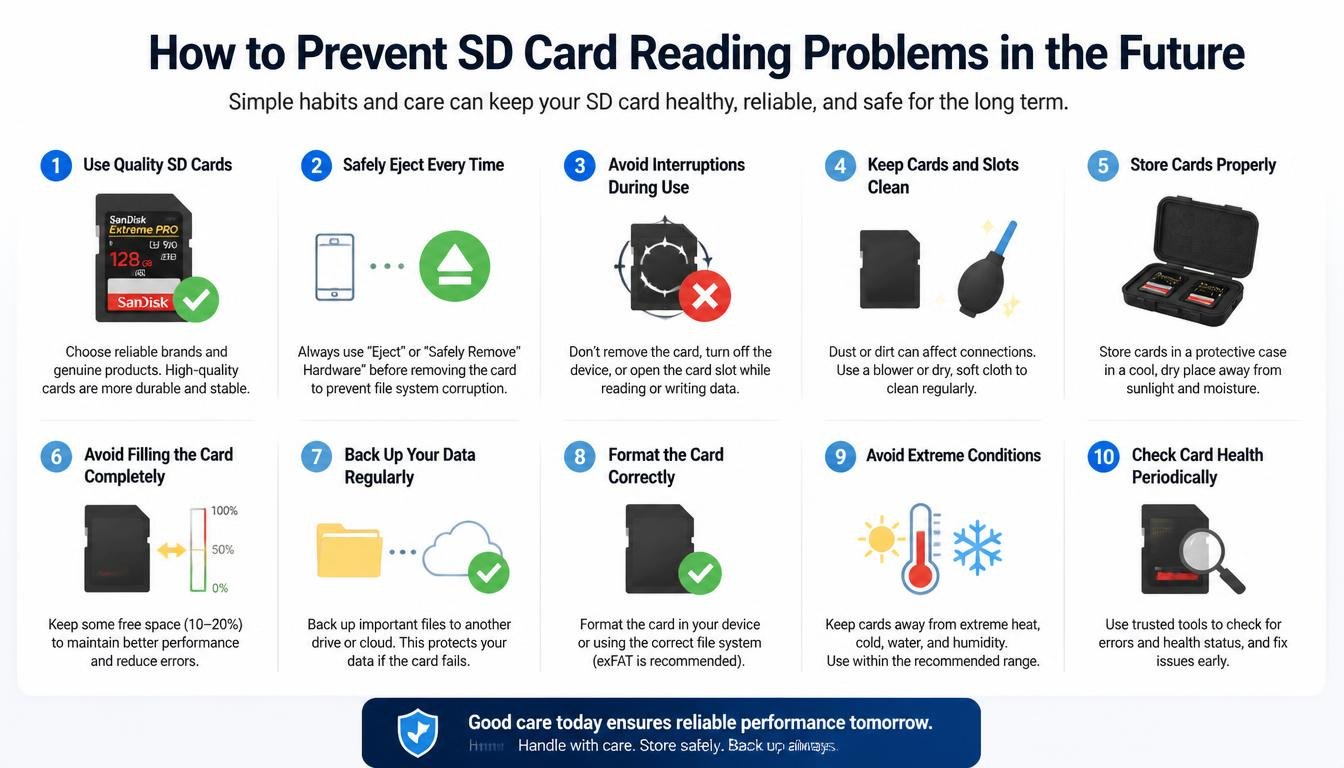
Once the card is working again, a few simple habits can make the next transfer considerably less stressful.
- Eject storage safely. Use the operating system’s eject option before removing the card or disconnecting the reader.
- Keep a second copy of important files. Back up photographs, video footage, and documents to another drive or trusted backup location.
- Avoid interrupting transfers. Don’t unplug the hub while files are being copied, especially during large video transfers.
- Use compatible readers. Check the reader’s supported card types, capacities, and speed standards.
- Inspect adapters and cables. Replace worn adapters and damaged cables rather than relying on an unreliable connection.
- Format cards in the intended device when appropriate. Cameras and drones may expect particular file systems and folder structures, so follow their instructions after safely backing up existing files.
- Keep the hub’s workload reasonable. If simultaneous HDMI output, charging, external storage, and card reading causes instability, test the reader with fewer connected accessories.
For people working with 4K video, large RAW photo batches, or frequent on-location backups, a dependable storage workflow matters more than squeezing every accessory into a single connection. A little preparation can save hours of recovery work later.
Frequently Asked Questions
Why is my SD card not reading through my USB-C hub?
The most common possibilities include a faulty card reader, poor physical contact, an incompatible or damaged SD card, a missing mount point, or file system corruption. Test another card, simplify the hub connection, and check Disk Utility or Disk Management before making changes to the card.
Why does my SD card appear in Disk Utility but not Finder?
macOS may recognize the card without displaying its volume in Finder. Check Finder’s external disk settings and see whether the volume is mounted in Disk Utility. If the volume is unmounted, try Mount, provided there are no signs of physical failure and the data is protected.
How do I fix an SD card that is not showing in File Explorer?
Open Windows Disk Management and locate the card. If the volume is healthy but lacks a drive letter, assigning an unused letter may make it appear in File Explorer. If the card shows RAW, Unallocated, or Not Initialized, avoid formatting or initializing it if you need the existing files.
Can a USB-C hub cause SD card reading problems?
Yes. A damaged reader, poor connector contact, incompatible hardware, or an unstable connection can prevent the hub from reading a card. Testing the same card with a dedicated reader helps determine whether the hub is responsible.
Can formatting an SD card delete my photos?
Yes. Formatting can remove file system information needed to access your existing photos and may make recovery harder. Back up the files first whenever possible. If the card is unreadable and the files matter, prioritize recovery instead of formatting.
Can I read SD and microSD cards at the same time?
That depends on the reader. Some models support simultaneous access, while others share resources or support only one card at a time. Check the manufacturer’s specifications rather than assuming that two physical slots mean both can be used together.
Why is my SD card transfer speed slow through a USB-C hub?
Transfer speed depends on the SD card, reader interface, USB connection, file sizes, and other connected devices.
A UHS-I card, for example, needs a compatible reader to approach its supported interface speed. Try a direct connection or dedicated reader to see whether the hub is limiting performance.
Mac SD card reader not working
If your Mac SD card reader is not working, check whether the card appears in Finder or Disk Utility. Try reconnecting the USB-C hub, testing another SD card, and using Disk Utility to mount the card if it is detected.
Uni SD card reader not working
If your Uni SD card reader is not working, reconnect it to your laptop and make sure the SD card is inserted correctly. Test another card or USB-C port to determine whether the issue is with the reader, card, or connection.
USB card reader not working
If your USB card reader is not working, try a different USB port and check whether your computer recognizes the device. You can also test another memory card to identify whether the problem is caused by the reader or the card itself.
USB SD card reader not working
When a USB SD card reader is not working, make sure the card is fully inserted and the reader is securely connected. Check Disk Management on Windows or Disk Utility on Mac to see whether the SD card is detected but not displayed.
apple sd card reader not working
If your Apple SD card reader is not working, reconnect the adapter and check whether your Mac recognizes the SD card. Try another card or USB-C port, and use Disk Utility to check whether the card is mounted or needs attention.
Read More: https://techbiton.com/hdmi-cable-for-projector/
Final Thoughts: Get Your SD Card Working Without Losing Your Files
An SD card that refuses to read through a USB-C hub can turn a simple file transfer into a surprisingly stressful afternoon. But the problem isn’t always a dead card, and it certainly doesn’t mean your photos, videos, or documents have disappeared forever.
Start with the physical connection, simplify the hub setup, check Finder or File Explorer, and use Disk Utility or Disk Management to see what your computer actually detects. If compatibility or hardware appears to be the issue, a dedicated reader can help you identify the culprit without making unnecessary changes to the card.
Above all, protect your files before attempting repairs. When a card contains memories, creative work, or important documents, recovering the data should come before making the device usable again.
With a little patience and the right troubleshooting steps, that stubborn little card may be back in action sooner than you expect. And next time you plug it in, hopefully your computer will recognize it without the suspense.