
There is something particularly frustrating about connecting your laptop to an external monitor, expecting a bigger, more comfortable workspace, and then being greeted by a blank screen. You plug in your USB-C hub, connect the HDMI cable, turn on the monitor, and wait.
Nothing happens. The laptop charges, your mouse works, perhaps even your external SSD appears, but the monitor acts as if it doesn’t know your laptop exists.
If you’re dealing with a USB-C hub not detecting monitor problems, you’re certainly not alone.
This issue can happen with MacBooks, Windows laptops, external monitors, projectors, and even relatively new multi-port hubs. And the annoying part? Sometimes everything appears connected properly, yet the display still refuses to cooperate.
The good news is that you probably don’t need a new laptop or an expensive docking station just yet. In many cases, the problem comes down to USB-C video compatibility, an HDMI connection, insufficient power, or a display setting that needs a little attention.
Let’s walk through six practical fixes that can help restore your external display connection. We’ll also explain why these problems happen, how to identify the actual cause, and what to check before purchasing another USB-C adapter.
1. Check Whether Your USB-C Port Actually Supports Video Output
This is probably the most overlooked reason behind a USB-C hub monitor not detected problem. Not every USB-C port is designed to transmit video signals, even though the connectors look exactly the same.
USB-C describes the physical connector, not every capability that comes with it. One laptop might have a USB-C port that supports charging and file transfers, while another supports charging, high-speed data, and external displays.
So, plugging an HDMI-equipped hub into a data-only USB-C port won’t magically create a video connection. The hub needs a compatible video signal from the laptop in the first place.
What is DisplayPort Alt Mode?
One important technology to understand here is DisplayPort Alt Mode.
It allows compatible USB-C ports to transmit DisplayPort video signals through the USB-C connector. A compatible hub can then convert that signal into HDMI output, allowing your laptop to communicate with an external monitor.
Without this capability, a regular USB-C-to-HDMI hub may not work, regardless of how expensive or impressive its specifications look.
How to check USB-C video compatibility
Try these steps:
- Visit your laptop manufacturer’s official website.
- Search for your exact laptop model and its technical specifications.
- Look for terms such as DisplayPort Alt Mode, DisplayPort over USB-C, Thunderbolt, or USB4 display support.
- Check the documentation for the specific USB-C port you’re using, because different ports on the same laptop can have different capabilities.
- Look for a DisplayPort symbol or Thunderbolt symbol near the connector, although symbols alone should not replace checking the manufacturer’s specifications.
For example, some MacBook models support external displays through Thunderbolt or USB-C, while certain Windows laptops include USB-C ports that only handle data and charging.
A useful tip: If your laptop has several USB-C ports, try another one that explicitly supports video output. This simple change can sometimes solve the entire problem.
2. Check Your HDMI Cable, Hub Connection, and Monitor Input
If your USB-C port supports video but the external monitor still isn’t detected, it’s time to inspect the physical connection.
A loose HDMI cable, damaged connector, or incorrectly selected monitor input can interrupt the signal. These issues sound basic, but they’re responsible for a surprising number of display connection failures.
Sometimes we spend an hour changing software settings when the actual problem is a cable that isn’t fully inserted. It happens!
Follow this connection checklist
- Disconnect the USB-C hub from your laptop.
- Remove the HDMI cable from both the hub and monitor.
- Check the HDMI connectors for visible damage, bent contacts, or debris.
- Reconnect the HDMI cable firmly at both ends.
- Make sure the monitor is switched on and receiving power.
- Select the correct HDMI input using the monitor’s physical buttons or on-screen menu.
- Reconnect the USB-C hub to your laptop and give the display a few seconds to initialize.
Test another HDMI cable
If the monitor still displays a No Signal message, try a different HDMI cable.
A cable can sometimes work with one device but fail with another, particularly when higher resolutions or refresh rates are involved. A cable that handles basic 1080p output may not reliably support every 4K display configuration.
Also, don’t forget to test the HDMI port itself. If your monitor has multiple HDMI inputs, switch to another one and check whether the image appears.
Try another monitor or television
This is a useful way to narrow down the problem.
Connect your hub to another HDMI display, such as a television or projector. If the second display works, your original monitor’s input configuration or compatibility may be responsible.
If neither display works, investigate the hub, laptop port, and video compatibility instead.
The idea is simple: change one component at a time rather than replacing everything at once.
3. Check USB-C Hub Power Delivery and Available Power
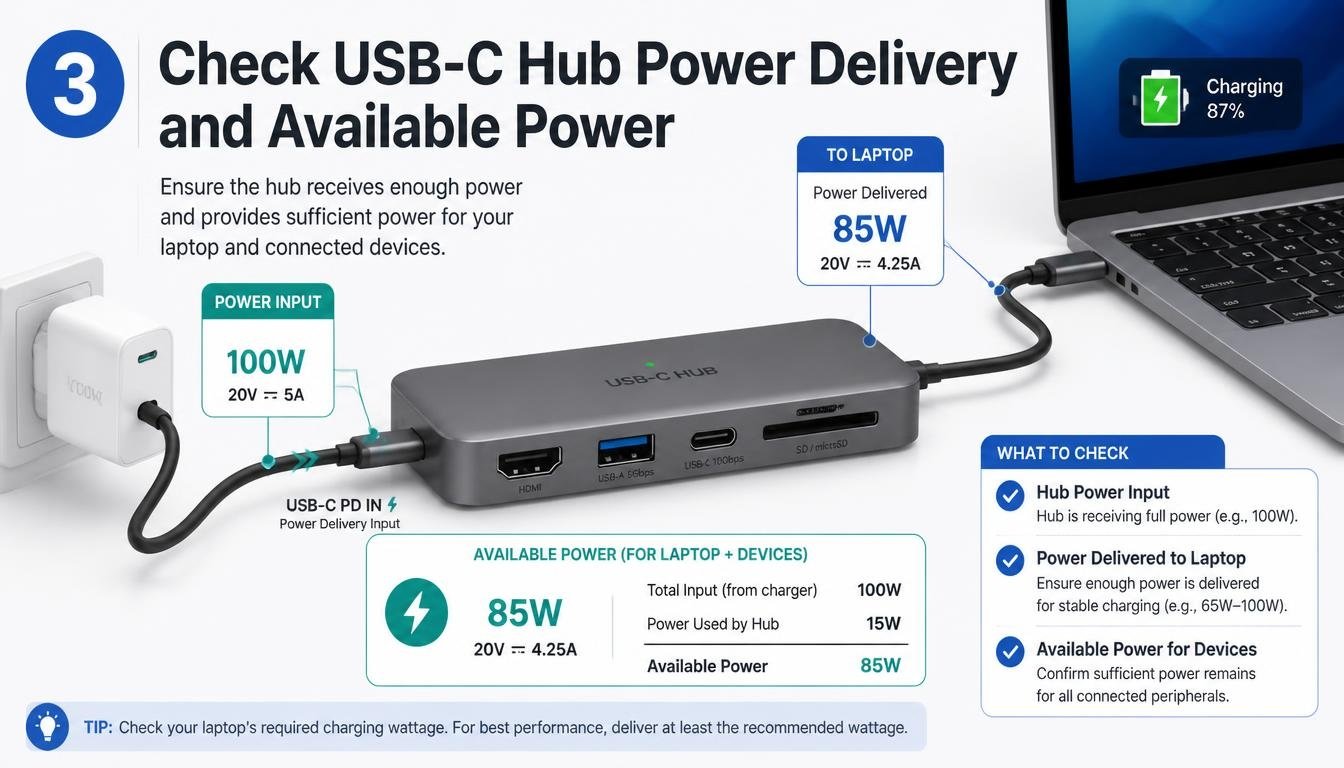
Power problems can also contribute to an unstable external display connection.
Many multi-port USB-C hubs support Power Delivery (PD), which allows a compatible charger to supply power to the laptop through the hub. Some models also rely on external power to operate several connected peripherals reliably.
Although HDMI video transmission doesn’t always require a separate power adapter, an overloaded or poorly powered setup can create connection instability.
Imagine using your hub for an external monitor, SSD, wireless receiver, keyboard, mouse, and memory card reader simultaneously. That’s quite a collection of devices hanging off one small adapter!
How insufficient power can affect your setup
Depending on the laptop and hub design, insufficient power can cause:
- Random USB device disconnections.
- Unstable peripheral performance.
- Charging interruptions.
- Hub resets.
- Problems when several power-hungry devices are connected simultaneously.
Not every monitor detection issue is caused by power, but it’s worth checking when your display works inconsistently.
How to troubleshoot power delivery
Try the following:
- Connect your laptop’s compatible USB-C charger to the hub’s designated PD input.
- Confirm that the charger provides sufficient wattage for your laptop.
- Disconnect unnecessary peripherals, particularly bus-powered external drives.
- Restart the monitor and laptop after reconnecting the charger.
- Test the display with only the HDMI cable and USB-C hub connected.
One important detail: A hub’s advertised charging capacity isn’t necessarily the same as the power delivered to your laptop. Some energy is used by the hub itself, so check the manufacturer’s specifications for actual power pass-through.
For instance, a hub advertising 60W power pass-through may deliver less than 60W to the laptop under certain operating conditions.
If the monitor starts working after disconnecting several peripherals or connecting a compatible charger, you’ve found a useful clue.
4. Adjust Display Settings on Windows or macOS
Sometimes your laptop successfully establishes a connection with the USB-C hub, but the operating system doesn’t automatically configure the external display.
This can make it look like a hardware failure when the actual issue is simply display detection or configuration.
Fortunately, both Windows and macOS include built-in tools for managing external monitors.
Fix external monitor detection on Windows
If you’re experiencing a USB-C hub external monitor not working on Windows, start with the display settings.
Follow these instructions:
- Right-click anywhere on your desktop.
- Select Display settings.
- Scroll down to the Multiple displays section.
- Select Detect if the external monitor isn’t appearing.
- Check whether Windows recognizes the display.
- Choose Extend these displays or Duplicate these displays, depending on your preference.
You can also press Windows + P to open the projection menu.
The available options generally include:
- PC screen only.
- Second screen only.
For a larger workspace, Extend is usually the most useful option because it allows you to move applications between your laptop screen and external monitor.
Fix external monitor detection on macOS
MacBook users can check their display configuration through System Settings.
Here’s what to do:
- Open the Apple menu.
- Select System Settings.
- Choose Displays.
- Check whether the external monitor appears.
- If available, use the display arrangement options to configure your screens.
Depending on your macOS version, holding the Option key may reveal a Detect Displays option in the Displays settings.
If the monitor isn’t recognized, disconnect the hub, restart the MacBook, and reconnect everything.
Also check the supported external display count for your particular MacBook model. Not every MacBook supports the same number of independent external monitors.
What if the display appears but remains blank?
Check the selected resolution and refresh rate.
A monitor may fail to display an image if the laptop is attempting to use a resolution or refresh rate that the hub, cable, or monitor doesn’t support.
Start with a standard supported resolution and refresh rate, such as 1920 × 1080 at 60Hz, if available.
Once the connection becomes stable, you can experiment with higher settings.
5. Update Graphics Drivers, Operating System, and Hub Firmware
Outdated software can occasionally interfere with external display detection.
Your laptop’s graphics driver, USB-C controller, Thunderbolt software, and operating system all play a role in managing external display connections.
If one of these components has a compatibility problem, your USB-C hub may connect successfully without transmitting a usable display signal.
This is particularly worth investigating if the monitor stopped working after a Windows update, graphics driver change, or operating system upgrade.
Update graphics drivers on Windows
For Windows laptops, try these steps:
- Right-click the Start button.
- Open Device Manager.
- Expand Display adapters.
- Identify your graphics hardware.
- Check Windows Update or your laptop manufacturer’s support website for an appropriate driver update.
Depending on your hardware, the graphics adapter may be from Intel, AMD, or NVIDIA.
For laptops with manufacturer-customized graphics drivers, the laptop manufacturer’s recommended version is often the safest starting point.
You can also check the Universal Serial Bus controllers and System devices categories for relevant USB-C or Thunderbolt controller updates.
Avoid downloading random drivers from unfamiliar websites. An incorrect driver can create more problems than it solves.
Update macOS
MacBook users should check for available macOS updates.
Open:
System Settings → General → Software Update.
Install compatible updates and restart the computer.
Also check whether your USB-C hub manufacturer provides firmware updates or compatibility instructions for your specific model.
Why restarting matters
After updating drivers or firmware, restart the laptop and reconnect the hub.
This gives the operating system an opportunity to initialize the USB-C controller and graphics hardware properly.
If the display begins working afterward, the problem may have been related to software compatibility rather than a defective adapter.
6. Test the Hub’s Compatibility and Consider a Better Docking Solution
If you’ve checked the USB-C port, HDMI cable, power delivery, display settings, and software updates without success, the hub itself deserves closer attention.
Not every multi-port adapter supports every laptop or display configuration. Two hubs can have nearly identical appearances but very different internal hardware and video capabilities.
Some inexpensive adapters support basic HDMI output, while more advanced models offer higher resolutions, multiple display outputs, or additional connectivity features.
What to look for in a compatible USB-C hub
Before purchasing a replacement, check these specifications:
- DisplayPort Alt Mode: Make sure the hub supports the video output technology required by your laptop.
- HDMI resolution: Check whether it supports your monitor’s resolution and refresh rate.
- Power Delivery: Look for suitable USB-C PD pass-through if you want to charge your laptop while using the hub.
- USB 3.0 ports: Useful for connecting keyboards, mice, external drives, and other accessories.
- SD and Micro SD readers: Helpful if you regularly transfer photographs or other files.
- Laptop compatibility: Confirm support for your exact operating system and laptop model.
- Multiple display support: Check whether the hub supports independent displays or only mirrored output.
Is the LENTION CB-C37-1M worth considering?
If you’re shopping for a multi-port adapter, the LENTION CB-C37-1M is one model worth examining.
Its advertised feature set includes an 8-in-1 USB-C hub design, 4K HDMI output, 60W power pass-through, USB 3.0 connectivity, and SD and Micro SD card readers.
The 3.3FT cable is another practical feature, particularly if you prefer keeping the hub slightly away from your laptop instead of having it hang directly from the USB-C port.
However, specifications alone don’t guarantee compatibility. Before purchasing, verify the exact HDMI resolution and refresh-rate support, power delivery requirements, and compatibility with your laptop.
A hub with 4K HDMI output will only deliver that experience when the laptop, cable, monitor, and hub all support the intended configuration.
USB-C hub vs docking station: Which should you choose?
A regular USB-C hub is generally suitable for everyday setups involving one external monitor, charging, and a handful of peripherals.
A docking station may be a better option if you regularly connect several monitors, multiple storage devices, wired networking, and other accessories.
The difference isn’t simply the number of ports. Video technology, bandwidth, supported display count, and laptop compatibility matter much more.
For example, some docking stations use DisplayLink technology to provide additional display outputs through a software-based solution. These are different from ordinary DisplayPort Alt Mode hubs and may require installing specific drivers.
If you need two or more external displays, check the laptop’s graphics capabilities and the dock’s supported display configuration before buying.
Why Is My USB-C Hub Not Detecting My Monitor? Common Questions
Even after trying the six fixes, a few questions may remain. Here are some straightforward answers to the issues people commonly encounter.
Can a USB-C hub support an external monitor?
Yes. A compatible USB-C hub can connect a laptop to an external monitor through HDMI or DisplayPort.
However, the laptop’s USB-C port must support video output, and the hub must be compatible with the laptop and monitor.
A USB-C port that only supports data transfer and charging won’t necessarily work with a standard HDMI hub.
Why does my USB-C hub HDMI port show no signal?
A No Signal message usually means the monitor isn’t receiving a usable video signal.
Possible causes include:
- Unsupported USB-C video output.
- DisplayPort Alt Mode incompatibility.
- A loose or faulty HDMI cable.
- Incorrect monitor input selection.
- Unsupported resolution or refresh rate.
- A defective USB-C hub.
Start by checking the laptop’s video output capabilities and testing another HDMI cable.
How do I know if my USB-C port supports video output?
Check your laptop manufacturer’s technical specifications.
Look for DisplayPort Alt Mode, Thunderbolt, USB4 display support, or explicit USB-C video output information.
Remember that not every USB-C connector on a laptop necessarily offers the same capabilities.
Does USB-C need DisplayPort Alt Mode for monitors?
A standard USB-C-to-HDMI hub generally relies on DisplayPort Alt Mode or another explicitly supported video transport technology.
However, some DisplayLink-based adapters work differently and use software to transmit display information over a USB data connection.
Therefore, check the technology used by your particular adapter instead of assuming every USB-C display device works the same way.
Can insufficient power stop a USB-C hub from displaying?
It can contribute to unstable operation, depending on the hub’s design and connected devices.
A compatible charger connected to the hub’s PD input can help provide stable power when several peripherals are attached.
Still, power delivery cannot compensate for a laptop USB-C port that lacks video output support.
How many monitors can one USB-C hub support?
That depends on the laptop’s graphics hardware, USB-C video capabilities, hub design, and display technology.
Some basic hubs support one external monitor, while certain advanced docks support multiple displays.
Even when a hub has two HDMI ports, that doesn’t automatically mean it can run two independent external screens.
Check the manufacturer’s specifications carefully.
Should I replace my USB-C hub if the monitor isn’t detected?
Not immediately.
First, test another HDMI cable, another monitor, another compatible USB-C port, and the laptop’s display settings.
If the hub fails with multiple compatible displays and laptops, while other adapters work correctly, replacing it becomes a more reasonable option.
How to Prevent USB-C Hub Monitor Detection Problems in the Future
Once your monitor is working again, a few small habits can help prevent similar connection problems.
You don’t need to become a hardware expert or spend your weekends reading USB specifications. Just pay attention to how your equipment is connected.
- Use a USB-C port that explicitly supports video output.
- Purchase hubs with clearly documented HDMI and DisplayPort compatibility.
- Avoid unnecessarily stretching or bending HDMI and USB-C cables.
- Use a suitable charger when your hub supports Power Delivery.
- Keep laptop graphics drivers and operating systems reasonably up to date.
- Disconnect external storage devices safely.
- Check supported resolution and refresh-rate specifications before changing display settings.
- Avoid connecting too many power-hungry peripherals to an unpowered hub.
One additional suggestion: Keep track of which USB-C port works with your external monitor. If your laptop has multiple connectors, remembering the correct one can save quite a bit of troubleshooting next time.
Frequently ASked Questions
USB-C to displayport not working
If USB-C to DisplayPort is not working, check whether your USB-C port supports DisplayPort Alt Mode. Also, make sure the DisplayPort cable is properly connected and your monitor is set to the correct input source.
USB-C monitor not detected
If your USB-C monitor is not detected, reconnect the cable and restart your monitor and laptop. Also, check your display settings to make sure the external monitor is recognized by your system.
USB-C monitor not detected
A USB-C monitor may not be detected because of an incompatible cable, unsupported USB-C port, or outdated graphics drivers. Try another USB-C cable that supports video transmission and update your display drivers.
USB-C displayport not working
USB-C DisplayPort problems can occur due to connection issues, compatibility limitations, or incorrect display settings. Verify DisplayPort Alt Mode support and try reconnecting the adapter or using another DisplayPort cable.
USB-C monitor not detected windows 11
If Windows 11 does not detect your USB-C monitor, go to Settings → System → Display → Multiple displays → Detect. If the monitor is still missing, update your graphics drivers and check whether your USB-C port supports video output.
Read More: https://techbiton.com/usb-c-hub-ethernet-not-working/
Final Thoughts: Get Your External Monitor Working Again
Dealing with a USB-C hub not detecting monitor issue can be incredibly irritating, especially when you’re trying to finish work, attend an online meeting, or enjoy the comfort of a larger display.
But the problem doesn’t always mean your hardware is broken.
In many situations, the solution is surprisingly simple: checking DisplayPort Alt Mode support, reconnecting an HDMI cable, supplying sufficient power, adjusting display settings, or updating a graphics driver.
Start with the easiest checks and work through the six fixes one at a time. Avoid purchasing a replacement hub until you’ve established whether the issue comes from your laptop, monitor, cable, or adapter.
And remember, a USB-C connector doesn’t automatically guarantee video compatibility. Understanding that small distinction can save you money, frustration, and a fair amount of unnecessary troubleshooting.
A properly matched USB-C hub, compatible laptop, and reliable external monitor should make your workspace feel effortless rather than complicated. Hopefully, your next connection will be the satisfying one where you plug everything in, turn on the monitor, and the display appears exactly when you expect it to.
Have you experienced a USB-C hub HDMI connection problem? Share your laptop model, hub type, and the fix that worked in the comments.
Your experience might help someone else get their external monitor working without buying unnecessary new equipment.