
There are few things more frustrating than plugging your MacBook Pro into a charger or connecting an external device, only to discover that absolutely nothing happens.
The charging indicator doesn’t appear, your external hard drive refuses to show up, and the monitor you’ve connected remains stubbornly black.
It’s one of those little technology problems that can turn an otherwise productive day upside down.
If your MacBook Pro USB-C ports are not responding, don’t immediately assume that your laptop needs an expensive hardware repair.
Sometimes, the culprit is something surprisingly simple, such as dust trapped inside a connector, a damaged charging cable, an outdated version of macOS, or a temporary software glitch.
The good news? Most USB-C connection problems can be investigated at home with a few careful troubleshooting steps.
You don’t need to be a computer technician to identify many common causes, though knowing when to stop experimenting and seek professional help is equally important.
In this guide, we’ll explore the common symptoms, explain how to diagnose malfunctioning ports, and walk through practical solutions that can help restore normal charging and connectivity.
We’ll also discuss preventive habits and accessories that may save you from dealing with the same headache again.
Understanding Why MacBook Pro USB-C Ports Stop Responding
Before attempting a repair, it’s worth understanding what might be happening behind the scenes. USB-C ports are designed to handle several functions through a single connector, including charging, data transfer, and video output. That’s convenient, but it also means that different problems can produce similar symptoms.
For instance, your MacBook Pro might charge normally while refusing to recognize an external SSD. Alternatively, a USB-C monitor may work perfectly, while the same port fails to deliver power to another accessory.
Some common causes include:
- Dust and debris: Small particles can accumulate inside USB-C connectors and interfere with electrical contact.
- Damaged cables: A cable with worn internal wiring may prevent charging or reliable data transfer.
- Incompatible accessories: Certain hubs, adapters, and peripherals may not work correctly with particular MacBook models.
- Software conflicts: Temporary macOS glitches can interfere with device recognition and connectivity.
- Outdated macOS: Older system software may have compatibility problems with certain accessories.
- Physical port damage: Bent connectors, corrosion, or loose internal connections can cause persistent failures.
- Power delivery problems: An unsuitable charger or damaged power adapter may prevent proper charging.
Identifying the likely cause first makes troubleshooting much easier. Otherwise, you might spend an afternoon changing software settings when the actual problem is simply a faulty cable.
Signs Your MacBook Pro USB-C Port Is Malfunctioning
A malfunctioning USB-C port doesn’t always stop working completely. Sometimes, it gives you little warning signs before becoming entirely unresponsive.
Here are some symptoms worth paying attention to.
MacBook Pro Doesn’t Charge Properly
One of the most obvious warning signs is when your MacBook Pro refuses to charge after connecting a USB-C power adapter.
You might notice that the battery percentage stays the same, decreases despite being plugged in, or charges unusually slowly. In some cases, charging starts and stops whenever the cable moves slightly.
Try another compatible charger and cable before assuming the port itself is damaged. The problem may have nothing to do with your MacBook.
External Devices Are Not Recognized
Another common symptom involves external storage devices, USB flash drives, and other peripherals.
You connect an external SSD, wait for it to appear in Finder, and… nothing. Sometimes macOS displays a device recognition warning, while other times the accessory simply remains invisible.
If multiple known-working devices fail through the same port, the connection deserves closer inspection.
External Monitors Display a Blank Screen
USB-C and Thunderbolt ports can support external displays, depending on the MacBook Pro model and its specifications.
When a port malfunctions, your external monitor might display a black screen, repeatedly disconnect, or fail to detect the laptop altogether.
Remember that not every USB-C cable supports video output. A charging-only cable may be perfectly functional but unsuitable for connecting a display.
Peripherals Disconnect Randomly
Imagine typing on an external keyboard when it suddenly disconnects, or transferring important files when your external drive disappears.
Intermittent connections are particularly annoying because they make the problem difficult to reproduce.
Such behavior may indicate a damaged cable, unstable power delivery, accessory compatibility issues, or a failing connector.
How to Diagnose MacBook Pro USB-C Ports Not Responding
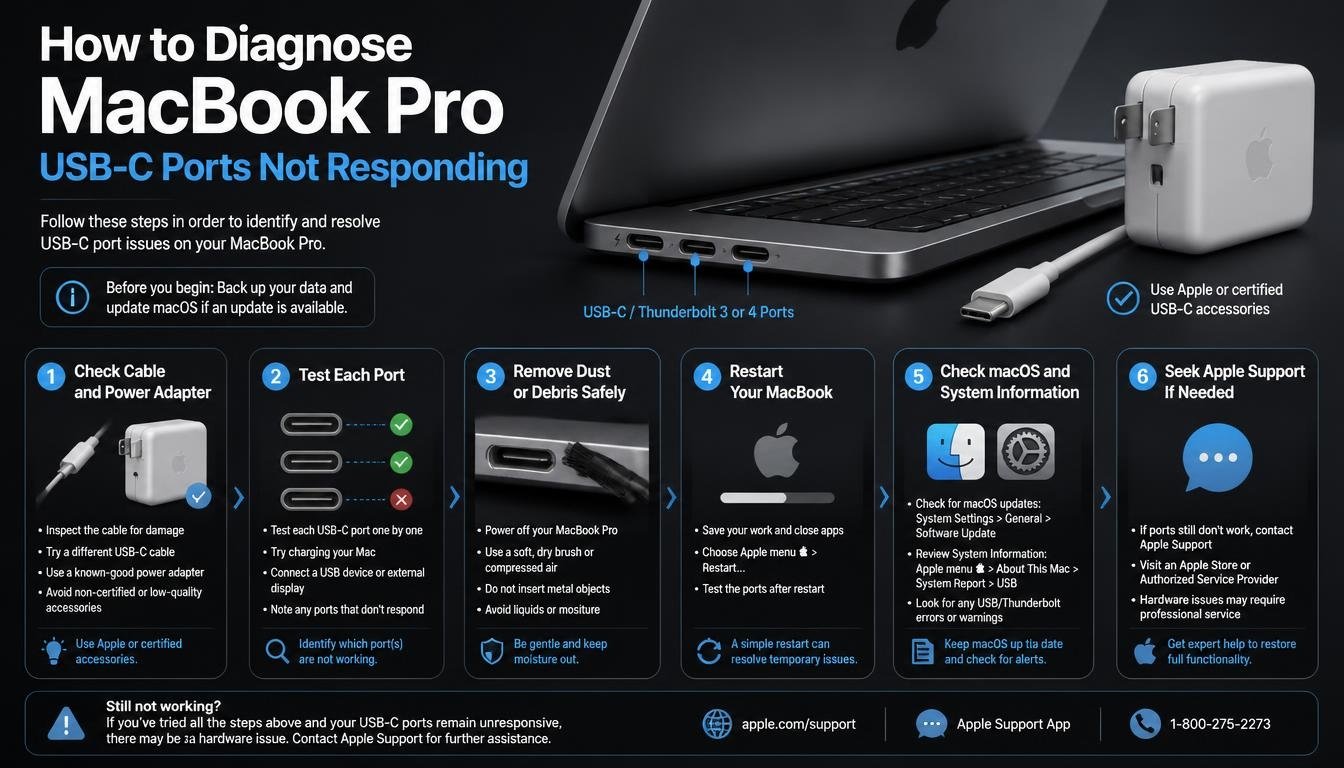
Before trying complicated fixes, spend a few minutes identifying exactly what isn’t working.
A little detective work can prevent unnecessary troubleshooting and help you avoid damaging an otherwise healthy port.
Test Every USB-C Port Individually
Start by checking each USB-C or Thunderbolt port on your MacBook Pro.
Connect the same charger or accessory to one port at a time. Observe whether the device works, charges, or remains disconnected.
If one port works while another doesn’t, the problem may be isolated to a particular connector.
However, if every port behaves strangely, consider checking the charger, cable, connected accessory, and macOS before concluding that multiple ports have failed simultaneously.
Try a Different USB-C Cable
A cable can look perfectly fine from the outside while having damaged internal connections.
Borrow a reliable USB-C cable or use another cable that supports the function you’re testing. For charging, make sure it supports the necessary power rating. For external displays, check that it supports video transmission.
If the device starts working immediately, you’ve probably found the problem.
Test Another Device
Connect a different accessory to the same port.
For example, if your external hard drive isn’t recognized, try connecting a USB-C flash drive or another compatible peripheral.
This helps establish whether the problem comes from the MacBook, the original accessory, or the cable connecting them.
Check System Information
macOS includes a useful utility called System Information that can help you inspect connected hardware.
To access it:
- Hold down the Option key.
- Click the Apple menu.
- Select System Information.
- Look for USB or Thunderbolt in the sidebar, depending on your MacBook model and connected device.
Check whether the connected accessory appears in the hardware information.
If the device isn’t listed, it doesn’t automatically mean the port is broken, but it provides another useful clue when diagnosing the issue.
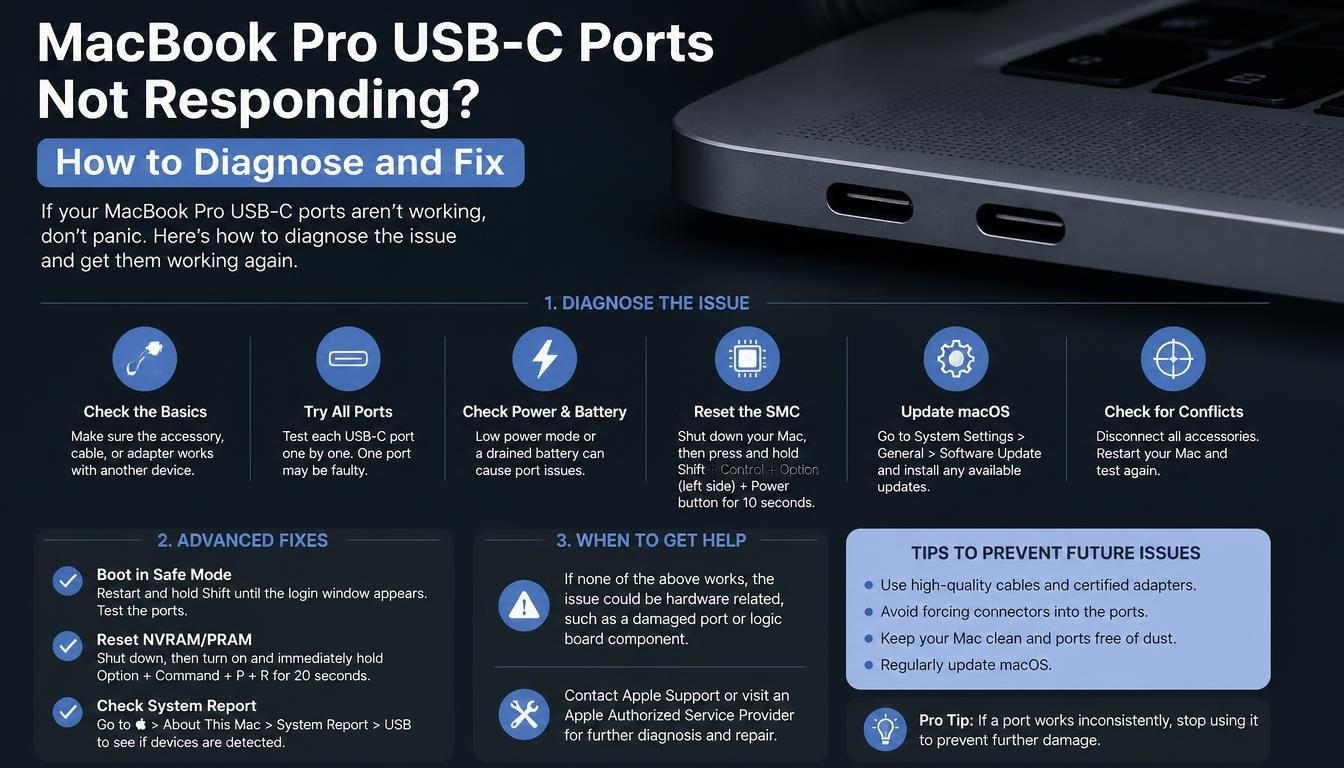
How to Fix MacBook Pro USB-C Ports Not Responding
Once you’ve identified the symptoms, it’s time to try some practical solutions. Start with the simpler methods before moving toward more advanced troubleshooting.
1. Inspect and Clean the USB-C Ports Carefully
Dust, lint, and small debris can accumulate inside USB-C ports over time, particularly if you frequently carry your MacBook Pro in a backpack or laptop sleeve.
Even a tiny particle can interfere with the connector’s seating.
First, shut down your MacBook Pro and disconnect the power adapter and accessories. Examine the port under good lighting.
If you notice loose dust, use a clean, soft, non-metallic brush to gently remove it. Avoid pushing debris deeper into the connector.
A few important precautions:
- Never insert needles, pins, or metal objects into the port.
- Don’t scrape the internal contacts.
- Avoid spraying liquid cleaners into the connector.
- Don’t force a cable into a port that feels obstructed.
- If you notice corrosion, bent contacts, or physical damage, arrange a professional inspection.
Compressed air should also be used cautiously, following the manufacturer’s guidance for the equipment. Aggressive cleaning can do more harm than good.
2. Check Your USB-C Cables and Accessories
A surprising number of USB-C problems have nothing to do with the MacBook itself.
Cheap or damaged cables can cause inconsistent charging, interrupted data transfers, and unreliable peripheral connections.
Choose a cable designed for the particular job you’re performing. For example, a cable supporting 100W USB-C Power Delivery (PD) may be suitable for charging compatible MacBook Pro models, while a display connection may require additional video capabilities.
One option worth considering is the LENTION USB-C to USB-C Fast Charging Cable (CB-CCT).
Its advertised features include:
- Support for up to 100W PD fast charging (20V/5A).
- Compatibility with MacBook Pro, iPad, Android phones, and other USB-C devices.
- A nylon-braided exterior designed for everyday durability.
- A built-in PD 3.0 chip for compatible charging applications.
- A manufacturer-advertised durability rating of more than 10,000 bends.
The cable may be a useful replacement if your existing charging cable is worn, unreliable, or unable to provide sufficient power.
Just remember that USB-C describes the connector, not every capability of the cable. Confirm that the specific cable supports your required charging, data, and display functions before purchasing.
3. Restart Your MacBook Pro
It sounds almost too simple, doesn’t it?
Yet restarting your MacBook Pro can resolve temporary software conflicts that interfere with USB-C connectivity.
Sometimes, background processes or system-level glitches prevent connected devices from being recognized properly. A restart gives macOS an opportunity to reload these processes.
Here’s what to do:
- Save your open documents and close unnecessary applications.
- Disconnect external accessories.
- Open the Apple menu.
- Select Restart.
- Wait for macOS to load completely.
- Reconnect your charger or USB-C accessory.
Test the affected port again.
If it starts working normally, the issue may have been temporary rather than a physical hardware failure.
4. Update macOS to the Latest Compatible Version
Running outdated system software can sometimes cause compatibility issues with external devices.
Apple periodically releases macOS updates containing security improvements, bug fixes, and hardware compatibility enhancements.
To check for updates:
- Open System Settings.
- Select General.
- Click Software Update.
- Allow your Mac to check for available updates.
- Install an appropriate update if one is available.
Make sure your MacBook has sufficient battery power or is connected to a reliable charger before beginning a major update.
After installation, restart the computer and test the USB-C connections again.
It’s also worth checking whether the manufacturer of your external accessory provides a compatible firmware update or updated software.
5. Check Your Charger and Power Delivery Settings
If charging is the main problem, investigate the power supply before attempting advanced system resets.
A MacBook Pro may fail to charge properly when connected to an underpowered adapter, unsuitable cable, or damaged power source.
Try these checks:
- Use a compatible Apple power adapter or a reputable USB-C PD charger.
- Confirm that the charger’s wattage is appropriate for your MacBook Pro.
- Test another wall outlet.
- Disconnect unnecessary USB-C accessories.
- Inspect the charging cable for visible damage.
- Allow the MacBook a few minutes to respond after connecting the charger.
Some MacBook Pro models support different charging behavior depending on which port is used. Check your particular model’s specifications if you’re unsure.
6. Reset the SMC on Intel-Based MacBook Pro Models
The System Management Controller (SMC) manages various hardware-related functions on Intel-based Macs, including power management and charging behavior.
If you’re using an Intel MacBook Pro and experiencing persistent charging or power-related problems, an SMC reset may help.
The reset procedure depends on your MacBook model.
For Intel MacBook Pro models with the T2 Security Chip, the general procedure is:
- Shut down your Mac.
- Press and hold Control, Option, and the right Shift key for seven seconds.
- Continue holding those keys and also press and hold the power button for another seven seconds.
- Release all keys.
- Wait a few seconds.
- Turn your MacBook on normally.
For older Intel MacBook Pro models without the T2 chip, the procedure may be different.
Check Apple’s official instructions for your exact model before proceeding.
Important: Apple Silicon MacBook Pro models do not require the traditional manual SMC reset. Their power-management functions are handled differently.
7. Refresh NVRAM on Supported Intel Macs
NVRAM, or nonvolatile random-access memory, stores certain system settings that remain available after your Mac shuts down.
On supported Intel Mac models, resetting NVRAM can sometimes help resolve unusual startup, display, or system-setting problems.
To perform the reset:
- Shut down your MacBook Pro.
- Turn it on and immediately hold Option, Command, P, and R.
- Continue holding the keys for approximately 20 seconds.
- Release the keys and allow the Mac to start.
The exact behavior can vary depending on your Mac model.
On Apple Silicon Macs, there is no equivalent manual NVRAM key combination. The system manages these settings differently.
It’s worth noting that an NVRAM reset isn’t a guaranteed USB-C repair. Try it only when the symptoms suggest a relevant system-setting problem.
8. Disconnect USB-C Hubs and Other Accessories
USB-C hubs are convenient, especially when your MacBook Pro has a limited number of physical connections.
However, an overloaded or malfunctioning hub can create connection problems.
Disconnect all accessories, including:
- USB-C docking stations.
- External monitors.
- USB flash drives.
- External hard drives.
- Audio interfaces.
- USB adapters.
Connect just one known-working accessory directly to the MacBook.
If the connection works without the hub, investigate the hub, its power supply, firmware, and cable compatibility.
This simple test can save you from blaming the MacBook for a problem caused by an inexpensive adapter.
What to Do If Your MacBook Pro USB-C Port Still Doesn’t Work

Sometimes, basic troubleshooting simply doesn’t solve the problem. That’s when it’s important to consider the possibility of hardware damage.
A USB-C port may require professional attention if:
- The connector feels loose when inserting a cable.
- The port has visible corrosion or bent contacts.
- Charging fails with multiple known-working chargers.
- Several compatible accessories fail on the same port.
- The MacBook shows signs of liquid exposure.
- The connection repeatedly fails even after software troubleshooting.
Avoid attempting to remove the internal connector or motherboard components yourself unless you’re properly trained and equipped.
USB-C ports are connected to delicate internal circuitry. An inexperienced repair attempt can turn a relatively straightforward issue into a much more expensive problem.
If your MacBook Pro is covered by warranty or AppleCare, check your service options before arranging an independent repair.
Tips to Prevent Future MacBook Pro USB-C Port Problems
Getting your ports working again is great, but preventing the same issue from returning is even better.
A few everyday habits can make a noticeable difference.
Keep Your USB-C Ports Clean
Dust and lint build up gradually, especially when a laptop spends much of its time inside a bag.
Keep your MacBook in a clean sleeve or protective case when travelling. Inspect its connectors occasionally and remove loose debris carefully.
There’s no need to clean them aggressively every week. Gentle maintenance is usually enough.
Invest in Reliable USB-C Cables
A poor-quality cable can create problems that are difficult to diagnose.
Choose accessories from reputable manufacturers and check their specifications before buying.
For charging, consider cables with suitable USB-C Power Delivery support. For faster file transfers, check the supported data-transfer speed. For external displays, verify video compatibility.
The LENTION 6.6ft USB-C to USB-C 100W Fast Charging Braided Cable is one option for users looking for a longer charging cable with a durable braided exterior.
Its advertised 100W capacity makes it worth considering for compatible charging setups, although the actual charging speed will depend on the MacBook, charger, and cable combination.
Avoid Bending or Pulling Cables
We all do it occasionally: pulling a cable out quickly, twisting it around the laptop, or allowing it to hang awkwardly from a desk.
Over time, these habits can weaken the cable and put unnecessary stress on the USB-C connector.
Hold the connector itself when disconnecting accessories. Avoid sharply bending cables near their ends, and give them enough room to move naturally.
Disconnect Accessories Properly
Before removing an external drive or storage device, eject it through Finder when appropriate.
This reduces the risk of interrupting an active data transfer and potentially damaging files.
Also, avoid repeatedly connecting and disconnecting accessories unnecessarily. A little care goes a long way.
Use Compatible Chargers and Accessories
Not every USB-C accessory is designed to work with every laptop.
Check compatibility, supported power ratings, charging standards, and display capabilities before purchasing.
A reputable accessory with clear specifications is generally a better investment than an unknown product with impressive-looking claims.
When Should You Seek Professional MacBook Pro Repair?
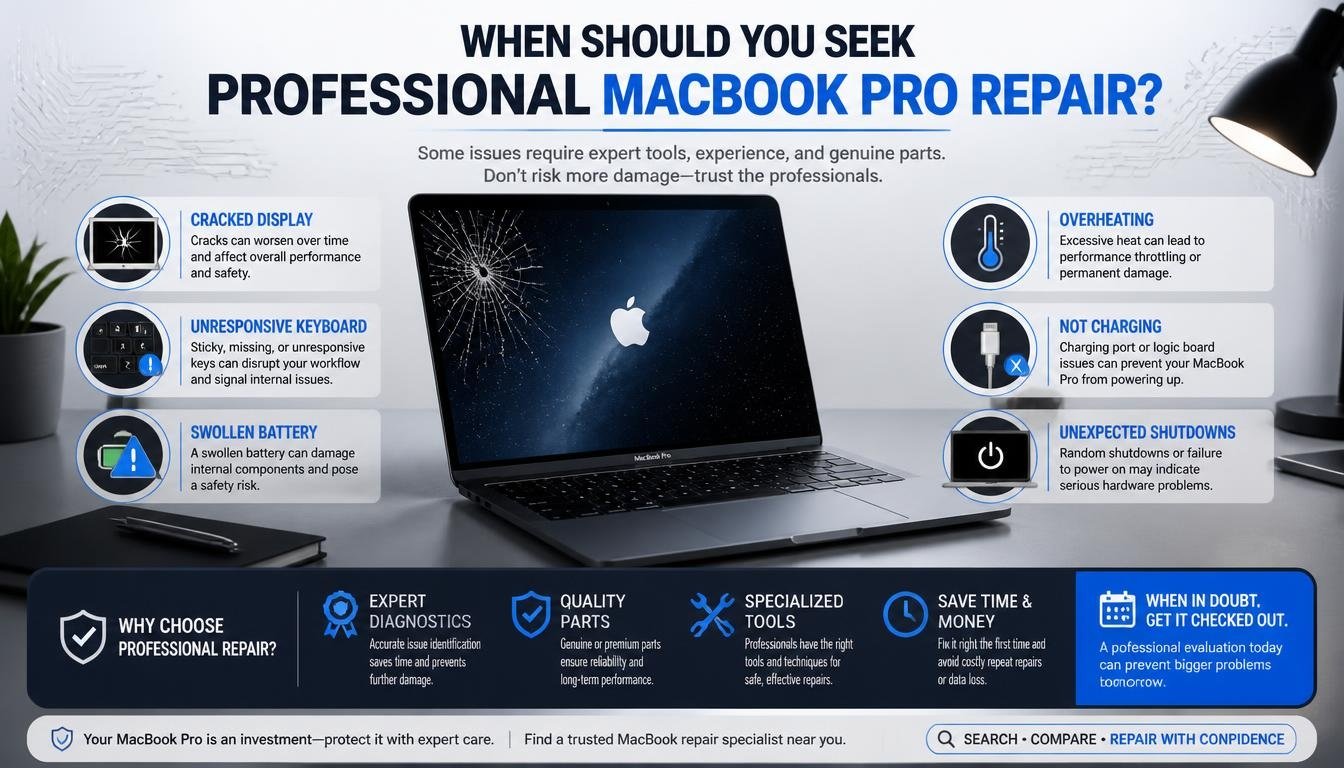
There comes a point when troubleshooting at home isn’t the sensible option anymore.
If a USB-C port remains unresponsive after testing different cables, chargers, and accessories, professional diagnosis may be necessary.
A qualified technician can inspect the connector, charging circuitry, internal connections, and relevant logic-board components.
They can also determine whether the problem involves an individual port or a wider hardware fault.
If you suspect liquid damage, stop using the affected port and disconnect power if it is safe to do so. Don’t continue testing chargers in the hope that the connection will suddenly recover.
Most importantly, back up your important files whenever possible before sending your MacBook for service. A hardware repair shouldn’t become an unexpected data-loss experience.
Frequently Asked Questions About MacBook Pro USB-C Ports
Why is my MacBook Pro USB-C port not charging?
The problem may involve a damaged cable, incompatible power adapter, dirty connector, software glitch, or faulty port. Try a different compatible charger and cable, inspect the connector, and restart your MacBook before considering professional repair.
Can a MacBook Pro USB-C port stop working because of dust?
Yes. Dust, lint, and other debris can prevent a cable from making proper contact with the connector. Shut down your MacBook and inspect the port carefully. Remove loose debris gently without inserting metal objects or applying excessive force.
How do I know if my USB-C port is physically damaged?
Signs include a loose connector, visible corrosion, bent contacts, inconsistent charging, or repeated connection failures with multiple known-working accessories. A technician can confirm whether the connector or internal circuitry needs repair.
Does restarting a MacBook Pro fix USB-C problems?
Sometimes. Restarting can resolve temporary macOS glitches and software conflicts that interfere with connected devices. However, it won’t repair a physically damaged connector or defective cable.
Should I reset the SMC to fix USB-C charging problems?
An SMC reset may help with certain power-related problems on supported Intel MacBook Pro models. Apple Silicon Macs manage these functions differently and don’t require the traditional manual SMC reset.
Can a 100W USB-C cable charge every MacBook Pro?
Not necessarily at the same speed. A 100W cable can supply up to its advertised supported capacity when used with compatible equipment, but charging speed depends on the MacBook model, charger wattage, and cable specifications.
Macbook pro usb c port not working
If your MacBook Pro USB-C port is not working, check for dust, debris, damaged connectors, or faulty cables. Restart your Mac and update macOS to resolve potential software or connectivity issues.
Macbook usb ports not working
When your MacBook USB ports are not working, disconnect all accessories and test each port with a different compatible USB-C cable or device. Also, inspect the ports for physical damage or dirt that may interrupt the connection.
USB-C port not working macbook pro
A USB-C port not working on MacBook Pro may result from incompatible accessories, cable damage, or temporary system errors. Try another certified USB-C cable, restart your MacBook, and install the latest macOS updates.
Macbook port not working
If your MacBook port is not working, check whether the connected device and cable are functioning correctly. Cleaning the port carefully and testing another accessory can help identify the cause.
Macbook pro usb not working
When your MacBook Pro USB is not working, external drives, keyboards, monitors, and charging accessories may fail to connect properly. Restart your Mac, check cable compatibility, and consider running Apple Diagnostics if the problem continues.
Read More: https://techbiton.com/usb-c-to-hdmi-not-working/
Final Thoughts: Get Your MacBook Pro’s USB-C Ports Working Again
When your MacBook Pro USB-C ports suddenly stop responding, it’s easy to assume the worst. After all, these small connectors handle so much of your everyday computing experience, from charging and file transfers to external displays and essential accessories.
But a malfunctioning port doesn’t automatically mean an expensive repair is waiting around the corner.
Start by inspecting the connectors, testing different cables, disconnecting unnecessary accessories, and restarting your MacBook. If the problem continues, check for macOS updates and consider the appropriate troubleshooting steps for your particular Mac model.
Choosing reliable accessories also matters. A well-made USB-C cable with suitable PD fast charging, dependable data-transfer support, and durable construction can help reduce cable-related connection problems.
The LENTION USB-C to USB-C Fast Charging Cable is one possible upgrade if your existing cable is showing signs of wear or failing to deliver consistent performance. Check its current specifications and pricing through the manufacturer’s official store before purchasing.
Ultimately, a little patience and systematic troubleshooting can make a big difference. Treat your MacBook’s ports with care, use compatible accessories, and don’t hesitate to seek professional help when physical damage is suspected.
Your MacBook Pro should make everyday work easier, not leave you wrestling with a stubborn charging cable. With the right checks and a sensible approach, you can often get back to enjoying a smoother, more reliable connection without unnecessary stress.