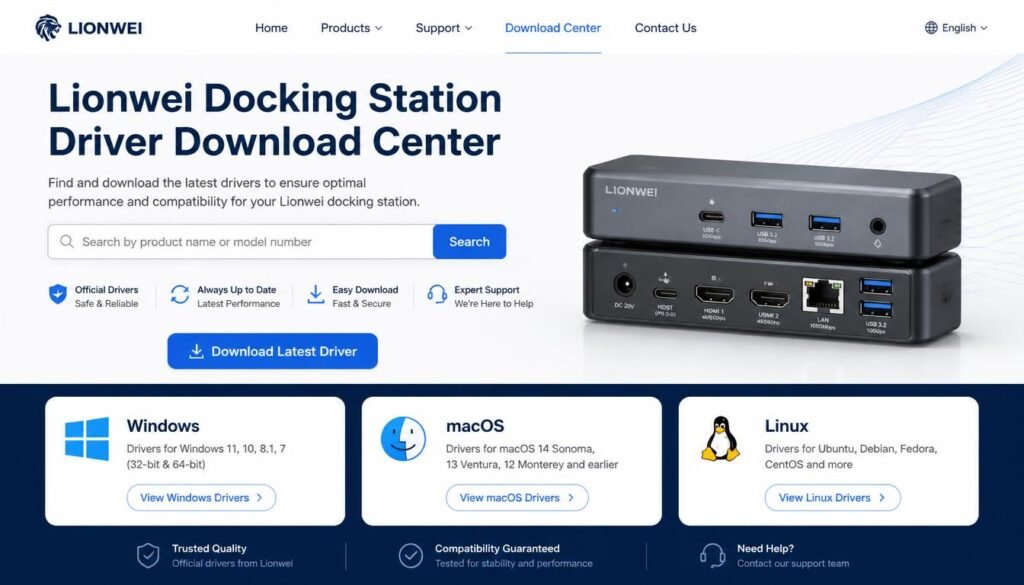

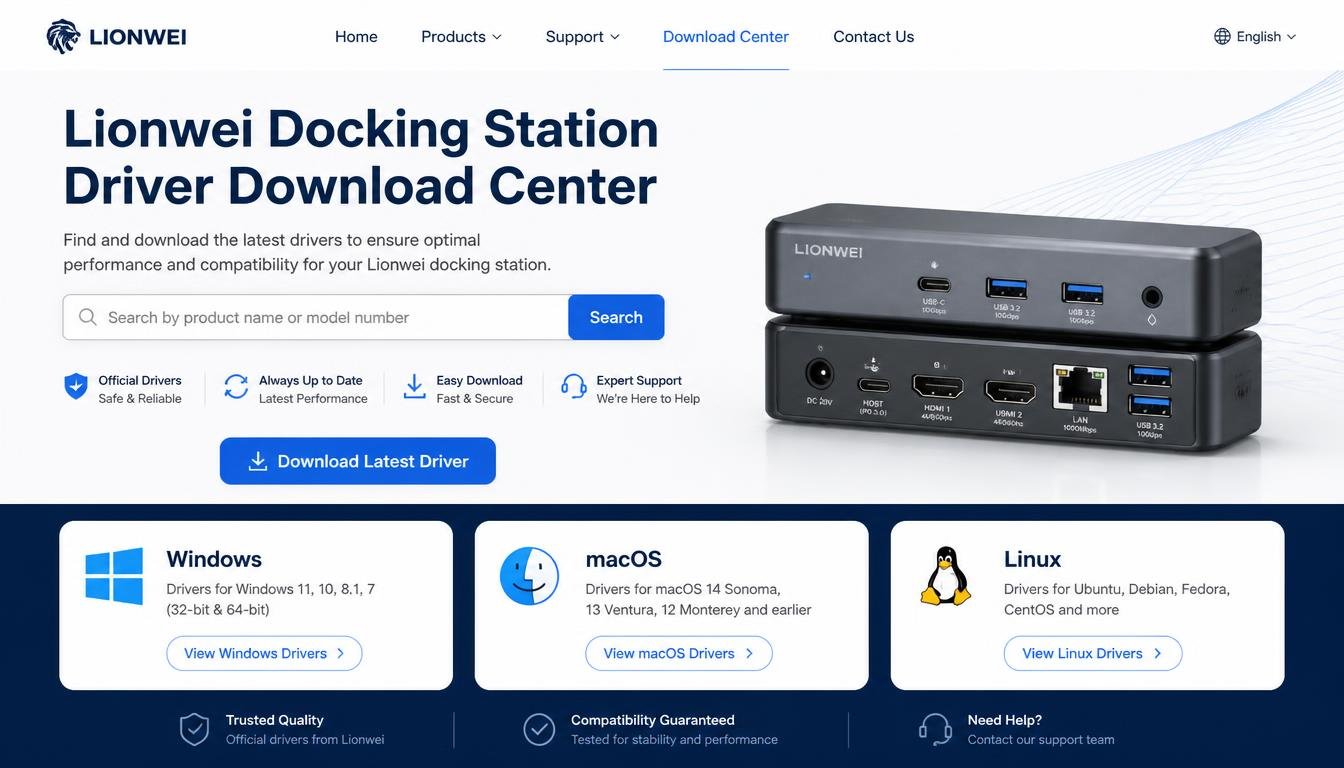
A docking station can make a desk feel wonderfully organised, turning a laptop into the centre of a workspace with monitors, keyboards, USB accessories, and other useful connections.
But when a monitor stays dark or a USB device refuses to appear, that tidy setup can suddenly become a little frustrating.
Often, the first thing worth checking is whether the correct Lionwei docking station driver is installed and compatible with the computer.
Finding the right driver is not simply a matter of downloading the first file that appears in a search result.
Different docking station models, operating systems, and hardware components may require different software packages.
A file intended for an older version of macOS, for example, may not be suitable for a modern Mac, even when its name looks almost identical.
This guide explores the Lionwei docking station driver download process, including the HU404GE SWI Driver, CE45 Mac MST Display Driver, and CB-UC-USB2.0-HUB driver identifiers.
It also explains operating system compatibility, installation precautions, and practical troubleshooting steps to help users make informed decisions before installing anything.
Understanding the Lionwei Docking Station Driver
A docking station connects multiple peripherals to a computer through a single connection or a small collection of ports.
Depending on its design, it may support USB accessories, wired networking, external displays, audio devices, or additional connectivity options.
The Lionwei docking station driver is a broad search term rather than the name of one universal software package.
The correct download depends on the specific dock, the hardware components it contains, and the computer’s operating system.
Some devices work through drivers already included in Windows, macOS, or Linux. Others require a separate driver for particular functions, especially certain external-display technologies or specialised USB components.
Before downloading a file, identify the exact model printed on the docking station, its packaging, or its product documentation. This small step can save a surprising amount of time later.
Why the Correct Driver Matters
A compatible driver allows the operating system to communicate with supported hardware. Without the necessary software, a feature might not work as expected, even though the docking station itself is connected properly.
Common symptoms include:
- An external monitor that is not detected.
- USB peripherals that connect intermittently or fail to appear.
- A device listed as unknown in Windows Device Manager.
- Display output that works differently from the manufacturer’s specifications.
- A docking station feature that stops working after an operating system update.
These symptoms do not automatically mean a driver is missing. A faulty cable, insufficient power, an unsupported display configuration, or a damaged port can cause similar problems. Checking the connection before reinstalling software is often the more sensible first move.
Lionwei Docking Station Driver Download: Finding the Right File
The safest approach to a Lionwei docking station driver download begins with identifying the hardware and locating a trustworthy source.
Ideally, use the manufacturer’s official support page, a verified product-support link, or documentation supplied with the device.
Search results can contain old software packages, third-party driver collections, and pages that use similar product names without providing reliable compatibility information.
A download button by itself is not proof that a file is genuine or appropriate for your computer.
Look for the model number, driver description, supported operating systems, publication date, and installation instructions. If these details are missing, pause before downloading.
What to Check Before Downloading
- Exact model: Confirm that the driver refers to your docking station or its specific hardware component.
- Operating system: Check whether the package supports Windows, macOS, or Linux as appropriate.
- System architecture: For older Windows releases, verify whether the file is intended for 32-bit or 64-bit systems.
- Driver purpose: Establish whether the package supports a USB hub, display output, or another component.
- Source authenticity: Prefer official manufacturer sources over unfamiliar download portals.
- File details: Compare the filename, file size, date, and version information with the available documentation.
If the support page lists several files, do not assume that the newest date makes one suitable for every product. A more recent package for another model may be less appropriate than an older, model-specific driver.
HU404GE SWI Driver: Compatibility and Download Considerations
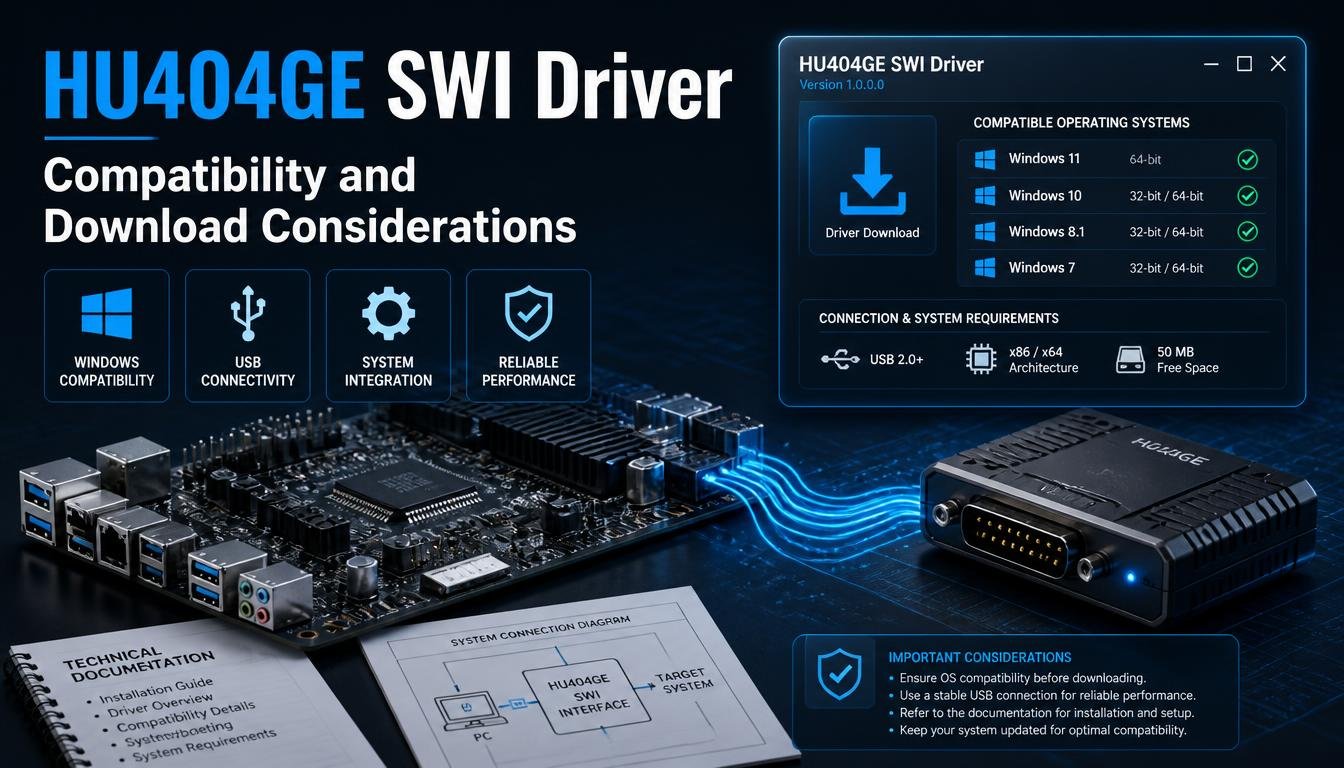
The HU404GE SWI Driver is one of the driver identifiers associated with the search terms covered in this guide.
The supplied compatibility information mentions Windows XP, Windows Vista, Windows 7, Windows 8.x, and Windows 10, with separate 32-bit and 64-bit entries for several Windows versions.
For macOS, the supplied information distinguishes between an HU404GE SWI package associated with macOS 11.3 and later and a legacy package associated with macOS 10.9 through 10.15.
These details are useful starting points, but they should be treated as reported compatibility information rather than independently verified support guarantees.
The exact model, package contents, and official installation notes should be checked before proceeding.
HU404GE SWI Driver for Windows
Users searching for an HU404GE driver for Windows 10, Windows 8, or Windows 7 should first determine whether the package explicitly supports their version of Windows.
Older operating systems may require legacy software, while newer versions can have different driver-signing and security requirements. A driver that was available for Windows XP or Vista should not be presumed compatible with a current Windows installation.
To identify the Windows architecture:
- Open Settings and select System, then About, where available.
- Find the system type or device specifications section.
- Check whether the operating system is 32-bit or 64-bit.
- Match that information against the driver documentation.
On older Windows releases, the menu names may differ, so the system information utility or Control Panel may be more convenient.
HU404GE SWI Driver for macOS
Mac users should check the precise macOS version installed on their computer. Apple menu → About This Mac provides the version information on many releases, although the exact wording can vary.
The listed distinction between macOS 10.9–10.15 and macOS 11.3 and above is particularly important. A legacy installer may not work on a newer system, and a package described for newer releases should not be assumed to support older versions.
Before installing the HU404GE SWI driver, verify that the package comes from a trustworthy source and that its documentation specifically covers the intended hardware and macOS release.
If there is no confirmed compatibility statement, contact the seller or manufacturer rather than relying on guesswork.
CE45 Mac MST Display Driver: Understanding External Monitor Support
The identifier CE45_Mac_MST_Display_Driver points to a Mac display-driver package associated with MST, or Multi-Stream Transport.
MST is a display technology that allows compatible DisplayPort systems to transport multiple display streams over a supported connection.
However, the presence of MST in a driver name does not guarantee that every Mac, docking station, or monitor combination can use multiple independent external displays.
macOS has its own display-support limitations, and supported configurations vary by Mac model, processor, operating system, connection type, and dock design. Some arrangements may mirror displays rather than extend the desktop, while others may require a different display technology altogether.
When Might a Mac Display Driver Be Necessary?
A specialised driver may be required when a docking station uses a display chipset that is not supported entirely by the operating system’s built-in functionality.
Before installing the CE45 Mac MST Display Driver, establish three things:
- Whether the docking station actually uses the hardware associated with the CE45 identifier.
- Whether the package supports the installed version of macOS.
- Whether the intended monitor arrangement is supported by both the Mac and the dock.
If an external display is not detected, try connecting the monitor directly to the Mac when possible. This can help establish whether the issue is associated with the dock, the cable, the monitor, or the computer’s display capabilities.
The distinction matters because a software installation cannot create hardware features that the computer does not support.
CB-UC-USB2.0-HUB Driver: USB Connectivity and Peripheral Support
The CB-UC-USB2.0-HUB identifier is associated with a USB 2.0 hub driver package in the supplied keyword information. USB hubs allow multiple peripherals to share an upstream USB connection, making them useful for keyboards, mice, flash drives, and other accessories.
Not every USB hub requires a separately installed driver. Many basic USB hub functions are handled by built-in operating system drivers. Additional software may be necessary for a particular chipset or specialised feature, but the exact requirement depends on the hardware.
CB-UC-USB2.0-HUB Driver for Windows
On Windows, connect the docking station and check whether the connected USB devices appear normally. If a device is missing, open Device Manager and look for warning symbols or entries under USB controllers and other relevant categories.
A missing device can indicate a driver issue, but it may also be caused by a defective cable, an underpowered hub, or a malfunctioning peripheral.
Before installing a CB-UC-USB2.0-HUB package, confirm that the filename and product documentation match your hardware. Avoid forcing a driver onto a device merely because its name contains the word USB.
CB-UC-USB2.0-HUB Driver for macOS and Linux
On macOS and Linux, standard USB hub functionality is often supported by the operating system without a separate download. A specialised component may still need additional software, depending on the device’s design.
For Linux users, inspect the system logs and USB device information before searching for third-party drivers.
The lsusb command, where available, can help identify a connected USB device. Commands such as dmesg may also reveal connection errors or recognition problems, subject to the system’s permissions and configuration.
A key point is that the CB-UC-USB2.0-HUB label alone does not establish that a dedicated driver exists for every operating system. Confirm the actual hardware and manufacturer’s instructions first.
Windows Drivers: Windows 10, 8.x, 7, XP, and Vista
Windows driver compatibility deserves careful attention because the operating systems listed in older driver catalogues differ considerably in age and support status.
The supplied information references Windows 10 32-bit and 64-bit, Windows 8.x, Windows 7, Windows XP, and Windows Vista.
These references may describe legacy packages, but they do not establish that every Lionwei docking station works with every listed version.
Windows 10’s standard support ended on October 14, 2025, for most editions, although certain extended support arrangements may apply.
Windows 7, Windows 8.x, Windows Vista, and Windows XP are also legacy platforms with significant security limitations.
Choosing Between 32-Bit and 64-Bit Drivers
Driver architecture must match the operating system and the requirements of the particular package. A 64-bit installer is not automatically suitable for a 32-bit Windows installation, and the reverse is also true.
Check the operating system’s system type before downloading. If a support page provides two packages, use the one explicitly intended for your configuration.
Do not infer architecture from the processor alone. A computer with a 64-bit-capable processor can still be running a 32-bit operating system.
Installing a Windows Docking Station Driver
Once the correct package has been verified, follow the instructions provided by its publisher. Depending on the package, installation may involve running an installer, extracting files, or updating a device through Device Manager.
A sensible installation routine includes:
- Saving important work before starting.
- Closing applications that use the affected hardware.
- Creating a restore point where supported and appropriate.
- Installing only software from a trusted source.
- Restarting the computer if the installer requests it.
- Testing the relevant ports or displays after installation.
If Windows displays an unexpected security warning, do not disable security protections simply to make an unknown installer run. Verify the file and its publisher first.
macOS Driver Compatibility: Legacy and Newer Systems
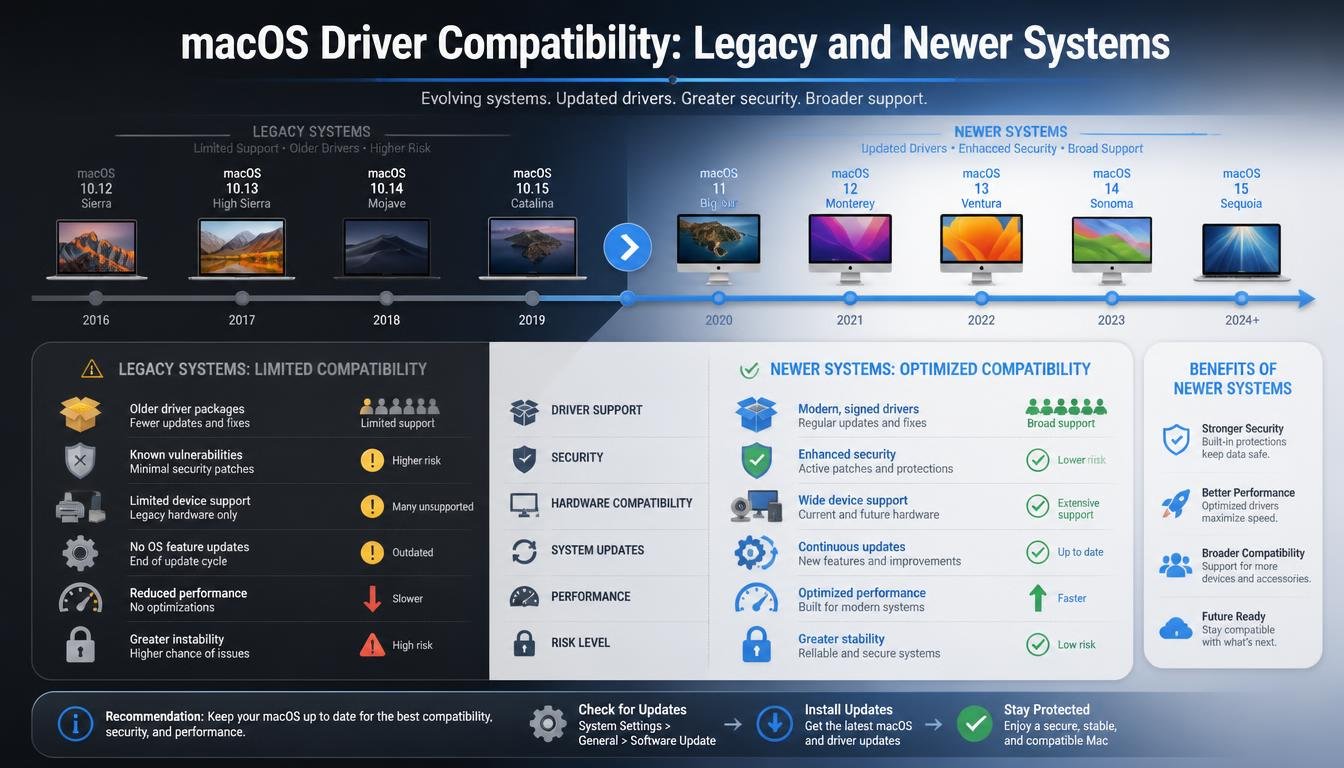
Apple’s operating systems have evolved considerably, and driver compatibility can change with major releases. A package designed for macOS X or an earlier version of macOS may rely on components that are no longer supported.
The supplied HU404GE information distinguishes legacy macOS 10.9–10.15 software from a package associated with macOS 11.3 and above. These ranges should be checked against the manufacturer’s current documentation before use.
How to Check Your Mac’s Software Version
Open the Apple menu and choose About This Mac, or use the equivalent system information screen on your version of macOS. Record the version number and identify the Mac model.
Then check the docking station’s documented requirements. If a driver page provides only an old installer and does not mention your system, do not assume that it will work.
Some docks rely on native macOS support, while others use specialised display software. If a package requires security permissions or system extensions, read the official instructions carefully and grant only permissions that you understand and trust.
If the package is unsigned, outdated, or unavailable from a reliable source, contact the manufacturer for clarification. A random third-party installer is not a safe substitute for verified compatibility.
Linux USB Hub Drivers and Cross-Platform Support
Linux users may discover that their docking station works without installing a separate USB hub driver.
Basic USB hub support is generally built into the operating system, although certain display adapters, network interfaces, and other specialised components may need additional drivers or firmware.
Compatibility depends on the Linux distribution, kernel version, chipset, and hardware features.
Therefore, a driver advertised for Windows should not be treated as a Linux driver simply because it supports the same docking station.
Diagnosing a USB Connection on Linux
Start with the physical connection. Try another USB port, inspect the cable, and connect a simple peripheral directly to the computer if possible.
You can then use available system tools to identify the hardware and review connection messages. If the device is recognised but a particular function does not work, investigate that component rather than installing an unrelated hub driver.
For example, a USB keyboard may work normally while an external monitor remains unavailable. That pattern suggests the USB data path is functioning, but it does not prove that the dock’s display technology is supported.
Linux community documentation and distribution-specific repositories can be useful sources of information. Prefer maintained packages and trusted repositories over scripts copied from unfamiliar websites.
A Practical Driver Download Center Checklist
A well-organised Driver Download Center should help users locate the appropriate file without requiring them to guess which package belongs to their device.
For Lionwei docking station owners, the following checklist provides a straightforward way to evaluate available downloads.
| Driver identifier | Reported purpose | Important checks |
| HU404GE SWI Driver | Device-specific software package | Confirm the exact model and operating system |
| CE45_Mac_MST_Display_Driver | Mac display support associated with MST | Verify Mac compatibility and display capabilities |
| CB-UC-USB2.0-HUB | USB 2.0 hub-related package | Confirm the chipset and whether a separate driver is necessary |
The identifiers above come from the supplied keyword and compatibility information. They should not be treated as independently verified product specifications or proof that a particular download is currently available.
Understanding Driver Dates and File Sizes
The supplied catalogue information mentions dates including September 2, 2020, September 7, 2021, and December 19, 2025. It also lists file sizes ranging from small packages to larger installers.
These details can help distinguish files when they are shown on a verified support page. However, dates and file sizes alone do not prove that a download is authentic, safe, or compatible.
The source information also contains a Windows USB hub file size of 66,729 KB, which should be interpreted cautiously until checked against the original listing.
A typo in a file size or filename can lead to confusion, so compare the information directly with the official source rather than reproducing uncertain values as confirmed facts.
No specific driver version numbers should be inferred where the publisher has not supplied them.
Troubleshooting Common Lionwei Docking Station Problems
Even a correctly installed driver may not resolve every docking station issue. A methodical check can help separate software problems from connection and hardware limitations.
The Docking Station Is Not Recognised
First, disconnect the dock and reconnect it securely. Try another supported USB port and inspect the cable for damage.
If the dock has its own power supply, confirm that it is connected and operating correctly. Then check the operating system’s device information to see whether any part of the dock is detected.
The External Monitor Is Not Working
Check that the monitor is powered on and set to the correct input. Test another compatible cable if possible, and confirm that the docking station supports the monitor’s resolution and refresh rate.
On a Mac, verify the supported external-display configuration for the specific computer. Installing an MST-related driver will not necessarily enable multiple independent displays on a system that does not support the required arrangement.
USB Accessories Keep Disconnecting
Try connecting one peripheral at a time. If the problem disappears when other devices are removed, the dock may be encountering a power or bandwidth limitation.
Test the same peripheral directly on the computer. If it works reliably there, inspect the docking station, its cable, and its power requirements before assuming that a driver update is needed.
A Driver Installer Fails
Confirm the operating system version and architecture. Check whether the package is intended for the exact device, and review any error message before attempting another installation.
On older systems, an installer may be incompatible with the operating system’s security or driver-signing requirements. Do not bypass those safeguards for a package whose origin cannot be verified.
The Dock Stops Working After an Update
An operating system update can change how drivers, permissions, and hardware components interact. Review the manufacturer’s compatibility information and check whether a supported replacement package exists.
If the problem began immediately after an update, note the date and error messages. This information can help the manufacturer or technical support team identify the cause more quickly.
How to Write a Useful Driver Support Request
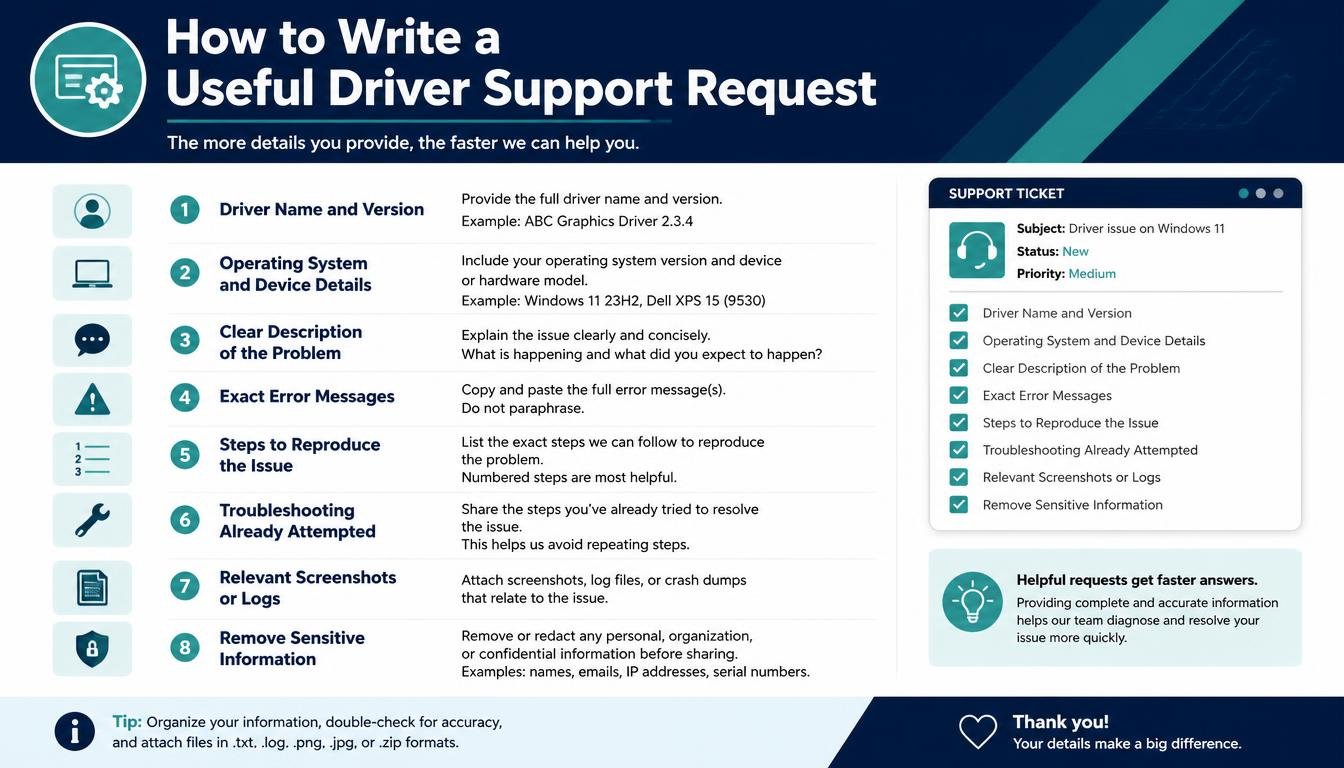
If the appropriate Lionwei driver is difficult to locate, contacting the seller or manufacturer may be the fastest route to a reliable answer. A short, detailed support request is usually more helpful than a message saying only that the dock is not working.
Include the docking station model, computer model, operating system and version, affected ports, and any error messages. Explain whether the device has ever worked correctly or whether the problem started after a software update.
For example, a Mac user might write:
- Docking station model: [enter the exact model].
- Computer model: [enter the Mac model].
- macOS version: [enter the installed version].
- Problem: The external monitor is not detected through the dock.
- Troubleshooting completed: Tested another cable and connected the monitor directly to the computer.
- Request: Please confirm the correct driver, if one is required, and provide the official download link.
This format gives support staff enough context to investigate without asking the same basic questions several times. It also helps establish whether the issue is related to driver compatibility, hardware support, or a physical connection.
Frequently Asked Questions About Lionwei Docking Station Drivers
Where Can I Download the Lionwei Docking Station Driver?
Start with the manufacturer’s official support resources, verified product documentation, or the seller’s confirmed support channel. This guide does not establish a verified official download URL, so it would be misleading to present an unconfirmed third-party link as the manufacturer’s download centre.
Do All Lionwei Docking Stations Need Drivers?
No. Some functions may work through built-in operating system drivers, while specialised display adapters or other components may require additional software. The answer depends on the exact model and its hardware.
Is the HU404GE SWI Driver Compatible With Windows 10?
The supplied information lists Windows 10 compatibility, including 32-bit and 64-bit references. Nevertheless, confirm that the specific package matches the hardware and Windows configuration before installing it.
Can I Use the CE45 Mac MST Display Driver on Every Mac?
No such universal compatibility should be assumed. The exact Mac model, macOS release, docking station hardware, and intended display configuration all matter.
Does Linux Require a CB-UC-USB2.0-HUB Driver?
Not necessarily. Basic USB hub support is commonly included in Linux, but a specialised component may require additional software. Identify the actual hardware and check the documentation for your distribution and kernel.
Should I Download a Driver From an Unfamiliar Website?
Avoid doing so unless the source can be verified. Unknown installers may be outdated, incompatible, modified, or bundled with unwanted software. Prefer official downloads and reputable operating system repositories.
Conclusion: Make Your Lionwei Docking Station Work With Confidence
Finding the right Lionwei docking station driver is easier when the process begins with identification rather than guesswork.
The HU404GE SWI Driver, CE45 Mac MST Display Driver, and CB-UC-USB2.0-HUB package represent different driver identifiers, and each needs to be evaluated according to its purpose and documented compatibility.
Check the exact model, confirm the operating system, match the package to the hardware, and use a trustworthy download source. If a driver is unavailable or its compatibility is unclear, ask the manufacturer or seller before installing an uncertain file.
Most importantly, remember that not every docking station problem is a software problem. A reliable cable, adequate power, compatible display hardware, and correct system configuration are just as important as the driver itself.
A little patience at the beginning can prevent a great deal of unnecessary troubleshooting later.
With the right information and a careful installation process, you can make more informed decisions about your docking station and build a workspace that connects your devices with less fuss and more confidence.
If you have experience finding or installing a Lionwei docking station driver, share which model and operating system you use, along with the solution that worked for you.
Your experience may help another user find the right answer without spending hours searching through confusing download pages.