Have you ever wanted to watch your favorite movie, scroll through holiday pictures, or enjoy a mobile game on a much bigger screen?
Your smartphone might be packed with entertainment, but sometimes its little display just doesn’t do justice to the moment. Imagine gathering your family around the television to watch a funny video,
sharing vacation memories, or enjoying a favorite YouTube channel without everyone having to squeeze around one phone. That’s where a simple cable connection can make a surprisingly big difference.
The good news is that you don’t always need Wi-Fi, complicated applications, or expensive streaming equipment to make it happen. With a compatible USB-C to HDMI adapter and an HDMI cable, you can connect your smartphone directly to your television.
This method is convenient, generally reliable, and particularly useful when your wireless connection is having one of those frustrating days.
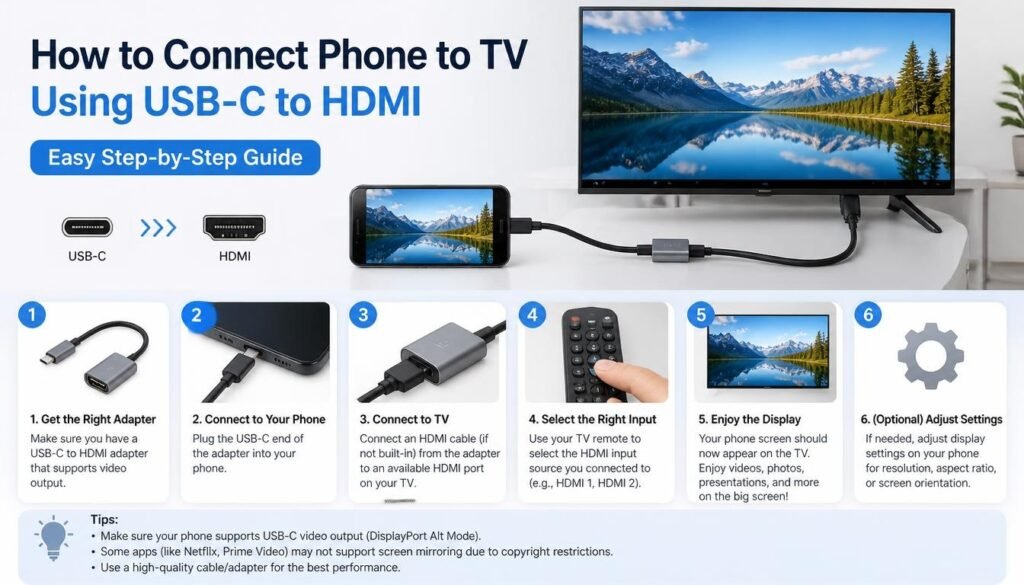
In this guide, we’ll explain how to connect phone to TV using USB-C to HDMI, what equipment you need, how to check compatibility, and how to solve common connection problems.
Whether you want to watch Netflix, play mobile games, display photographs, or give a presentation, you’ll find the important steps right here.
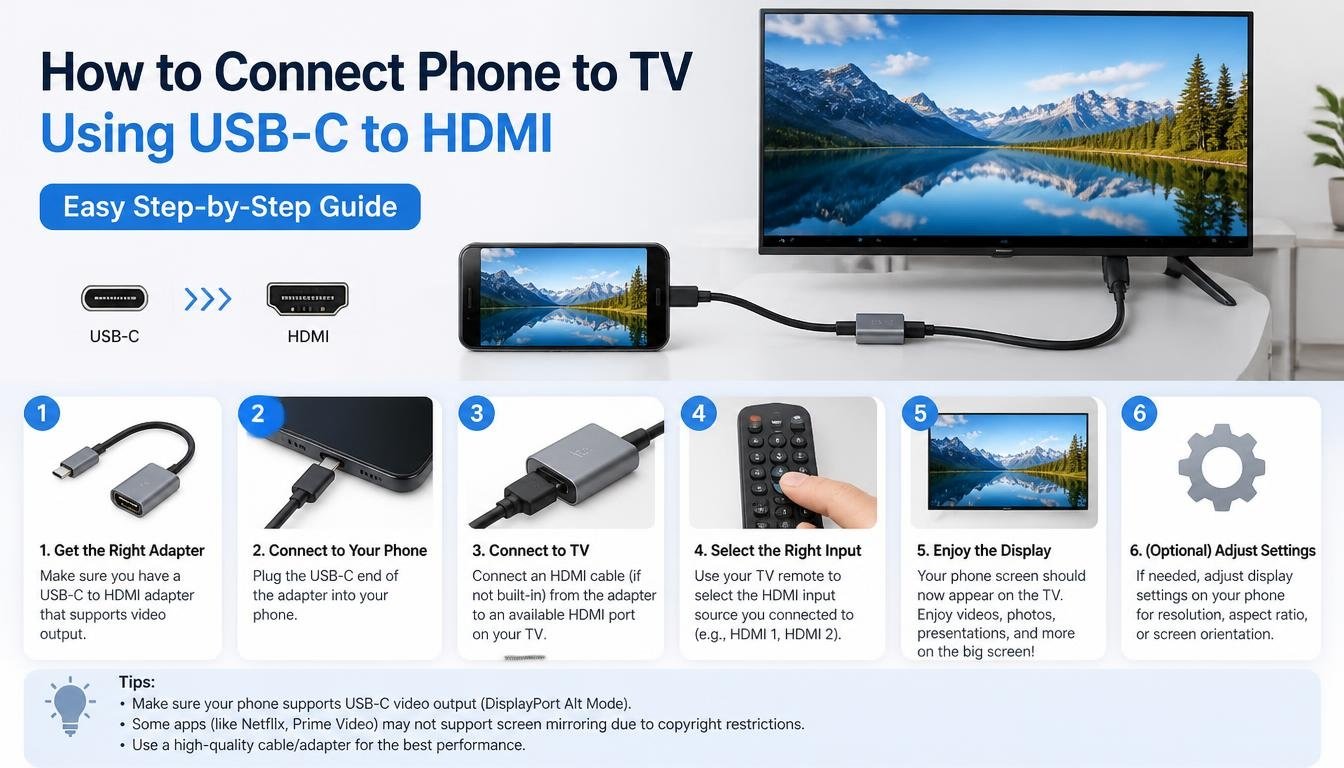
| Step | What to Do |
| 1. Check Compatibility | Make sure your phone supports USB-C video output or DisplayPort Alt Mode. |
| 2. Get an Adapter | Purchase a compatible USB-C to HDMI adapter. |
| 3. Connect Adapter | Plug the adapter into your phone’s USB-C port. |
| 4. Attach HDMI Cable | Connect the HDMI cable to the adapter and TV. |
| 5. Select HDMI Input | Use your TV remote to select the correct HDMI source. |
| 6. Enable Display | Allow screen mirroring or external display mode if prompted. |
| 7. Enjoy | Watch videos, view photos, play games, or share presentations. |
Can You Connect a Phone to a TV Using USB-C to HDMI?
Yes, you can connect many smartphones to a television through a USB-C to HDMI connection, provided the phone supports video output through its USB-C port.
However, there’s one important detail worth understanding before purchasing an adapter: having a USB-C charging port doesn’t automatically mean your phone can send video signals to an external display.
Some USB-C ports only support charging and data transfer, while others also support video transmission.
One of the technologies that makes this connection possible is DisplayPort Alternate Mode, commonly called DP Alt Mode.
It allows compatible USB-C devices to transmit video signals through the USB-C connection, which an appropriate HDMI adapter converts into a signal your television can understand.
For example, certain Samsung Galaxy flagship phones support wired external display connections, including Samsung DeX on compatible models. Other Android smartphones may support basic screen mirroring, while some don’t offer wired video output at all.
So, before getting excited about connecting everything, check your phone’s specifications. A little research now can save you from buying an adapter that simply sits in your drawer.
What You Need Before Connecting Your Phone to a TV
The setup is refreshingly simple. You don’t need a collection of cables that looks like something from a television repair shop.
Here are the main things you’ll need.
A Smartphone With USB-C Video Output Support
First, check whether your Android smartphone supports video output through its USB-C port.
Look at the manufacturer’s specifications or user manual for terms such as:
- DisplayPort Alternate Mode
- DP Alt Mode
- Wired external display support
- USB-C video output
- HDMI output through USB-C
Some phones offer desktop-style interfaces, while others simply duplicate the phone display on the television.
Remember, USB-C describes the physical connector, not every feature that the connector supports. This small distinction is surprisingly important.
A USB-C to HDMI Adapter
The second item is a USB-C to HDMI adapter.
This little device connects to your phone’s USB-C port and provides an HDMI output for your television. Depending on the model, it may also include additional USB ports, charging pass-through, or other connectivity options.
A compact aluminum adapter can be particularly convenient because it is easy to carry and generally feels more durable than some inexpensive plastic alternatives.
For instance, the LENTION CB-4KHDMI is one product you may encounter when researching USB-C display accessories. Check its current specifications, supported resolutions, and compatibility with your particular phone before purchasing.
An HDMI Cable
You’ll also need a standard HDMI cable.
One end connects to your adapter, while the other connects to an available HDMI port on your television.
Most modern HDMI cables work perfectly well for ordinary phone-to-TV connections. However, if you’re aiming for 4K HDMI output, make sure the adapter, cable, phone, and television all support the resolution and refresh rate you want.
An HDMI-Compatible Television
Finally, you’ll need a television with an available HDMI input.
Almost every modern flat-screen TV includes at least one HDMI port. These ports are usually located on the rear or side panel.
If your television has multiple HDMI connections, remember which one you’re using. You’ll need to select that particular input source later.
How to Connect Phone to TV Using USB-C to HDMI: Step-by-Step Guide
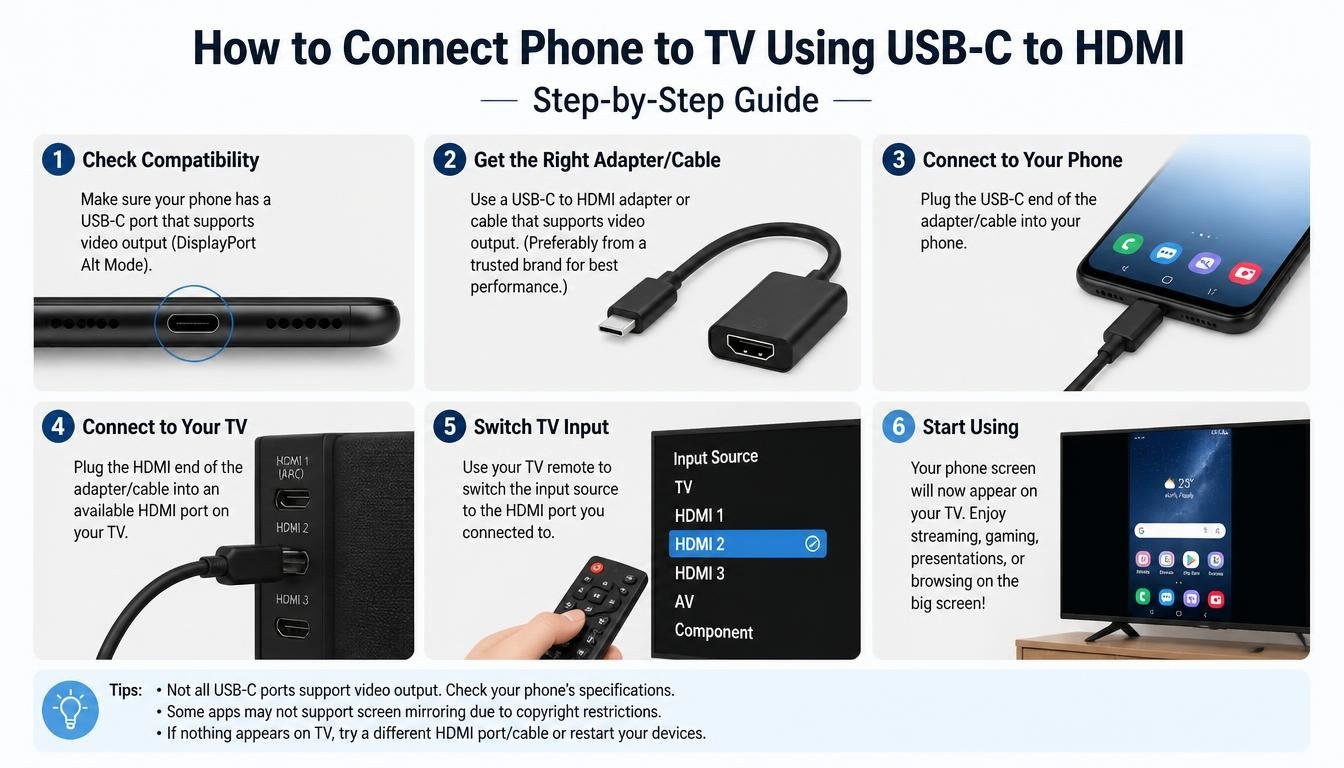
Now comes the interesting part. Once you have confirmed compatibility and gathered the necessary equipment, the actual setup is usually quite straightforward.
Follow these steps carefully.
Step 1: Check Your Phone’s USB-C Compatibility
Before plugging anything in, confirm that your smartphone supports external video output.
Search your phone model’s official specifications or contact the manufacturer if the information isn’t clear. Look specifically for DisplayPort Alternate Mode or another supported wired display feature.
Some Samsung Galaxy devices offer USB-C video output and Samsung DeX. Other Android manufacturers provide different implementations.
If your phone only supports USB-C charging and file transfer, a standard USB-C to HDMI adapter will not magically add video output. That’s a hardware limitation, not a problem you can usually fix through an application.
Step 2: Find an Available HDMI Port on Your TV
Take a look at the back or side of your television.
You should find one or more HDMI ports, often labeled HDMI 1, HDMI 2, or HDMI 3.
Choose an available port and remember its number. If you are using a wall-mounted television, a side-facing HDMI port might be easier to reach than one positioned behind the screen.
There’s no need to disconnect your existing devices unless all HDMI ports are occupied.
Step 3: Connect the USB-C to HDMI Adapter to Your Phone
Take your USB-C to HDMI adapter and insert its USB-C connector into your smartphone’s USB-C port.
Make sure the connector fits properly. Avoid forcing it, because USB-C connectors are designed to fit in either orientation.
Some adapters may need external power for particular configurations, while others operate directly from the phone.
If your adapter includes a separate USB-C power input, consult its instructions to determine whether connecting a charger is recommended.
Step 4: Attach the HDMI Cable
Now take your HDMI cable.
Connect one end to the HDMI output on the adapter and the other end to the selected HDMI port on your television.
Check both connections to make sure they’re secure. A slightly loose cable can cause intermittent display problems, which is annoying when you’re halfway through showing someone a video.
Your basic hardware setup should now be complete.
Step 5: Change the TV’s HDMI Input Source
Switch on your television and use the remote control to open the input or source menu.
Select the HDMI input corresponding to the port you used.
For example, if the adapter is connected to HDMI 2, select HDMI 2 on your TV.
Give the television a few seconds to detect the incoming signal. Some compatible phones automatically activate phone screen mirroring, while others may display a notification asking you to choose an external display option.
Step 6: Allow Your Phone to Connect to the TV
Once the television detects your phone, the smartphone display may appear automatically.
Depending on your device, you might see:
- Your regular Android home screen.
- A duplicated version of your phone display.
- A desktop-style interface such as Samsung DeX.
- A prompt asking you to select a display mode.
Follow any instructions displayed on your phone.
If you want a larger version of your normal smartphone interface, select screen mirroring where available. If your device supports a desktop interface, you can explore that option too.
And there you go! Your phone and television are now connected through a wired display connection.
How to Mirror Your Phone Screen to TV After Connecting
Connecting the hardware is only part of the experience. You also need to understand what happens once your phone starts communicating with the television.
With compatible devices, wired screen mirroring allows your television to display the same content visible on your smartphone.
This is useful for everyday activities because you don’t have to upload files or transfer pictures before showing them to someone.
For example, you can:
- Open your photo gallery and display family pictures.
- Browse YouTube videos on the larger television screen.
- Show a presentation directly from your phone.
- Browse compatible applications.
- Play supported mobile games using a bigger display.
- Display documents and other work-related material.
Some smartphones also provide separate desktop environments, allowing you to use supported applications in a more computer-like layout.
Keep in mind that the exact experience depends on your smartphone’s hardware and software. Not every phone supports desktop mode, and not every application behaves identically on an external display.
What Can You Do With a USB-C to HDMI Phone Connection?
A wired phone to TV connection is useful for considerably more than watching random videos. Once everything is working, you may find yourself using it more often than expected.
Watch Movies and Streaming Videos
Watching videos on a smartphone is convenient, but a larger television makes the experience more comfortable.
Open a supported streaming application, select your movie, and enjoy the available content on the big screen.
You can use applications such as YouTube and Netflix, subject to device compatibility, application restrictions, and content protection requirements.
Some streaming services use HDCP, a digital content protection technology. If your adapter or television doesn’t support the required protection standard, certain videos might display a blank screen even when other phone content works normally.
Enjoy Mobile Gaming on a Bigger Screen
Mobile games can feel quite different when displayed on a television.
A larger screen makes the action easier to see, especially in racing games, adventure titles, and multiplayer experiences.
One advantage of a wired connection is that it generally introduces less network-related delay than wireless screen casting. However, total input lag still depends on the phone, adapter, television, and display settings.
If your TV includes a Game Mode, enabling it may help reduce display processing delays.
Share Photos and Family Videos
Sometimes the best use of technology is simply bringing people together.
Imagine returning from a family holiday and displaying your favorite photographs on the television. Instead of passing one phone around, everyone can comfortably enjoy the memories.
Open your gallery, select a photograph, and let the television do the rest.
Give Presentations and Display Documents
A compatible smartphone can also become a convenient presentation device.
You can display slides, PDFs, spreadsheets, and other supported documents without necessarily carrying a laptop.
This is especially useful for small meetings, classroom demonstrations, or situations where you need to share something quickly.
For important presentations, test the connection beforehand rather than discovering an adapter problem in front of everyone.
Does USB-C to HDMI Support 4K Video Output?
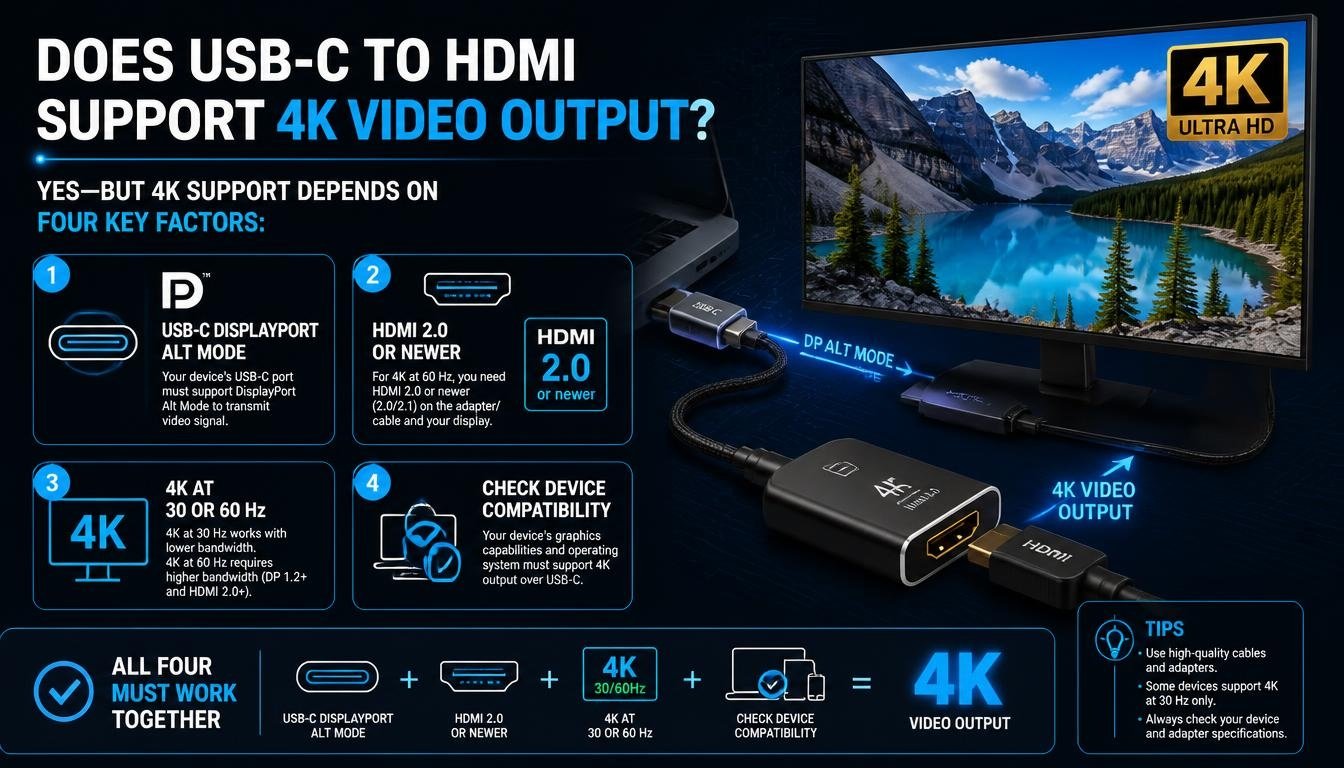
Yes, USB-C to HDMI can support 4K video output, but the actual resolution depends on the complete hardware setup.
Simply purchasing an adapter advertised as 4K doesn’t guarantee that your smartphone will display everything in 4K.
Several factors matter:
- Your smartphone must support the required video output resolution.
- The USB-C adapter must support the desired 4K resolution and refresh rate.
- Your HDMI cable must have sufficient bandwidth.
- Your television must support the selected display mode.
- The software and application must allow the requested resolution.
For example, an adapter might advertise 4K at 60Hz, but your particular phone may only support a lower resolution or refresh rate through its USB-C output.
If you’re buying a new adapter, read the detailed technical specifications rather than relying on the words 4K printed on the packaging.
It’s a small purchasing habit that can prevent quite a bit of disappointment.
USB-C to HDMI vs. Wireless Screen Mirroring: Which Is Better?
Both wired and wireless connections have their place. The right choice depends on how you intend to use your television.
USB-C to HDMI is particularly useful when you want a direct connection without depending on a Wi-Fi network.
A wireless connection, on the other hand, gives you more freedom to move around without having your phone physically attached to the television.
Here’s a quick comparison.
| Feature | USB-C to HDMI | Wireless mirroring |
| Connection | Physical cable | Wireless network or direct wireless link |
| Wi-Fi requirement | Usually no | Depends on the technology |
| Setup | Adapter and HDMI cable | Compatible wireless devices |
| Display delay | Generally low | Can vary with network conditions |
| Portability | Requires cables | Fewer physical accessories |
| Compatibility | Requires wired video support | Requires supported wireless features |
| Power | May consume phone battery | May consume phone battery |
If your phone supports wired video output and you want a dependable connection, HDMI is an excellent option.
However, if you prefer a cable-free setup, technologies such as Miracast, Chromecast-compatible casting, or manufacturer-specific screen-sharing features may be more suitable.
Troubleshooting: USB-C to HDMI Not Working
Sometimes technology has other plans. You connect everything correctly, select the HDMI input, and the television stubbornly displays No Signal.
Don’t panic just yet. Most connection problems have a fairly simple explanation.
Your TV Displays No Signal
This is one of the most common problems with a USB-C to HDMI connection.
Try the following:
- Confirm that your TV is switched to the correct HDMI input.
- Disconnect and reconnect the HDMI cable.
- Check whether the adapter is securely attached to your phone.
- Try another HDMI port on the television.
- Restart your phone and reconnect the adapter.
If nothing changes, check whether your smartphone supports USB-C video output in the first place.
An incompatible phone is a much bigger issue than a loose cable.
Your Phone Charges but Nothing Appears on the TV
This particular problem can be confusing.
You plug in the adapter, your phone starts charging, and everything looks normal, except the television remains blank.
Charging support doesn’t mean video transmission is supported.
Your smartphone might have a USB-C port designed primarily for charging and data transfer, without DP Alt Mode.
Check the official device specifications before replacing the adapter.
The TV Shows a Black Screen
If the phone interface appears but certain streaming videos remain black, the issue may involve HDCP or application-level content protection.
Try displaying ordinary content, such as your home screen or a photograph.
If those appear correctly but protected video doesn’t, check that the adapter and television support the content protection requirements of the streaming service.
The Picture Keeps Disconnecting
An unstable connection can result from a damaged HDMI cable, a loose connector, or an adapter that isn’t functioning properly.
Try another HDMI cable if possible.
Also, inspect the USB-C port on your smartphone for visible debris or damage. Never insert sharp objects into the port to clean it.
If the connection works with another adapter, your original accessory may be faulty.
The Picture Appears but There Is No Sound
In most compatible setups, HDMI carries both audio and video.
If the television displays your phone screen but sound continues coming from the smartphone, check your phone’s audio output settings and the television’s sound configuration.
Also confirm that the application you’re using permits audio playback through the external display.
A simple restart can sometimes resolve temporary audio routing problems.
The Display Resolution Looks Poor
If the picture appears blurry, check the television’s display settings and your phone’s external display configuration.
Make sure the adapter supports the resolution you want.
Some phones automatically choose a lower resolution to maintain compatibility or performance. That isn’t necessarily a fault.
How to Choose the Best USB-C to HDMI Adapter for Your Phone
Choosing the right adapter matters more than many people realize.
A cheap accessory might look identical to a premium model, but the internal electronics and supported features can be very different.
Here are some important things to consider before purchasing.
Check USB-C HDMI Compatibility
Compatibility should always come first.
Look for an adapter that explicitly supports your smartphone’s video output technology.
Don’t assume that every Android phone works with every USB-C HDMI accessory.
Look for the Right Resolution Support
If you own a 4K television, choosing an adapter with suitable 4K support may be worthwhile.
Check the supported refresh rates as well. An adapter offering 4K at 30Hz is not identical to one supporting 4K at 60Hz.
Your phone must support the selected output mode too.
Consider Build Quality
An aluminum adapter can be a practical option for people who carry their accessories regularly.
Compact designs are easier to store in a backpack, laptop bag, or even a small accessory pouch.
Look for sturdy connectors, reliable construction, and clear product specifications.
Consider Additional Connectivity Features
Some adapters include extra USB ports or USB-C power pass-through.
These features can be useful if you want to connect additional accessories or keep a compatible phone charged during extended use.
For example, LENTION offers USB-C connectivity accessories, including the CB-4KHDMI model. Before purchasing, verify the exact model’s specifications and supported device combinations rather than assuming every product in a brand’s range has identical features.
Can You Connect Your Phone to a TV Without Wi-Fi?

Absolutely, provided your smartphone supports wired video output.
One of the biggest advantages of a USB-C to HDMI connection is that the display signal travels through the physical cable rather than relying on a wireless screen-casting connection.
This makes it useful in places where Wi-Fi is unavailable, unreliable, or simply inconvenient.
You could connect your phone to a television in a hotel room, classroom, meeting room, or holiday accommodation.
However, remember that some streaming applications still need an internet connection to load their content. The HDMI connection itself doesn’t provide internet access.
In other words, you can mirror your locally stored photographs and videos without Wi-Fi, but streaming an online movie still requires internet access.
Frequently Asked Questions
Can you connect a phone to a TV using USB-C to HDMI?
Yes. A compatible smartphone can connect to an HDMI television using a USB-C to HDMI adapter and an HDMI cable. The phone must support wired video output through its USB-C port.
Do all Android phones support USB-C to HDMI?
No. Some Android smartphones support video output, while others only use USB-C for charging and data transfer. Always check the specifications of your exact phone model.
How do I know if my phone supports DisplayPort Alt Mode?
Look through your smartphone manufacturer’s official specifications or technical documentation. Search for DisplayPort Alternate Mode, DP Alt Mode, or USB-C external display support.
If the information isn’t available, contact the manufacturer for confirmation.
Do I need an application to connect my phone to a TV?
Usually, no additional application is needed for a basic wired connection when both devices support the required hardware features.
Some phones may display a notification or provide additional external display settings.
Does USB-C to HDMI transmit audio?
Yes. Compatible USB-C HDMI adapters can transmit digital audio and video through the HDMI cable.
However, audio support also depends on the smartphone, adapter, television, and application.
Can USB-C to HDMI support 4K?
Yes, certain adapters and smartphones support 4K output. The final resolution and refresh rate depend on the capabilities of every device and cable involved.
Can I watch Netflix from my phone using HDMI?
It may be possible on compatible phones and adapters. However, streaming services can enforce HDCP content protection, so the adapter and television must meet the required standards.
What should I do if my TV says No Signal?
First, select the correct HDMI input, reconnect the adapter and cable, and try another HDMI port. If the issue continues, verify that your phone supports wired video output.
Can I connect a USB-C phone to a computer monitor instead of a TV?
Yes. A compatible USB-C to HDMI adapter can connect your smartphone to an external monitor with an HDMI input. The same video output compatibility requirements apply.
Does an HDMI cable come with a USB-C adapter?
It depends on the product. Some adapters are sold individually, while certain accessory packages include an HDMI cable. Check the package contents before ordering.
How to Use USB-C to HDMI Android
Connect a compatible USB-C to HDMI adapter to your Android phone, then attach an HDMI cable between the adapter and your TV. Select the correct HDMI input on your TV to mirror your phone’s screen.
How to Use USB C to HDMI Android
First, make sure your Android phone supports USB-C video output (DisplayPort Alt Mode). Connect the adapter and HDMI cable, then switch your TV to the connected HDMI source to display your phone’s content.
How to Connect Phone to HDMI
Plug a USB-C to HDMI adapter into your phone and connect it to your TV using an HDMI cable. Once connected, select the appropriate HDMI input on your TV to watch videos, share photos, or enjoy apps on a bigger screen.
Read More:
Creative Ways to Make the Most of Your Phone-to-TV Connection
Once you’ve successfully connected your phone, there are several practical ways to enjoy the bigger screen.
You don’t have to limit yourself to watching movies.
- Family photo evenings: Display old family pictures and let everyone share their favorite memories.
- Home workouts: Follow exercise videos on the television rather than constantly looking down at your phone.
- Cooking instructions: Display recipes and cooking videos while preparing meals.
- Gaming sessions: Enjoy compatible mobile games on a larger display.
- Educational videos: Watch tutorials and learning material with a more comfortable viewing experience.
- Work presentations: Share supported documents, slides, and reports during meetings.
- Travel memories: Show your holiday videos and photographs without passing a small phone around.
These little uses can turn an ordinary smartphone into a surprisingly useful entertainment and productivity companion.
Read More: https://techbiton.com/usb-c-hub-not-detecting-monitor/
Final Thoughts: Enjoy the Bigger Screen With a Simple HDMI Connection
Learning how to connect phone to TV using USB-C to HDMI doesn’t have to be complicated. Once you understand the compatibility requirements and have the right equipment, the process is generally as simple as connecting an adapter, attaching an HDMI cable, and selecting the correct input on your television.
The most important thing to remember is that not every USB-C smartphone supports video output. Check for DisplayPort Alternate Mode or another supported external display feature before buying an adapter.
Choose an accessory that matches your phone’s specifications, use a suitable HDMI cable, and make sure your television supports the desired resolution.
Whether you’re sharing family photographs, watching YouTube, enjoying compatible streaming applications, playing mobile games, or displaying a work presentation, a reliable wired connection can make your everyday smartphone experience feel a little more exciting.
And perhaps that’s the nicest thing about this small piece of technology: it brings the things we already enjoy on our phones into a shared space where everyone can see them.
If you’ve tried connecting your Android phone to a television using USB-C to HDMI, share your experience, favorite adapter, or troubleshooting tip in the comments. Your little discovery might save another reader from a frustrating No Signal message!