
There is something particularly annoying about plugging an Ethernet cable into your USB-C hub, waiting for that reassuring connection symbol, and getting absolutely nothing in return.
Your laptop is connected, the hub’s other ports seem perfectly fine, and the Ethernet cable worked yesterday. Yet, somehow, your wired internet connection has decided to take an unexpected day off.
If you’re dealing with USB-C hub Ethernet not working, you’re certainly not alone. This is a fairly common problem among laptop users, especially those who rely on USB-C hubs to connect multiple accessories, external displays, chargers, and wired network connections.
The confusing part is that the problem doesn’t always come from the Ethernet cable itself. Sometimes, it’s an outdated network driver, an incompatible USB-C port, insufficient power delivery, incorrect network settings, or even a small hardware issue inside the hub.
And yes, something as simple as reconnecting a cable can occasionally save you from an hour of unnecessary troubleshooting.
The good news? You don’t need to be a networking expert or spend money on a replacement hub immediately.
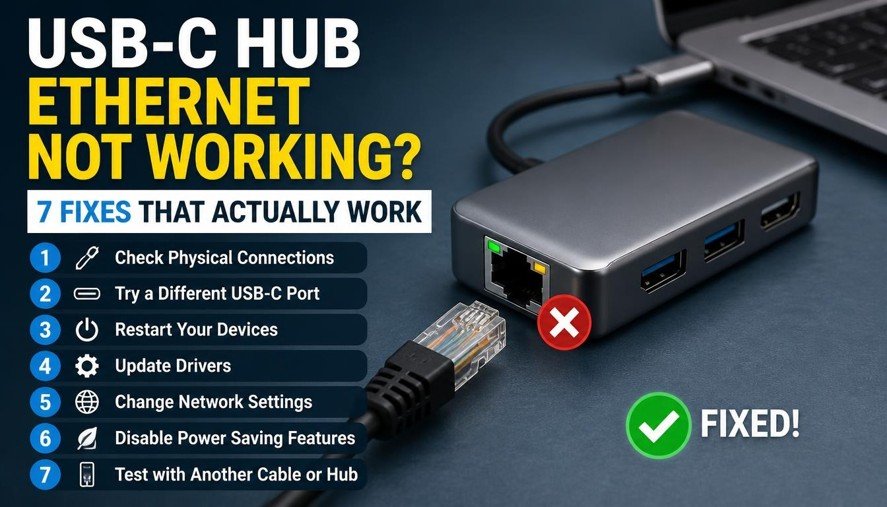
In this guide, we’ll explore seven practical fixes for USB-C hub Ethernet problems, explain why each solution works, and show you how to troubleshoot the issue on both Windows and macOS.
Whether your Ethernet adapter isn’t recognized, your connection keeps dropping, or your laptop simply refuses to detect wired internet, there’s a good chance one of these fixes will get things working again.
Let’s start with the simplest checks before moving towards the more technical solutions.
Why Is Your USB-C Hub Ethernet Not Working?
Before trying random solutions, it helps to understand what’s actually happening behind the scenes.
A USB-C hub does more than provide extra ports. It contains electronic components that manage data communication, power distribution, and network connectivity between your laptop and connected devices.
Its Ethernet port relies on an internal network controller that communicates with your computer through the USB connection. If something interrupts that communication, your operating system may fail to recognize the network adapter.
Here are some common reasons behind USB-C hub Ethernet issues:
- A damaged or loosely connected Ethernet cable.
- An incompatible USB-C port that doesn’t support the required data functionality.
- Outdated or corrupted network drivers.
- Insufficient power supplied to the USB-C hub.
- Incorrect network configuration or IP address settings.
- Operating system compatibility problems.
- A faulty Ethernet port or internal network controller.
Sometimes, the problem is even less complicated. Your router may have an issue, or the Ethernet cable might be connected to a LAN port that isn’t providing an active network connection.
The trick is to identify where the connection breaks instead of replacing everything at once.
Fix 1: Check Your Ethernet Cable and Physical Connections
This might sound almost too obvious, but a surprising number of USB-C hub Ethernet port not working problems come down to loose connections or damaged cables.
Ethernet cables experience plenty of everyday wear. They get bent behind desks, squeezed under furniture, pulled when laptops move, and occasionally damaged by pets who apparently have a personal disagreement with wires.
Even when a cable looks perfectly fine, its internal wiring or connector can be damaged.
Start with these basic checks:
- Disconnect the Ethernet cable from your USB-C hub.
- Inspect the connector for bent plastic clips, dirt, or visible damage.
- Reconnect it firmly until you hear or feel the locking clip engage.
- Check the other end of the cable and make sure it’s properly connected to your router, modem, or network switch.
- Look for indicator lights around the Ethernet port, if your hub includes them.
- Try another Ethernet cable to rule out a damaged connection.
One particularly useful test is connecting your existing Ethernet cable directly to another computer or a different Ethernet adapter. If the connection works there, the cable and router are probably fine.
You can also try another LAN port on your router. Occasionally, an individual router port may stop functioning while the others continue working normally.
A little extra tip: If you’re using an older Cat5 cable, consider testing with a good-quality Cat5e or Cat6 cable. This won’t magically repair a faulty hub, but it helps eliminate cable-related performance and connectivity issues.
Don’t move to complicated software fixes until you’ve confirmed the physical connection is working. There’s no point updating drivers to solve a cable problem, right?
Fix 2: Disconnect and Reconnect Your USB-C Hub Properly
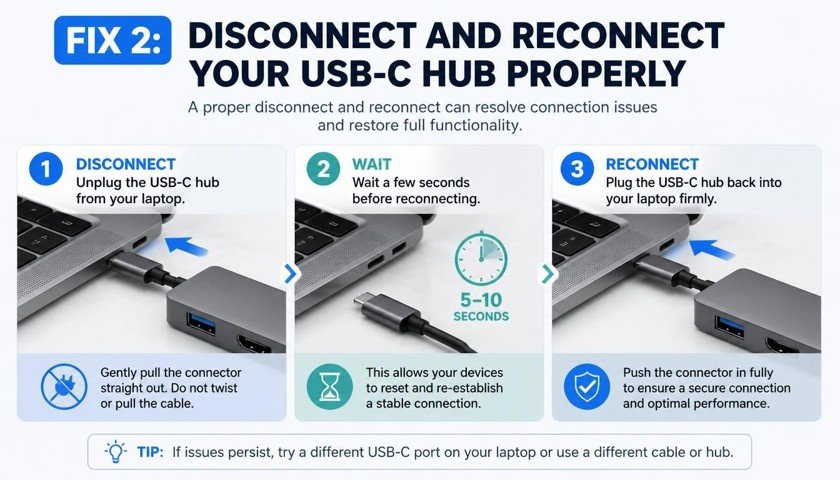
USB-C connections are designed to make connecting devices convenient, but that doesn’t mean every connection negotiation happens perfectly every time.
When you connect a USB-C hub, your laptop identifies the attached device and establishes communication with its internal components. Occasionally, the Ethernet controller doesn’t initialize correctly during this process.
This can result in a USB-C hub Ethernet not recognized error, even though the hub’s USB ports or HDMI connection continue working.
Here’s a simple way to reset the connection:
- Disconnect the USB-C hub from your laptop.
- Remove the Ethernet cable from the hub.
- Disconnect any additional USB devices connected to it.
- Wait approximately 30 seconds.
- Reconnect the Ethernet cable to the hub.
- Plug the hub directly into your laptop’s USB-C port.
- Give your operating system a few moments to detect the network adapter.
If that doesn’t work, restart your laptop while the hub is disconnected. Once the computer has fully restarted, connect the hub again.
Why does this help?
Disconnecting the hub forces the operating system to establish a fresh USB connection. It can clear temporary communication problems, refresh device detection, and allow the internal Ethernet controller to initialize properly.
Also, avoid connecting your hub through another USB adapter or an additional USB hub during troubleshooting. A direct connection removes one more possible source of compatibility problems.
For anyone experiencing a USB-C hub keeps disconnecting issue, this reset is worth trying too. Just remember that repeated disconnections may indicate a deeper power or hardware problem.
Fix 3: Check USB-C Hub Power Delivery and Power Supply
Here’s one issue that many laptop users overlook: not every USB-C hub receives enough power to operate all its connected devices reliably.
A USB-C hub may support several accessories simultaneously, including external monitors, USB storage devices, keyboards, mice, and an Ethernet adapter. All these components share the available power supplied by the host connection or an external power source.
When the available power becomes insufficient, some functions may become unstable.
This doesn’t necessarily mean Ethernet will always be the first feature to stop working. However, power-related instability can contribute to random disconnections, device detection failures, and other USB-C hub connectivity issues.
How to check whether your hub needs external power
First, inspect your hub for a USB-C port labeled PD, Power Delivery, or Power Input.
If it has one, connect a compatible laptop charger to that port. Make sure the charger and hub support suitable power specifications.
Then try the following:
- Disconnect unnecessary USB accessories.
- Remove external hard drives or other power-hungry devices temporarily.
- Connect your laptop charger to the hub’s Power Delivery input, if supported.
- Avoid using damaged or low-quality USB-C charging cables.
- Test the Ethernet connection with only the hub and network cable connected.
If Ethernet starts working after removing other accessories, power distribution or hub resource limitations could be contributing to the problem.
Does Power Delivery affect Ethernet connectivity?
USB-C Power Delivery primarily manages charging and power negotiation. It doesn’t directly control your internet connection.
However, a poorly powered or unstable hub may struggle to operate its internal components consistently. That’s where the connection between power supply and network reliability becomes important.
One more thing: don’t assume that every USB-C port labeled PD supports data transfer. On many hubs, the PD input is intended mainly for charging the connected laptop.
Check your hub’s specifications before plugging accessories into unfamiliar ports. A little reading now can prevent a lot of confusion later.
Fix 4: Update or Reinstall Your Network Drivers
If the physical connections are fine and your hub receives sufficient power, it’s time to investigate the software side.
Your USB-C hub usually contains a USB-to-Ethernet network controller. Depending on the manufacturer, it may use a chipset from companies such as Realtek or ASIX.
Your operating system needs the appropriate driver to communicate with that controller.
An outdated, corrupted, or incompatible driver can cause the Ethernet adapter to disappear, fail to connect, or behave unpredictably.
Update network drivers on Windows 11
Follow these steps:
- Right-click the Start button.
- Open Device Manager.
- Expand the Network adapters section.
- Look for an Ethernet adapter associated with your USB-C hub.
- Right-click the adapter and select Update driver.
- Choose Search automatically for drivers.
Windows will check whether an appropriate driver is available through its installed driver resources.
You should also check the Optional updates section under Windows Update, particularly if the hub recently stopped working after an operating system update.
If Windows cannot find a suitable driver, visit the official website of your hub manufacturer. Download the driver specifically intended for your hub model and Windows version, if one is provided.
Avoid downloading drivers from random websites. A suspicious driver installer can create more problems than it solves.
Reinstall the network adapter
If updating doesn’t help, reinstalling the adapter may be worth trying.
- Open Device Manager.
- Expand Network adapters.
- Right-click the USB Ethernet adapter.
- Select Uninstall device.
- Confirm the removal.
- Disconnect your USB-C hub.
- Restart your laptop.
- Reconnect the hub.
Windows may automatically detect and reinstall the device using an available compatible driver.
Be careful not to remove unrelated network adapters, especially your laptop’s built-in Wi-Fi adapter.
What about macOS?
Mac users generally don’t install network drivers manually for every USB-C hub. Many modern adapters work with built-in macOS support.
However, compatibility varies by chipset, manufacturer, and macOS version.
Check the manufacturer’s support page for your exact hub model. If a driver or compatibility update is required, follow the manufacturer’s installation instructions.
Updating your operating system may also resolve certain device compatibility issues.
Fix 5: Check Network Settings and Ethernet Adapter Status
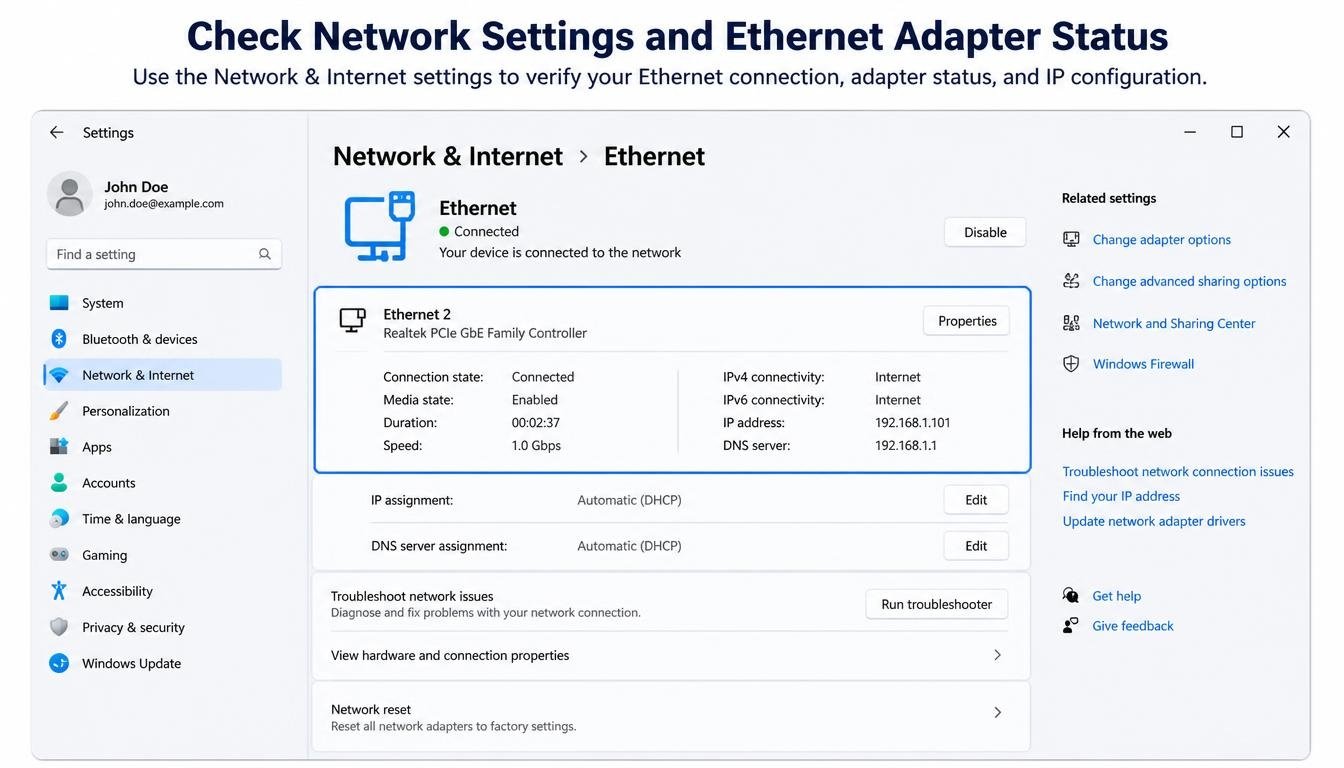
Sometimes, your laptop recognizes the USB-C Ethernet adapter perfectly but still refuses to establish an internet connection.
This is an important distinction.
If the adapter appears in your network settings, the hardware-to-computer connection may already be working. The problem could instead involve IP address assignment, DNS configuration, DHCP, or other network settings.
Let’s look at how to investigate this.
Check Ethernet settings on Windows
Open Settings and navigate to Network & Internet.
Look for Ethernet and check its connection status.
If Windows displays an unidentified network or indicates that there’s no internet access, the adapter may be functioning without receiving a usable network configuration.
You can also open Command Prompt and enter:
cmd
ipconfig /all
This command displays information about your network interfaces, including IP addresses, gateways, and DHCP status.
Pay attention to the Ethernet adapter associated with your USB-C hub.
If you see an address beginning with 169.254, Windows may have assigned itself an automatic private IP address because it couldn’t obtain one from the network’s DHCP server.
This often points towards a router, DHCP, cable, or network configuration problem.
If your network normally uses automatic IP assignment, you can try refreshing the connection.
Open Command Prompt and run:
cmd
ipconfig /release
ipconfig /renew
The first command releases the current DHCP-assigned address, while the second requests a new one.
You can also flush the DNS cache using:
cmd
ipconfig /flushdns
This can help with certain name-resolution problems, although it won’t repair a physically disconnected Ethernet adapter.
Check Ethernet settings on macOS
On a Mac:
- Open System Settings.
- Select Network.
- Look for Ethernet in the available network services.
- Select the Ethernet connection.
- Check its status and configuration.
If the connection is missing, macOS may not be detecting the adapter correctly.
If Ethernet appears but doesn’t connect, check whether the configuration is set to use DHCP, assuming that’s how your network is configured.
You can also temporarily disconnect Wi-Fi to determine whether the wired connection works independently.
This is a useful test because a laptop may continue using Wi-Fi even when an Ethernet adapter is connected.
Important: Avoid changing static IP addresses, DNS servers, or advanced network settings without understanding your network configuration. If you’re using a workplace network, some settings may be managed by your IT administrator.
Fix 6: Check USB-C Hub Compatibility and Try Another Port
Not all USB-C ports are created equal, and this is where things become a little confusing.
A USB-C connector describes the physical shape of the port. It doesn’t automatically guarantee that every USB-C feature is supported.
Some ports support data transfer and charging, while others also support DisplayPort video output, Thunderbolt, or USB4 functionality.
Likewise, not every USB-C hub is compatible with every laptop.
Your hub might work perfectly with one computer but fail to establish an Ethernet connection with another. This is often related to hardware compatibility, USB controller support, or operating system requirements.
Check your laptop’s USB-C specifications
Look at your laptop manufacturer’s documentation and confirm that the port supports the USB data functionality required by your hub.
If your laptop has multiple USB-C ports, try another one.
Some laptops include USB-C ports with different capabilities, so switching ports can make a genuine difference.
Verify the hub’s Ethernet specifications
Check the manufacturer’s product documentation for details such as:
- Supported USB standards.
- Ethernet controller chipset.
- Windows and macOS compatibility.
- Supported network speeds.
- Power Delivery requirements.
- Driver installation requirements.
Also, check whether your hub supports Gigabit Ethernet or only 10/100 Mbps Ethernet.
This matters because a hub advertised as supporting Gigabit Ethernet may still negotiate a slower connection if the cable, router, or network equipment doesn’t support the required speed.
Test the hub with another laptop
This is probably one of the most useful diagnostic steps.
Connect the same USB-C hub and Ethernet cable to another compatible laptop.
If the Ethernet connection works, your original laptop’s USB-C port, drivers, or network configuration may be responsible.
If it fails on both computers, the hub or Ethernet cable becomes a stronger suspect.
You don’t need to guess anymore. You’re narrowing down the problem based on actual results.
Fix 7: Reset Network Configuration or Investigate a Faulty Hub
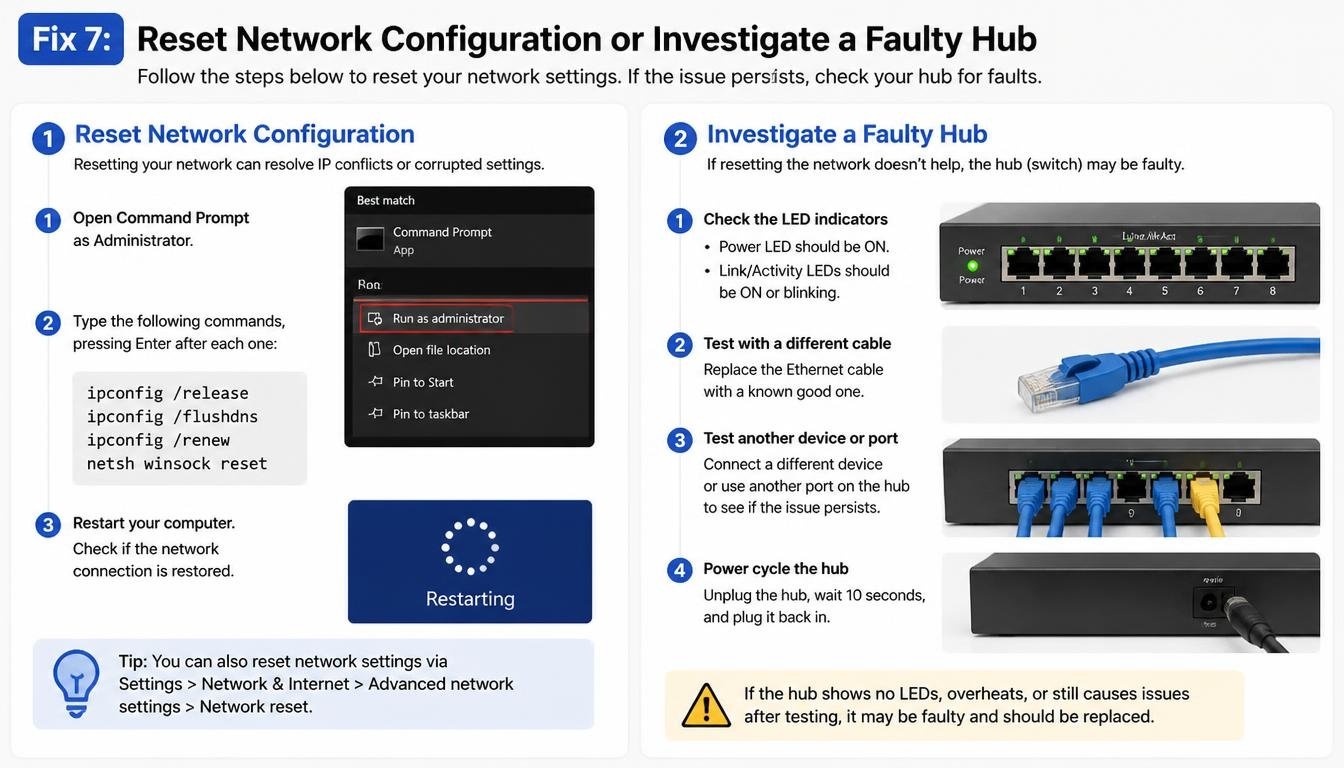
If you’ve tried the previous six fixes and your Ethernet connection still refuses to cooperate, it’s time to consider deeper network or hardware problems.
At this stage, the USB-C hub might be experiencing a configuration issue, an internal controller failure, or a compatibility problem that basic troubleshooting cannot resolve.
Let’s start with the software side.
Reset network settings on Windows
Windows includes a Network reset feature that reinstalls network adapters and restores certain networking components to their default settings.
To access it:
- Open Settings.
- Navigate to Network & Internet.
- Select Advanced network settings.
- Choose Network reset.
- Select Reset now.
- Restart your laptop when prompted.
Keep in mind that this can remove and reinstall network adapters and reset networking configurations.
You may need to reconnect to saved networks, reinstall certain VPN software, or reconfigure custom network settings afterwards.
So, don’t use this option as your very first troubleshooting step.
Check network configuration on macOS
On macOS, begin by removing and reconnecting the Ethernet service if necessary.
Open System Settings, navigate to Network, and inspect the Ethernet service.
You can also review the network’s TCP/IP configuration and confirm that the expected DHCP settings are being used.
If the Ethernet adapter isn’t appearing at all, resetting network settings won’t necessarily fix the problem. In that case, focus on device detection and hardware compatibility.
Look for signs of hardware failure
A faulty USB-C hub can show several warning signs:
- The Ethernet connection disappears randomly.
- The Ethernet port’s indicator lights never turn on.
- Other USB ports also behave inconsistently.
- The hub becomes unusually hot during normal use.
- The Ethernet adapter repeatedly disconnects and reconnects.
- The hub fails to work on multiple compatible computers.
Some hubs also experience internal component failures after prolonged use, physical damage, or exposure to excessive heat.
If your hub is overheating, disconnect it and allow it to cool before further testing. Don’t continue using a device that smells burnt, shows physical damage, or becomes dangerously hot.
If the Ethernet port remains nonfunctional across multiple computers with different cables, replacement or warranty service may be the sensible next step.
Sometimes, the most honest troubleshooting answer is that the hardware has reached the end of its useful life.
How to Identify What’s Actually Causing the Ethernet Problem
Trying seven fixes one after another can become tedious, especially if you’re working remotely and need your internet connection back quickly.
A more practical approach is to use the symptoms to identify the likely cause.
Here’s a quick reference:
| What you’re experiencing | Possible cause | What to try |
| Ethernet adapter doesn’t appear | Driver or USB compatibility issue | Check Device Manager and USB-C port |
| Ethernet light doesn’t turn on | Cable, router, or hub problem | Test another cable and router port |
| Adapter appears but has no internet | DHCP or network configuration | Check IP address and DHCP |
| Connection drops randomly | Power or hardware instability | Reduce connected devices and check PD |
| Ethernet works on another laptop | Original laptop configuration | Update drivers and check USB settings |
| Ethernet works slowly | Cable or speed negotiation | Check Gigabit Ethernet support |
| Hub fails on multiple computers | Possible hub hardware failure | Test another hub or seek replacement |
One thing worth remembering: these symptoms aren’t absolute diagnoses. For example, an Ethernet adapter that doesn’t appear can indicate either a driver problem or a physical USB connection problem.
Use the table to decide what to test first, rather than treating every symptom as proof of a single cause.
Frequently Asked Questions About USB-C Hub Ethernet Problems
Why is my USB-C hub Ethernet not working even though the USB ports work?
USB and Ethernet functions inside a hub are handled by different internal components. Your laptop may successfully recognize the USB controller while failing to detect the Ethernet network controller.
Possible causes include outdated drivers, chipset compatibility, power instability, or a faulty Ethernet component.
Check Device Manager on Windows or Network settings on macOS to see whether the Ethernet adapter is detected separately.
Why is my USB-C hub Ethernet not recognized on Windows 11?
Windows 11 may fail to recognize the adapter because of missing drivers, USB controller problems, or compatibility issues.
Start by disconnecting and reconnecting the hub, checking Device Manager, and installing available driver updates.
If the adapter appears under Other devices with a warning symbol, investigate the manufacturer’s driver support for your specific model.
Does a USB-C hub Ethernet adapter require drivers?
Not always.
Many modern USB-C Ethernet adapters use chipsets supported automatically by Windows and macOS. However, certain models require additional manufacturer-provided drivers.
Check the hub’s specifications before installing anything.
Can insufficient power affect USB-C Ethernet?
Yes, indirectly.
A poorly powered hub can experience unstable operation, particularly when multiple accessories are connected. Supplying compatible power through the hub’s Power Delivery input may improve stability if power distribution is contributing to the issue.
However, Power Delivery is not a universal solution for every Ethernet failure.
Why does my USB-C hub Ethernet connection keep disconnecting?
Random disconnections may result from a loose USB-C connector, damaged Ethernet cable, outdated drivers, insufficient power, or an overheating hub.
Try connecting the hub directly to your laptop, removing unnecessary accessories, and testing another cable.
If the problem continues across multiple computers, hardware failure becomes more likely.
Can a USB-C hub affect internet speed?
Yes, it can.
The maximum Ethernet speed depends on the hub’s network controller, the USB connection, the Ethernet cable, and the router or switch.
For example, a hub with a 100 Mbps Ethernet port cannot provide a Gigabit Ethernet connection, even if your internet plan supports higher speeds.
Other connected devices and USB bandwidth limitations can also influence performance in certain setups.
Is Ethernet better than Wi-Fi when using a USB-C hub?
A properly functioning wired Ethernet connection generally offers lower latency and more consistent performance than Wi-Fi, particularly in environments with wireless interference.
However, the actual experience depends on your router, network equipment, cable quality, and internet connection.
A good USB-C Ethernet adapter can be an excellent option for video meetings, large downloads, online work, and other activities where connection stability matters.
How to Prevent USB-C Hub Ethernet Problems in the Future
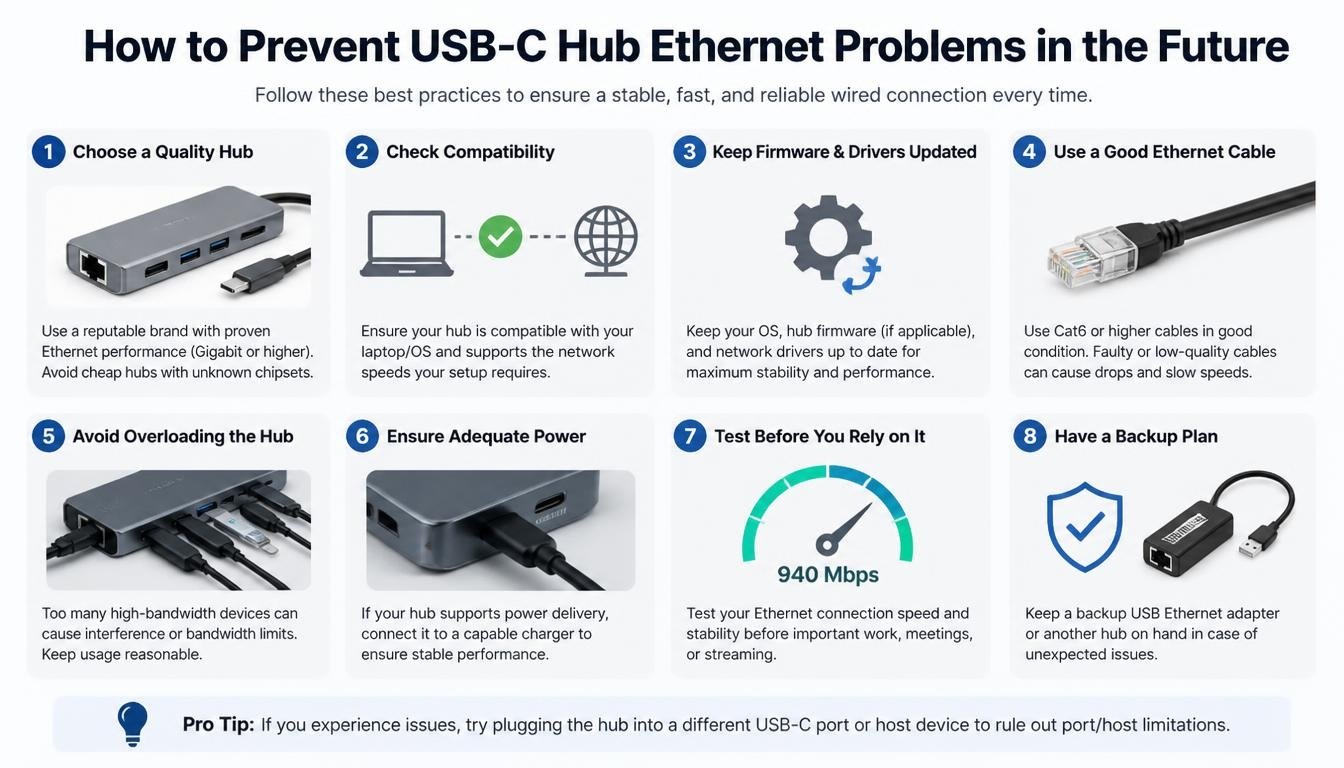
Once you’ve fixed the problem, a few simple habits can help prevent similar connectivity issues from appearing again.
You don’t need to treat your USB-C hub like an expensive piece of laboratory equipment, but a little care goes a long way.
- Choose a compatible hub: Check your laptop’s USB-C specifications before purchasing a new adapter.
- Use quality Ethernet cables: A reliable Cat5e or Cat6 cable is generally sufficient for Gigabit Ethernet.
- Keep drivers updated: Install recommended network and operating system updates.
- Avoid overloading the hub: Disconnect accessories you aren’t using.
- Provide adequate power: Use a compatible charger if your hub requires external power.
- Keep the hub ventilated: Avoid covering it with clothing or placing it somewhere that traps heat.
- Disconnect carefully: Hold the USB-C connector rather than pulling the cable itself.
- Check for firmware updates: If your manufacturer provides firmware updates for your hub, follow its official instructions.
Another useful habit is testing your hub occasionally with another device. It helps you notice developing problems before they become a complete connection failure.
And if you’re planning to purchase a replacement, don’t focus entirely on the number of ports. Look at Ethernet speed, chipset compatibility, build quality, Power Delivery support, and manufacturer warranty too.
A slightly more expensive hub that works reliably is usually a better investment than a cheap adapter that turns every internet connection into a guessing game.
Read More: https://techbiton.com/usb-c-to-hdmi-adapte/
Final Thoughts: Get Your Wired Connection Working Again
Dealing with USB-C hub Ethernet not working can be frustrating, especially when you depend on a stable internet connection for work, studying, meetings, or everyday browsing.
But the problem doesn’t automatically mean your hub is broken.
Start with the simple things: inspect your Ethernet cable, reconnect the hub, and check whether your laptop recognizes the network adapter. Then move towards power delivery, driver updates, network configuration, and hardware compatibility.
The seven fixes covered in this guide address the most common reasons behind USB-C Ethernet connectivity problems on Windows and macOS.
If there’s one troubleshooting lesson worth remembering, it’s this: change one thing at a time. Test the connection after every adjustment so you can identify what actually solved the problem.
And don’t rush to purchase a replacement hub before testing it with another cable or computer. You might discover that the issue was a simple driver conflict or an improperly connected cable all along.
A reliable wired connection shouldn’t require a daily negotiation with your laptop. With the right checks and a little patience, you can get your Ethernet port working again and return to the things that actually deserve your attention.