
Connecting a modern laptop, tablet, or smartphone to a larger screen should be a simple experience. Whether you’re preparing a presentation for work, enjoying a movie on your
television, or creating a more comfortable dual-monitor workspace, connecting your USB-C device to an HDMI display can make everything feel a little more convenient.
However, there’s one small detail that often catches people off guard: not every USB-C port supports video output.
Even though two devices may have identical-looking USB-C connectors, their capabilities can be surprisingly different. Choosing the right adapter and understanding a few compatibility requirements can save you from unnecessary frustration.
The good news? Once you understand how the connection works, setting everything up is usually straightforward.
In this guide, we’ll explore everything from choosing a reliable USB-C to HDMI adapter to configuring display settings, troubleshooting common problems, and getting the best possible picture quality.
Understanding USB-C to HDMI Connectivity
USB-C and HDMI serve different purposes, but they can work together to transfer video and audio between compatible devices.
USB-C is a versatile connector used for charging, data transfer, and, on supported devices, video transmission. HDMI, on the other hand, is a widely used interface designed to carry digital audio and video signals to monitors, televisions, projectors, and other displays.
A USB-C to HDMI connection allows a compatible USB-C device to send its video signal to an HDMI-equipped screen. This is generally achieved through a small adapter or a dedicated cable.
The connection is especially useful when your laptop has USB-C ports but your external monitor or television only offers HDMI inputs. Rather than replacing your display, you can use a suitable USB-C video adapter to connect the two.
What Is a USB-C to HDMI Adapter?
A USB-C to HDMI adapter is a compact accessory that converts compatible video output from a USB-C port into an HDMI signal.
Most adapters have a USB-C connector on one end and an HDMI socket on the other. You connect the adapter to your laptop, tablet, or smartphone, then attach a standard HDMI cable between the adapter and your display.
Some models come with an integrated HDMI cable, eliminating the need for an additional connection. Others include extra ports for charging, USB accessories, and data transfer.
These accessories are commonly called:
- USB-C HDMI adapters
- USB Type-C to HDMI converters
- USB-C digital AV adapters
- Type-C to HDMI adapters
- USB-C display adapters
- USB-C HDMI dongles
Although the names vary, their basic purpose is the same: providing HDMI connectivity for devices with compatible USB-C video output.
How Does USB-C Send Video to an HDMI Display?
The most important technology behind many USB-C video adapters is DisplayPort Alt Mode.
DisplayPort Alternate Mode allows a compatible USB-C port to transmit DisplayPort video signals. An active conversion process inside the adapter then translates that signal into an HDMI-compatible format.
Think of it as a translator between two different display technologies. Your laptop produces a compatible video signal, the adapter converts it, and the HDMI display receives the information.
Some USB-C devices also support Thunderbolt 3 or Thunderbolt 4, which can provide video connectivity through compatible ports and accessories.
One important thing to remember is that USB-C describes the connector shape, not every feature available through that connector. A USB-C port that supports charging and data transfer does not automatically support video output.
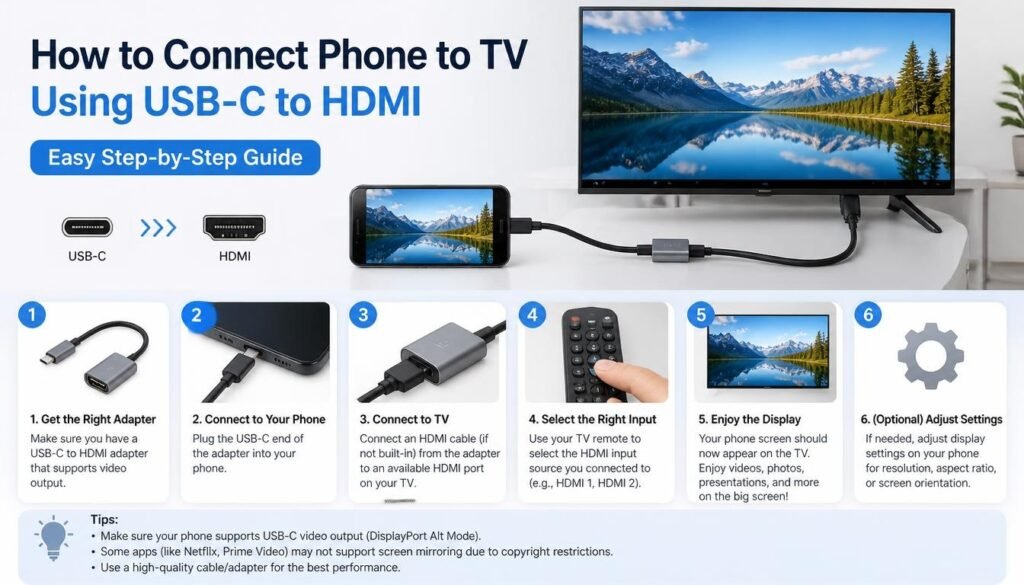
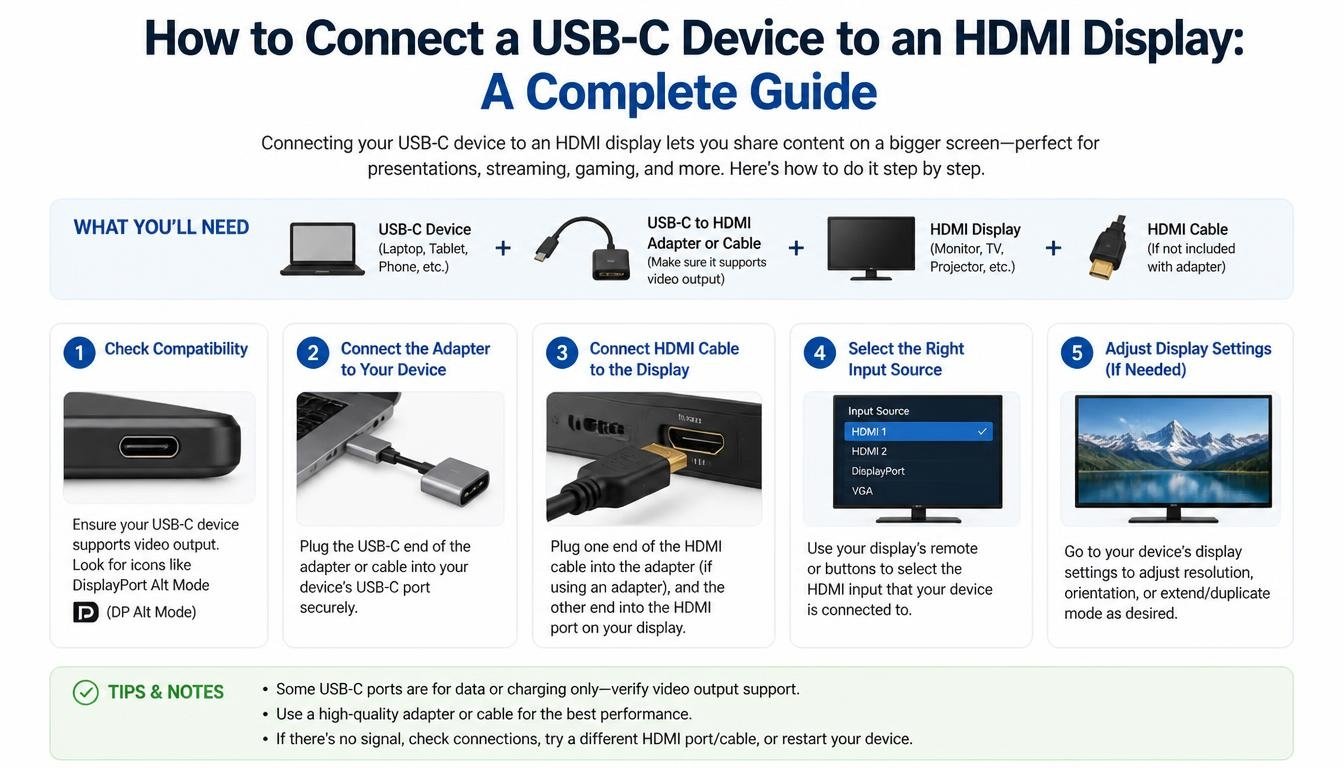
How to Connect a USB-C Device to an HDMI Display
The actual connection process is fairly simple. You don’t need advanced technical knowledge or a complicated installation process, provided your device supports video output.
Follow these steps to get everything connected.
Step 1: Check Your Device’s USB-C Video Compatibility
Before purchasing an adapter, confirm that your laptop, tablet, or smartphone supports external video output through USB-C.
Look for specifications mentioning:
- DisplayPort Alt Mode
- USB-C video output
- Thunderbolt 3 compatibility
- Thunderbolt 4 compatibility
- External display support
You can usually find this information on the manufacturer’s official website or in your device’s technical documentation.
Some USB-C ports are designed exclusively for charging or data transfer. Connecting an HDMI adapter to these ports won’t produce a picture, regardless of how expensive the adapter might be.
Step 2: Choose a Compatible USB-C to HDMI Adapter
Once you’ve confirmed video compatibility, select an adapter that matches your display requirements.
For example, if you’re connecting a standard Full HD monitor, an adapter supporting 1080p output may be sufficient. If you own a 4K television or monitor, look for a suitable USB-C to 4K HDMI adapter.
Pay attention to resolution, refresh rate, HDMI version, and compatibility with your operating system.
A reliable adapter should provide stable video transmission without frequent disconnections or unexpected display interruptions.
Step 3: Connect the USB-C Adapter
Take your adapter and insert its USB-C connector into the compatible port on your device.
Make sure the connector is properly seated. USB-C is reversible, so there’s no need to worry about inserting it upside down.
Avoid forcing the connector into the port. If it doesn’t fit comfortably, check whether you’re using the correct connection.
Step 4: Attach the HDMI Cable
Connect one end of an HDMI cable to the adapter’s HDMI port.
Insert the opposite end into an available HDMI input on your monitor, television, or projector.
If you’re using a television with multiple HDMI inputs, remember which one you’ve selected. It will make the next step much easier.
Step 5: Select the Correct HDMI Input
Turn on your external display and use its remote control or physical buttons to open the input or source menu.
Select the HDMI port where your cable is connected, such as HDMI 1 or HDMI 2.
Your screen may briefly go black while the devices establish a connection. This is completely normal during initial detection.
Step 6: Configure Your Display Settings
Your device should now recognize the external display.
Depending on your operating system, you can choose between screen mirroring and an extended desktop.
If everything is connected correctly, you’ll be ready to use your larger display for work, entertainment, or presentations.
Does Every USB-C Port Support HDMI Output?
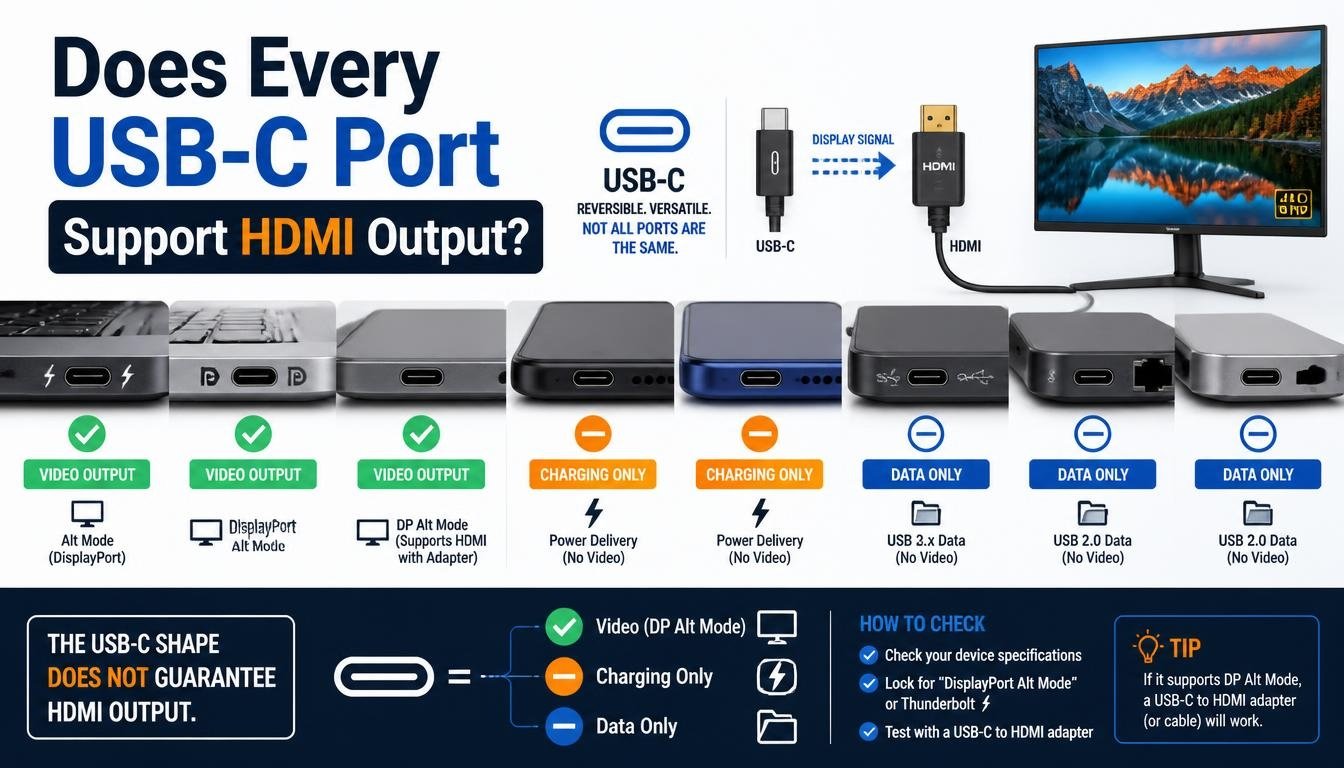
No, and this is probably the most important compatibility question to understand before buying an adapter.
USB-C ports can support different combinations of features. Some provide charging and basic data transfer, while others support high-speed data, external displays, and Power Delivery.
A device may even have multiple USB-C ports with different capabilities.
Understanding DisplayPort Alt Mode
DisplayPort Alt Mode is a feature that allows supported USB-C ports to carry DisplayPort video signals.
When you connect a compatible adapter, the video signal can be converted into HDMI output.
To check compatibility, consult your manufacturer’s specifications and search for terms such as:
- DisplayPort over USB-C
- DisplayPort Alt Mode
- USB-C external monitor support
- Thunderbolt display connectivity
A USB-C symbol alone isn’t enough to guarantee video compatibility. Some manufacturers use different markings to indicate supported features, so checking the specifications is always more dependable.
What About Thunderbolt 3 and Thunderbolt 4?
Thunderbolt 3 and Thunderbolt 4 use the USB-C connector shape and support video connectivity through compatible adapters and displays.
However, the exact capabilities depend on the host device, adapter, and display configuration.
For example, a Thunderbolt-compatible laptop can generally use an appropriate USB-C-to-HDMI adapter, but that doesn’t mean every inexpensive USB-C accessory will support the same resolution or refresh rate.
It’s worth checking the complete compatibility requirements before making a purchase.
Choosing the Right USB-C to HDMI Adapter
Not all adapters offer identical performance. Some are designed for basic office use, while others support high-resolution displays and demanding multimedia setups.
Choosing the right product depends on how you intend to use it.
Resolution and Refresh Rate
Resolution determines how many pixels appear on your screen, while refresh rate describes how frequently the image updates.
Common display specifications include:
- 1080p at 60Hz for everyday office work and general entertainment.
- 1440p at 60Hz for sharper images and additional workspace.
- 4K at 30Hz for compatible high-resolution displays.
- 4K at 60Hz for smoother movement and a more responsive viewing experience.
If you’re buying a USB-C to 4K HDMI adapter, don’t simply look for the words 4K on the packaging.
Check whether the adapter supports 4K at 30Hz or 4K at 60Hz. These specifications offer noticeably different experiences, particularly when scrolling through documents, moving windows, or watching fast-moving content.
HDMI 2.0 and HDMI 2.1 Compatibility
HDMI versions influence the available bandwidth and supported display features.
HDMI 2.0 supports up to 18 Gbps of bandwidth and can accommodate 4K at 60Hz with suitable configurations.
HDMI 2.1 offers substantially higher bandwidth, with certain implementations supporting up to 48 Gbps. It enables additional capabilities, including higher refresh rates and advanced display features.
However, buying an HDMI 2.1 cable doesn’t automatically make your entire connection HDMI 2.1-compatible.
Your laptop, adapter, cable, and display must all support the desired video configuration.
Build Quality and Portability
If you travel regularly or frequently move between meeting rooms, a compact adapter can be especially convenient.
Look for a durable connector, a well-built housing, and a cable that doesn’t feel overly fragile.
Aluminum housings are common in premium adapters because they offer a sturdy construction and can help with heat dissipation.
A lightweight portable HDMI adapter can easily fit inside a laptop bag without taking up much space.
Additional Features
Some adapters offer more than basic HDMI connectivity.
Depending on your requirements, you might prefer a model featuring:
- USB-C Power Delivery for charging compatible devices.
- Additional USB-A ports for keyboards and mice.
- USB-C data ports for compatible accessories.
- Ethernet connectivity for wired networking.
- Multiple display outputs on supported devices.
Remember that Power Delivery and video output are separate functions. An adapter must explicitly support the required charging and display capabilities.
How to Connect Different USB-C Devices to an HDMI Display
The process is similar across many devices, but operating systems and hardware specifications can introduce a few differences.
Let’s look at some common examples.
Connecting a USB-C Laptop to an HDMI Monitor
A USB-C laptop is one of the most common devices used with an external display adapter.
After confirming DisplayPort Alt Mode or Thunderbolt compatibility, connect your adapter and HDMI cable as described earlier.
On Windows, press Windows + P to open the projection menu.
You’ll typically see four options:
- PC screen only: Uses your laptop’s built-in display.
- Duplicate: Shows the same content on both screens.
- Extend: Creates additional desktop space.
- Second screen only: Displays content on the external monitor.
The extended option is particularly useful when working with spreadsheets, editing documents, or keeping multiple applications open.
Connecting a USB-C MacBook to an HDMI Display
Most modern MacBook models support external displays through compatible USB-C or Thunderbolt ports.
Connect a suitable USB-C to HDMI adapter for MacBook, attach the HDMI cable, and select the correct input on your monitor.
On macOS, open System Settings and navigate to Displays.
Your Mac should recognize the connected screen automatically. From there, you can adjust resolution, refresh rate, arrangement, and mirroring preferences.
Depending on your MacBook model, there may be limits on the number of supported external displays. Always check your specific model’s display specifications.
Connecting a Chromebook to an HDMI Monitor
Many Chromebooks support external displays through compatible USB-C ports.
To connect one, use a suitable USB-C to HDMI adapter for Chromebook and follow the normal connection procedure.
ChromeOS generally detects the external screen automatically.
Open Settings, navigate to Device, and select Displays to adjust the arrangement and display behavior.
If you’re using the monitor for schoolwork or productivity, an extended desktop can provide a more comfortable working environment.
Connecting a USB-C Tablet to an HDMI Display
Some tablets support video output through USB-C, making them useful for presentations, entertainment, and productivity.
Connect a compatible USB-C tablet adapter to your device and attach the HDMI cable to your monitor or television.
Depending on the tablet model, you may see a mirrored screen, a desktop-style interface, or additional display options.
Not every tablet supports external video output, so check the manufacturer’s documentation first.
Connecting a USB-C Smartphone to a Television
Some smartphones can send video to external displays through USB-C.
For example, certain compatible Android devices support screen mirroring or desktop-style display modes.
To establish a USB-C smartphone to TV connection, use an adapter designed for your phone’s video output capabilities.
After connecting, select the correct HDMI input on your television.
If your phone doesn’t support wired video output, a standard HDMI adapter won’t magically add that functionality. In that situation, a compatible wireless display solution may be a better alternative.
Screen Mirroring vs. Extended Display: Which Should You Choose?
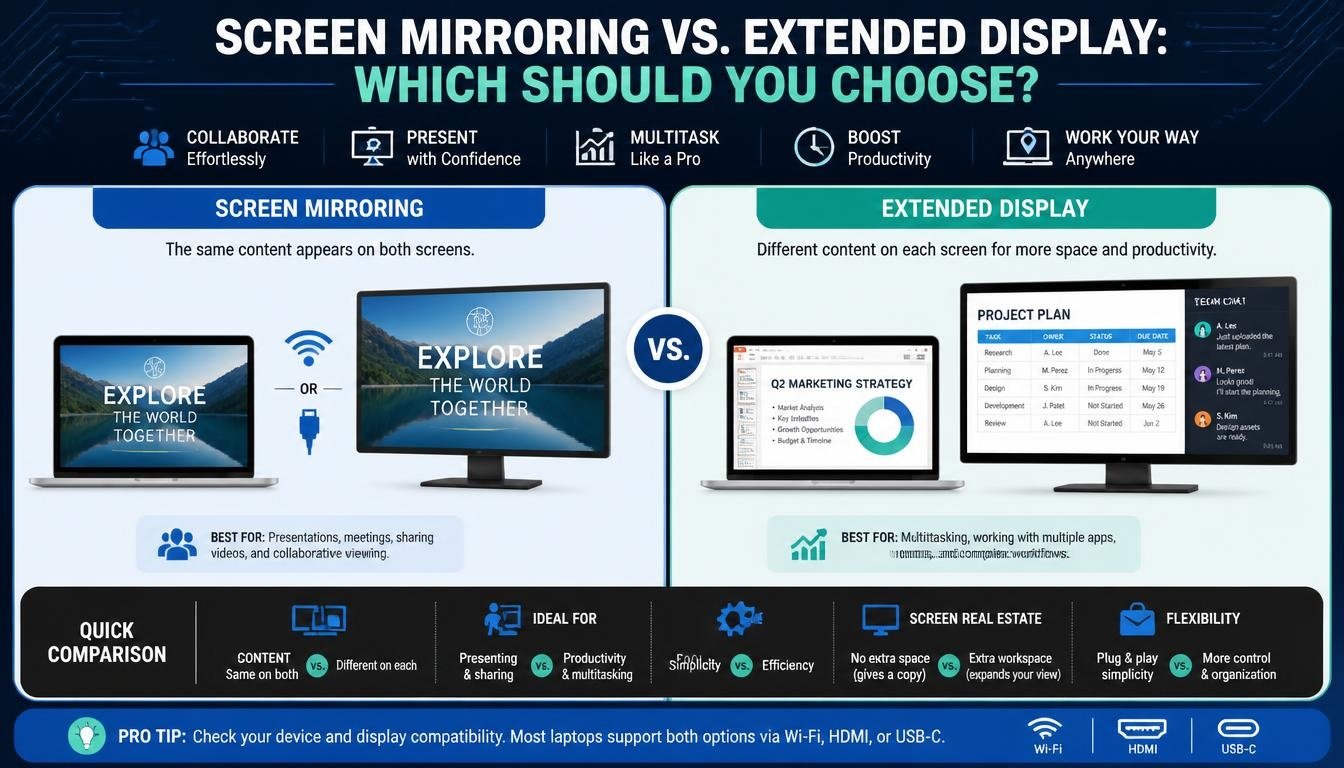
Once your device is connected, you may wonder whether to duplicate your screen or extend it.
Both options are useful, but they serve different purposes.
Screen Mirroring
Screen mirroring displays the same content on your laptop and external monitor.
It’s particularly helpful when:
- Giving presentations in a meeting room.
- Showing vacation pictures to family members.
- Watching videos on a television.
- Demonstrating software to an audience.
- Sharing educational content with students.
For example, you can keep your laptop connected to a projector while everyone in the room sees exactly what appears on your computer screen.
Extended Display
An extended screen display turns your external monitor into additional desktop space.
Instead of displaying identical content, each screen can show different applications.
You might keep a video conference on your laptop while editing a document on the external monitor.
This arrangement can improve multitasking and reduce the constant switching between open windows. Once you get used to it, working with a single screen can feel a little restrictive.
Understanding 4K Resolution and USB-C Video Performance
If picture quality is important to you, understanding resolution and bandwidth will help you make a better purchasing decision.
A USB-C to 4K HDMI adapter can provide excellent picture quality when all connected components support the same video specifications.
However, several factors influence actual performance.
What Does 4K Mean?
4K UHD resolution typically refers to 3840 × 2160 pixels.
That’s approximately four times the pixel count of Full HD 1920 × 1080 resolution.
The additional detail can make text look sharper, images appear more refined, and videos feel more immersive.
For productivity, 4K can also provide more screen space, although scaling settings may be necessary to keep text comfortably readable.
Why Does 4K at 60Hz Matter?
A 4K display operating at 60Hz refreshes its image 60 times per second.
For everyday computing, this generally provides smoother movement than a 4K display limited to 30Hz.
However, achieving 4K at 60Hz requires the entire connection to support the appropriate bandwidth and display configuration.
The adapter, HDMI cable, host device, and monitor must all be compatible.
DisplayPort 1.4 and USB 3.2
DisplayPort 1.4 is another important specification to understand when choosing a high-resolution USB-C display adapter.
It supports advanced video configurations, although the available resolution and refresh rate depend on bandwidth, compression, and implementation.
USB 3.2, meanwhile, describes data-transfer capabilities rather than guaranteeing video output.
A USB-C connector supporting USB 3.2 doesn’t necessarily support DisplayPort Alt Mode.
These technologies can work together in multifunction adapters, but their capabilities should never be treated as interchangeable.
What Is a USB-C Digital AV Adapter?
A USB-C digital AV adapter is an accessory designed to provide audiovisual connectivity through a compatible USB-C port.
The term Digital AV Adapter is often used for products that convert digital video signals into HDMI output.
One example is the Lention USB-C to 4K HDMI Digital AV Adapter.
<escape>Lention</escape> is a brand associated with computer connectivity accessories, including USB-C hubs and display adapters.
When considering the Lention USB-C to 4K HDMI Digital AV Adapter, or any similar product, check the manufacturer’s specifications for supported resolutions, refresh rates, operating systems, and power requirements.
Don’t assume every adapter with a similar product name offers identical features. Even products from the same brand can differ in their supported video standards.
A good adapter should match your actual requirements rather than simply offering the longest feature list.
Do USB-C to HDMI Adapters Require Drivers?
Most standard USB-C to HDMI adapters do not require separate driver installation.
When the connected device supports video output through DisplayPort Alt Mode or a compatible Thunderbolt connection, the operating system generally recognizes the display automatically.
This is why many adapters are advertised as plug-and-play accessories.
You simply connect the adapter, attach the HDMI cable, and select the correct display settings.
However, there are exceptions. Certain docking stations and multifunction display accessories may require firmware updates, specific drivers, or additional software.
If your adapter includes advanced features, check its manufacturer’s installation instructions.
For ordinary HDMI video output, a properly supported plug-and-play adapter is usually the easiest option.
Troubleshooting Common USB-C to HDMI Connection Problems
Even when you’ve purchased the correct equipment, occasional connection problems can happen.
The good news is that many issues have fairly simple solutions.
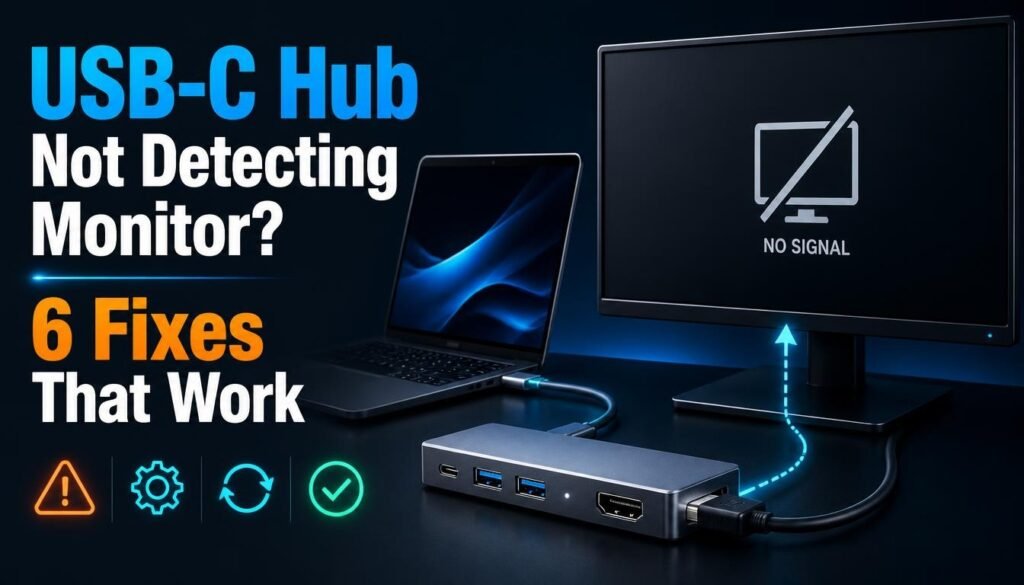
The Monitor Shows No Signal
If your monitor displays a No Signal message, start with the basics.
- Confirm that the USB-C port supports video output.
- Check whether the adapter is fully connected.
- Make sure the HDMI cable is firmly inserted.
- Select the correct HDMI input on the display.
- Restart your laptop or external monitor.
If possible, test the adapter with another compatible device.
This helps determine whether the problem is related to the laptop, adapter, cable, or display.
The Adapter Supports Charging but Not Video
This can be confusing, especially when an adapter appears to work perfectly for charging.
However, Power Delivery and video transmission are different functions.
Your device’s USB-C port might support charging and data transfer without supporting DisplayPort Alt Mode.
Check the device specifications and make sure you’re using a compatible video output port.
The Display Resolution Looks Incorrect
Sometimes an external monitor connects successfully but displays a lower resolution than expected.
Open your operating system’s display settings and check the available resolution options.
Also verify the adapter’s specifications and HDMI cable capabilities.
A 4K monitor won’t necessarily display 4K resolution if another component in the connection is limited to 1080p or a lower bandwidth configuration.
The Screen Flickers or Disconnects
Intermittent flickering can be caused by a loose connection, damaged cable, incompatible refresh rate, or insufficient signal quality.
Try using a different HDMI cable and reconnecting the adapter.
If the problem continues, lower the refresh rate temporarily and see whether the connection becomes stable.
You can also check whether your device has available graphics or system updates.
Audio Is Not Coming Through the Television
HDMI can carry both digital video and audio, but the operating system must select the correct output device.
On Windows, open Sound settings and choose your HDMI-connected display as the audio output.
On macOS, open System Settings, select Sound, and choose the appropriate output device.
Also make sure the television or monitor isn’t muted.
HDCP Compatibility Problems
HDCP stands for High-bandwidth Digital Content Protection.
It’s a content-protection technology used by certain streaming services and digital media devices.
If protected video doesn’t play correctly, the adapter, source device, and display may need to support compatible HDCP requirements.
Try another HDMI input or a different compatible adapter if the issue persists.
Practical Tips for Getting the Best USB-C to HDMI Experience
A few small habits can make your setup more reliable and enjoyable.
- Use certified, well-built accessories: A reputable adapter and HDMI cable can reduce connection problems.
- Check specifications before buying: Confirm video compatibility, resolution, and refresh rate rather than relying on product descriptions alone.
- Avoid unnecessary cable extensions: Longer or low-quality cables can sometimes introduce signal problems.
- Keep connectors clean: Dust and debris inside ports can interfere with reliable connections.
- Update your operating system: Updates can improve hardware compatibility and resolve display-related issues.
- Choose the correct display mode: Use mirroring for presentations and extended mode for multitasking.
- Check Power Delivery requirements: If you want to charge your laptop while using an adapter, make sure the accessory supports the required charging wattage.
These simple practices can help you enjoy a more dependable USB-C display connection.
How to Choose the Best USB-C to HDMI Adapter for Your Needs
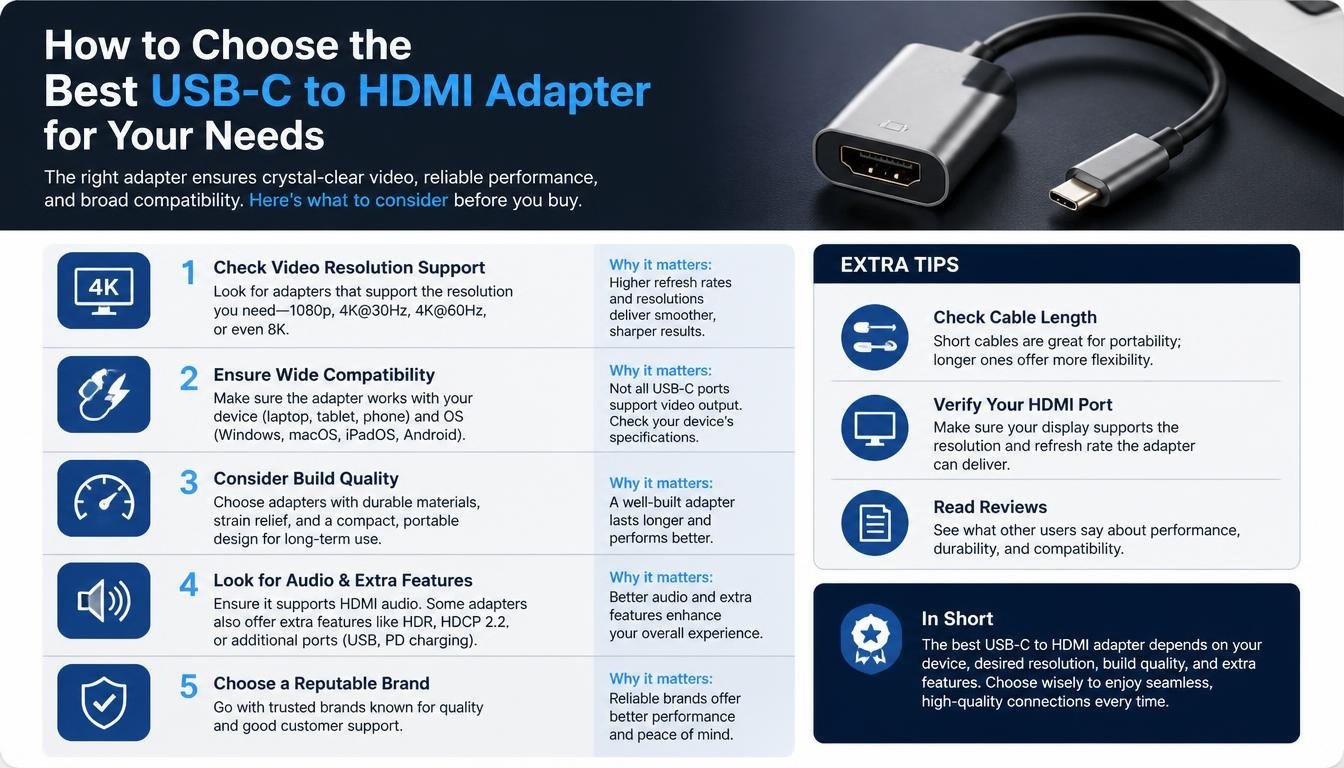
There isn’t one universal adapter that works perfectly for every person or device.
The best option depends on your equipment and how you plan to use the external display.
For everyday office work, a basic adapter supporting 1080p at 60Hz may be perfectly adequate.
For high-resolution editing, presentations, and entertainment, a USB-C to 4K HDMI adapter with suitable 4K at 60Hz support may be a better choice.
If you frequently connect multiple accessories, consider a multifunction USB-C hub with HDMI output, USB ports, and Power Delivery.
Before purchasing, use this simple checklist:
- Confirm that your USB-C port supports video output.
- Check compatibility with Windows, macOS, or ChromeOS.
- Verify the maximum supported resolution.
- Check whether 4K at 60Hz is available if required.
- Confirm HDMI 2.0 or HDMI 2.1 compatibility where relevant.
- Check whether the adapter supports Power Delivery.
- Consider build quality, cable length, and portability.
- Read manufacturer documentation and genuine customer reviews.
A little research before buying can prevent the disappointment of receiving an adapter that doesn’t support your device.
Frequently Asked Questions About USB-C to HDMI Connections
Can I connect a USB-C laptop to an HDMI monitor?
Yes, provided your laptop’s USB-C port supports video output through DisplayPort Alt Mode or compatible Thunderbolt technology.
You’ll need a suitable USB-C-to-HDMI adapter and an HDMI cable to complete the connection.
Does every USB-C to HDMI adapter support 4K?
No. Different adapters support different resolutions and refresh rates.
If you need 4K output, check the product specifications carefully and confirm whether it supports 4K at 30Hz or 4K at 60Hz.
Can I connect my phone to a television using USB-C?
Yes, but only if your smartphone supports wired video output through USB-C.
Some Android phones support external displays, while others only use USB-C for charging and data transfer.
Will a USB-C to HDMI adapter work with Windows and macOS?
Many adapters support both operating systems, but compatibility depends on the device’s hardware and video output capabilities.
Always check the manufacturer’s compatibility information before purchasing.
Can I use a USB-C HDMI adapter for presentations?
Absolutely. It’s one of the most convenient uses for this technology.
Connect your compatible laptop to a projector or television, select the correct HDMI input, and choose screen mirroring or an extended display.
Can I charge my laptop while using an HDMI adapter?
Some multifunction USB-C adapters include a separate USB-C Power Delivery port.
These models allow compatible laptops to receive power while sending video to an external display. However, charging wattage and pass-through support vary between products.
Is a USB-C to HDMI converter better than a wireless connection?
For many situations, a wired connection provides a straightforward setup with predictable performance.
Wireless display connections offer greater freedom from cables, but they can introduce latency, network dependency, or compression. The better option depends on your environment and requirements.
Read More: https://techbiton.com/top-6-best-apple-pencil-apps/
Conclusion: Enjoy a Simpler and More Flexible Display Setup
Connecting a USB-C device to an HDMI display doesn’t have to be complicated. With a compatible port, a suitable USB-C to HDMI adapter, and a good-quality HDMI cable, you can turn your laptop, tablet, or supported smartphone into a convenient source for a much larger screen.
The most important step is checking video compatibility before purchasing anything. Understanding DisplayPort Alt Mode, HDMI standards, resolution requirements, and Power Delivery can help you avoid common mistakes and choose an accessory that genuinely meets your needs.
Whether you’re creating an extended desktop for productive work, mirroring your screen during an important presentation, or enjoying your favourite movies on a television, the right connection can make a noticeable difference.
Take a moment to check your device specifications, choose a reliable adapter, and configure your display settings. A few simple steps are all it takes to enjoy a cleaner, more flexible, and more comfortable digital experience.