There is something rather magical about picking up an Apple Pencil and watching an ordinary iPad turn into a creative playground.
A blank screen suddenly becomes a sketchbook, a digital notebook, a painting canvas, or even a workspace where ideas finally begin to make sense.
And honestly, once you experience how naturally the Apple Pencil responds to your movements, going back to ordinary touch controls can feel a little limiting.
But here’s the interesting part: the Apple Pencil itself is only half the experience. The applications you install determine what you can actually create, how comfortably you can work,
and whether your iPad becomes a serious productivity tool or simply another screen sitting on your desk.
Whether you’re a professional illustrator, a university student, a graphic designer, or someone who enjoys doodling during a quiet afternoon, choosing the right software can make a surprisingly big difference.
There are hundreds of Apple Pencil apps available, but not all of them deserve a place on your home screen.
Some are excellent for digital painting, others make handwritten notes feel wonderfully natural, and a few combine creative freedom with practical everyday features.
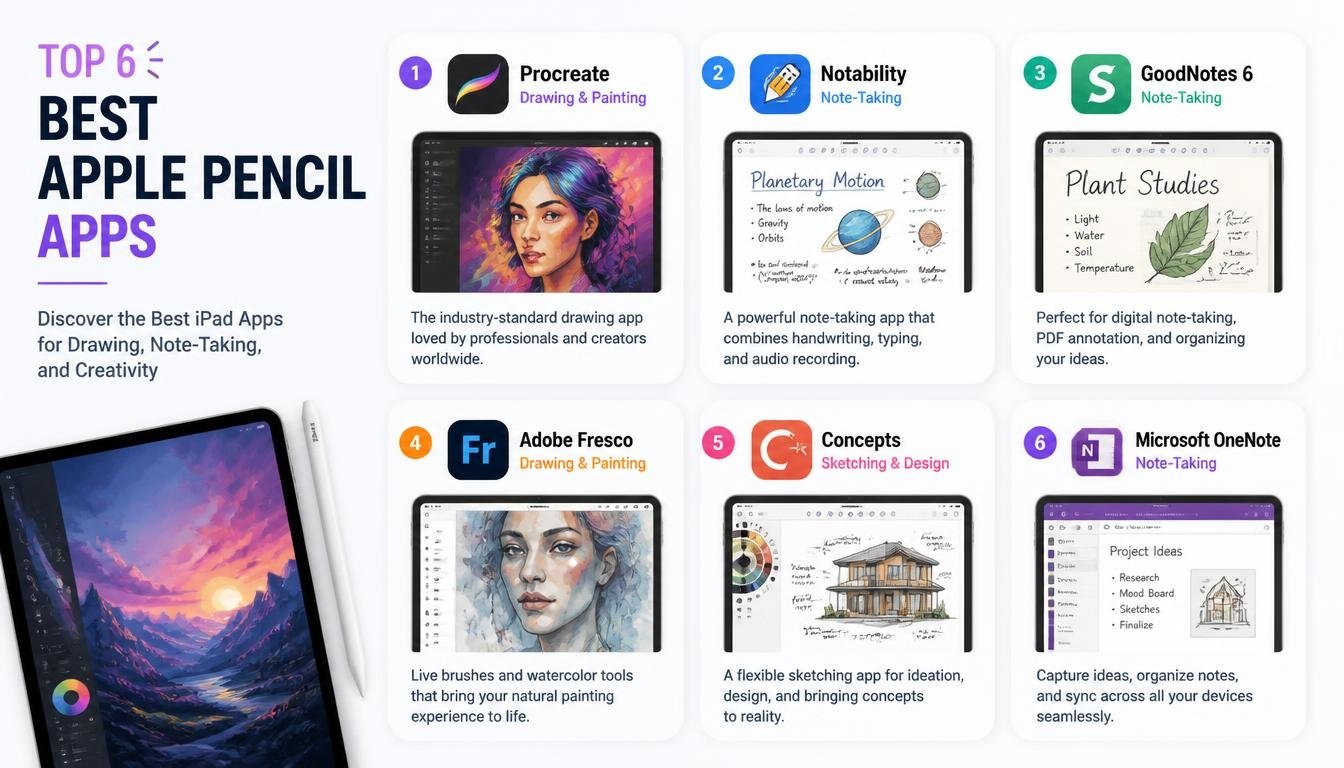
In this guide, we’ll explore the Top 6 Best Apple Pencil Apps, including Procreate, Notepad+, Brushes, GoodNotes 5, Artstudio Pro, and Notability.
We’ll look at their standout features, ideal users, advantages, limitations, and the kind of creative work each application handles best.
Let’s find the one that makes your Apple Pencil feel like it was made just for you.
1. Procreate – One of the Best Apple Pencil Apps for Drawing and Digital Painting
If digital illustration is your primary interest, Procreate deserves your attention. It has become a favourite among illustrators, hobby artists, and professional digital creators because it offers an impressive collection of artistic tools without making the entire experience feel complicated.
The interface is clean, responsive, and designed around the idea that you should spend more time creating artwork and less time searching through endless menus. That’s a welcome change when inspiration arrives unexpectedly.
<em>Why Procreate stands out</em>
Procreate provides an extensive brush library, with more than 150 brushes in its widely used classic feature set, covering different artistic styles and techniques.
You can experiment with pencil textures, watercolour effects, inking, airbrushing, calligraphy, and spray-paint-inspired effects.
The Apple Pencil adds another dimension to the experience. Pressure and tilt sensitivity allow artists to create different strokes simply by changing how they hold and move the stylus.
Its layer-based editing system is particularly useful. You can separate outlines, backgrounds, colours, shadows, and other elements, making adjustments without disturbing the entire composition.
Some other useful features include:
- QuickShape for creating cleaner geometric shapes.
- Custom brush creation and adjustment.
- Layer management for complex illustrations.
- Colour balance and other image adjustment tools.
- Animation Assist for creating simple frame-by-frame animations.
- High-resolution canvas options for detailed artwork.
- Selection and transformation tools for moving or modifying individual elements.
<em>Who should use Procreate?</em>
Procreate is particularly suitable for graphic artists, illustrators, digital painters, and beginners who want to explore drawing on an iPad.
Imagine sitting beside a window with your iPad, sketching a character, adjusting its colours, and adding little details without carrying a collection of physical brushes and paints. That’s the kind of freedom this application offers.
It is also a strong option for anyone searching for the best Apple Pencil apps for sketching and illustration.
<em>Things to consider</em>
Procreate is primarily designed for creative artwork rather than traditional document editing or handwritten study notes. It is also an iPad-focused application, so don’t expect the same experience across every Apple device.
Our verdict: If drawing, painting, illustration, and artistic experimentation are what you want from your Apple Pencil, Procreate is one of the strongest choices available.
2. Notepad+ – A Natural Digital Note-Taking Experience
Sometimes you don’t need hundreds of brushes or complicated image-editing tools. You simply want a comfortable place to write down your thoughts, organize information, and keep everything accessible.
That’s where Notepad+ comes into the picture.
Notepad+ is designed around digital note-taking and handwritten content. It offers an alternative to carrying multiple physical notebooks, especially for people who prefer writing with a stylus rather than typing every sentence.
The experience is particularly appealing to students, professionals, and anyone who enjoys putting ideas on paper before turning them into something more organized.
<em>Features worth exploring</em>
One of the most attractive aspects of a handwriting-focused application is the ability to write naturally. With Apple Pencil support, you can create handwritten notes, mark important information, and organize your thoughts directly on the iPad screen.
Depending on the version available, useful capabilities may include:
- Handwritten note creation.
- Different writing and drawing tools.
- Digital paper and page layouts.
- Adjustable writing and palm-rest settings.
- Note organization and editing.
- Annotation and highlighting options.
- Support for different document and note-taking workflows.
Palm rejection is another feature worth paying attention to when choosing a handwriting application. It helps prevent unwanted marks when your hand rests on the iPad while writing.
A comfortable paper-like writing experience can make long study sessions feel much more enjoyable.
<em>Who should use Notepad+?</em>
Students who regularly prepare handwritten study notes may find it useful. Remote workers can use it to jot down meeting ideas, while everyday users can keep shopping lists, reminders, personal thoughts, and quick sketches in one place.
For example, imagine attending an online meeting and needing to record three important ideas quickly. Instead of switching between multiple applications, you can write everything directly with your Apple Pencil.
It is a simple approach, but sometimes simple is exactly what productivity needs.
<em>Things to consider</em>
Not every version of Notepad+ offers the same features, and availability can vary by region and subscription model. Check its current App Store listing before purchasing, particularly if you need advanced handwriting recognition or cloud synchronization.
Our verdict: Notepad+ is worth considering if you prefer handwritten notes and want a straightforward digital notebook rather than a full-scale artistic application.
3. Brushes – A Creative App for Digital Painting and Sketching
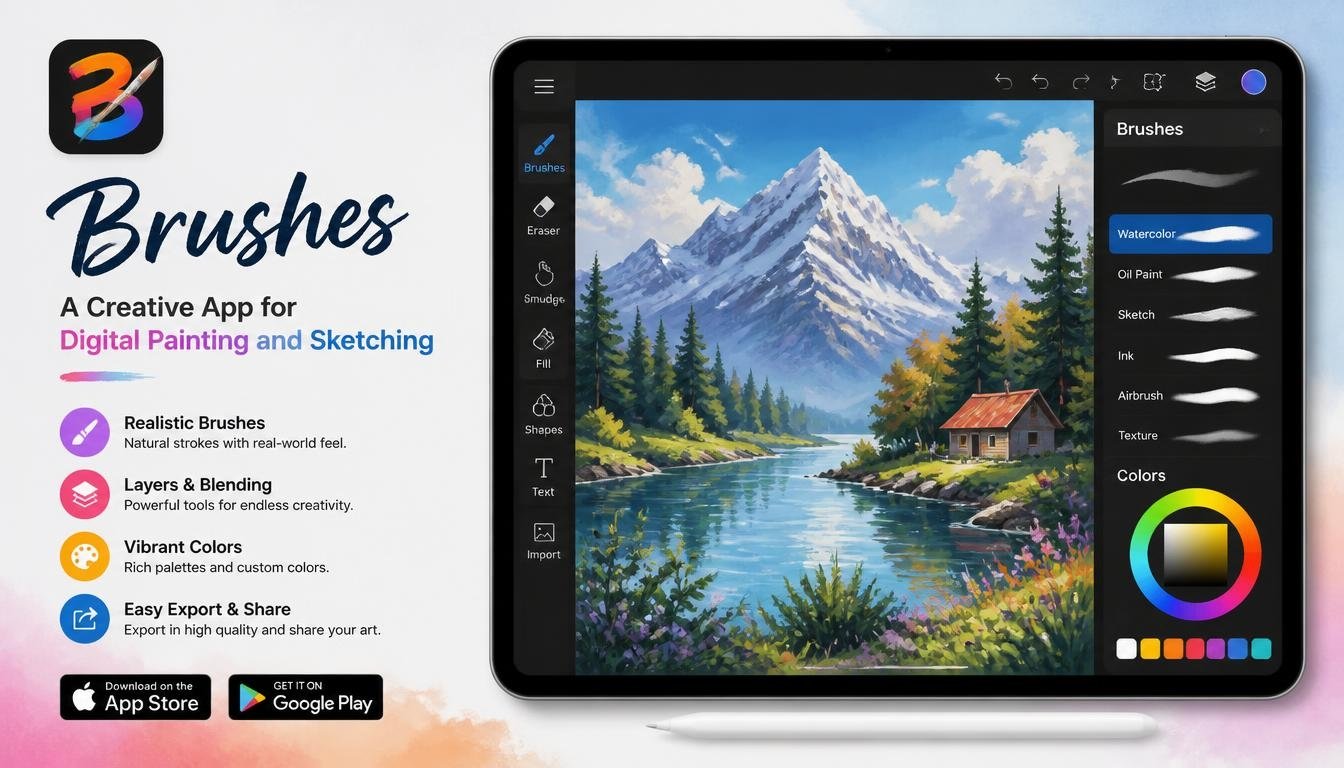
For people who enjoy painting and experimenting with visual ideas, Brushes is another interesting name in the Apple Pencil ecosystem.
The idea behind brush-based painting applications is beautifully straightforward: give artists a digital canvas, a collection of painting tools, and enough flexibility to create something original.
Brushes has historically been associated with intuitive digital painting on Apple devices. However, it is important to distinguish older Brushes versions from currently available alternatives, as the original application and its modern successors may have different availability and feature sets.
If you’re considering a Brushes-branded application, check the exact developer and current App Store listing before downloading.
<em>What makes brush-based painting appealing?</em>
A good digital painting application should offer more than a basic pencil tool. It should give you control over how paint behaves, how colours interact, and how different strokes combine.
Depending on the particular version, features worth looking for include:
- Customizable painting brushes.
- Adjustable brush size and opacity.
- Different painting textures.
- Layer-based artwork organization.
- Colour selection and blending tools.
- Sketching and freehand drawing.
- Support for stylus-based drawing.
The real enjoyment comes from experimentation. You might start with a simple landscape, add a few textured brush strokes, and gradually turn it into something with much more personality.
<em>Who will enjoy Brushes?</em>
This category of application is especially interesting for hobby painters, digital sketch artists, and people who enjoy experimenting with different artistic styles.
It can also be useful for beginners who want to understand how digital brushes behave before moving towards more advanced illustration software.
<em>Things to consider</em>
Because the Brushes name has been associated with different generations of software, don’t assume that every feature mentioned in older reviews exists in a current version. Verify compatibility with your iPadOS version and Apple Pencil model.
Our verdict: Brushes is worth exploring as a digital painting option, especially if you enjoy experimenting with brush effects and freehand artwork. For a currently supported, feature-rich painting workflow, compare it carefully with Procreate before deciding.
4. GoodNotes 5 – One of the Best Apple Pencil Apps for Note-Taking
If you are a student or someone who prefers handwritten notes over typing, GoodNotes 5 is an application worth knowing about.
It became popular because it made digital notebooks feel familiar. Instead of forcing users into a completely different writing experience, it recreated many of the useful features of physical notebooks while adding the convenience of digital organization.
You can create notebooks for different subjects, write with your Apple Pencil, highlight important information, and keep your documents arranged in folders.
For many people, this is where an iPad starts becoming a genuine study companion.
<em>Important features</em>
GoodNotes 5 offers several useful tools for everyday note-taking:
- Handwritten digital notebooks.
- PDF annotation and document marking.
- Folder-based organization.
- Different paper templates.
- Handwriting recognition and text searching.
- Importing and organizing documents.
- Handwriting and drawing tools.
- Synchronization options through supported cloud services.
One particularly useful feature is handwriting recognition.
Imagine writing a biology lesson by hand and needing to find a particular term several weeks later. With supported handwriting search, you may be able to locate the relevant note without manually opening every notebook.
This is where OCR technology, handwriting recognition, and searchable handwritten notes become genuinely practical.
<em>Why students love it</em>
GoodNotes 5 can make studying more organized without changing the way you naturally write.
You could create one notebook for mathematics, another for history, and a separate collection for lecture notes. Important sections can be highlighted, while PDFs can be annotated directly instead of being printed.
It also helps reduce the number of physical notebooks you need to carry around.
<em>GoodNotes 5 versus newer versions</em>
There is one important detail worth mentioning: GoodNotes 5 is an older version, and the application has since evolved into newer releases, including Goodnotes 6.
Feature availability, purchasing options, and upgrade policies can differ. If you’re installing it today, check the current Goodnotes listing to understand which version and subscription options are offered.
Our verdict: GoodNotes 5 remains an important name in digital note-taking. It is especially relevant to students, teachers, and professionals who appreciate handwritten organization and PDF annotation.
5. Artstudio Pro – A Powerful Choice for Digital Artists
If you want something more advanced than a basic sketching application, Artstudio Pro deserves a closer look.
This application combines drawing, painting, and image editing in a single creative environment. It is particularly interesting for artists who enjoy working with multiple layers and experimenting with different visual effects.
While Procreate is often appreciated for its streamlined illustration experience, Artstudio Pro offers a workflow that may feel familiar to people who have previously worked with desktop image-editing software.
<em>Features that make it interesting</em>
Artstudio Pro provides a range of tools designed for creating and editing digital artwork.
Some of its key capabilities include:
- Advanced painting and drawing tools.
- Layer-based image editing.
- Customizable brushes.
- Selection and transformation tools.
- Colour adjustment options.
- Support for different image formats.
- Digital illustration and photo-editing workflows.
- Tools for creating detailed compositions.
The layer system is especially helpful when working on complicated designs. You can keep different visual elements separate, adjust individual components, and experiment without permanently changing your original artwork.
Its brush customization features are also useful for artists who prefer creating a particular visual style rather than relying entirely on default presets.
<em>Who should choose Artstudio Pro?</em>
Artstudio Pro can appeal to digital painters, graphic designers, and people who regularly work with detailed illustrations or image editing.
For example, imagine creating a poster with a painted background, custom lettering, and several separate graphic elements. A layer-based workflow lets you adjust each component without rebuilding the whole design.
It may also appeal to users looking for an alternative to desktop applications such as Adobe Photoshop for selected iPad-based creative tasks.
Of course, it shouldn’t be treated as a complete replacement for every professional desktop editing feature.
<em>Things to consider</em>
The number of tools can initially feel overwhelming if you’re completely new to digital art. Spend a little time learning the interface, experimenting with layers, and understanding how the brushes behave.
Also, check the current App Store listing for supported iPad models and available features.
Our verdict: Artstudio Pro is a compelling choice for artists who want a more flexible painting and image-editing environment on their iPad.
6. Notability – An Excellent Apple Pencil App for Students and Professionals
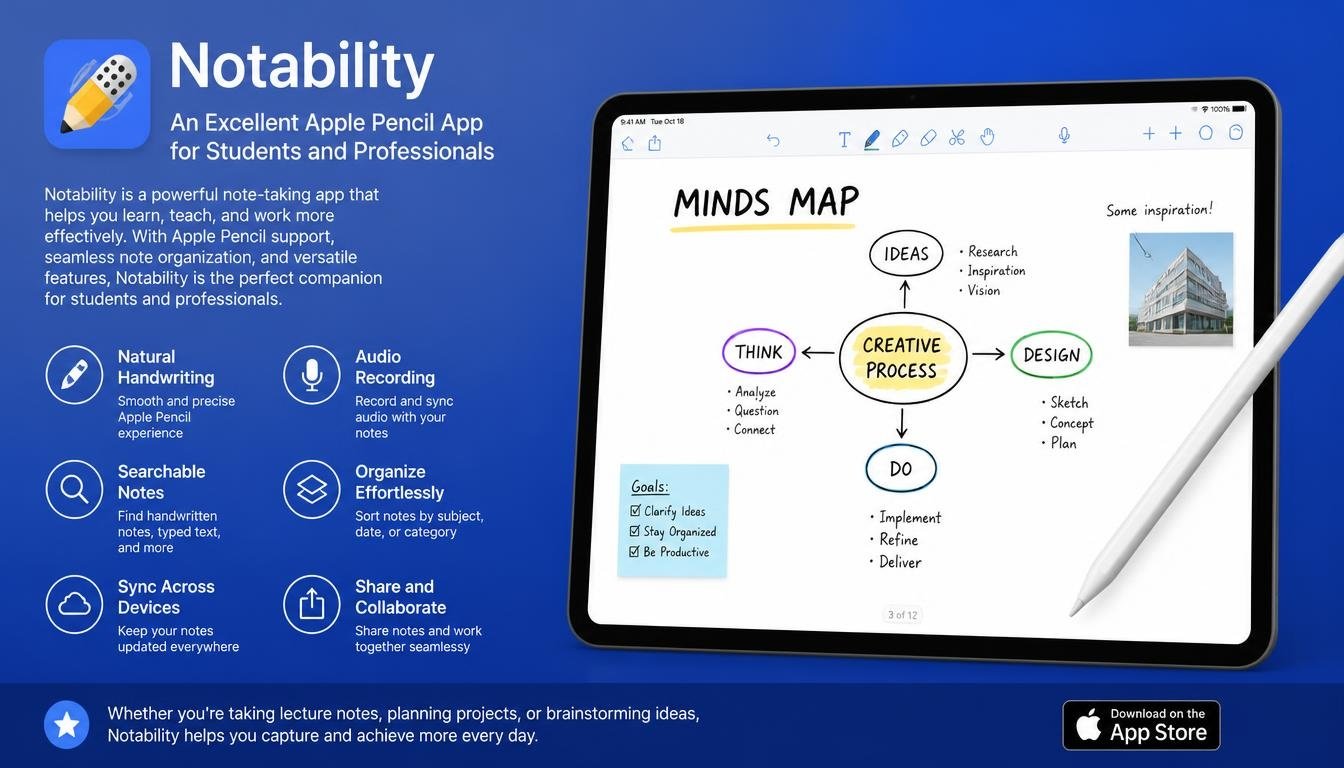
Notability deserves its place among the best Apple Pencil applications because it brings together handwriting, typing, document annotation, and audio recording.
For students, this combination can be particularly useful. You don’t always have the time to write down every word during a lecture, and sometimes a written note makes much more sense when you can revisit the original explanation.
Notability helps bridge that gap.
<em>Standout features</em>
The application offers several productivity-focused features, including:
- Handwritten and typed notes.
- Audio recording within supported note-taking workflows.
- PDF annotation.
- Highlighting and drawing tools.
- Note organization.
- Search capabilities.
- Handwriting and sketching support.
- Options for reviewing recorded information alongside notes.
Audio recording is one of its most interesting features.
Imagine attending a lecture where your professor explains a complicated topic. You can write down the key points using your Apple Pencil while recording the audio, then revisit the recording later to understand the details you might have missed.
That’s a useful combination, particularly when preparing for examinations.
<em>Why professionals may appreciate it</em>
Notability isn’t limited to classroom use.
Remote workers can use it to capture meeting notes, annotate documents, and organize project-related information. Designers can mark up visual references, while professionals can use handwritten notes during planning sessions.
It is one of those applications that can quietly become part of your daily routine.
<em>Notability versus GoodNotes</em>
Both applications are excellent choices, but their strengths are slightly different.
GoodNotes is particularly appealing if you want a structured digital notebook experience with folders and document organization.
Notability is especially attractive if you regularly combine written notes with audio recordings and document annotations.
Neither is automatically the right choice for everyone. Your preferred workflow should determine which one you install.
Our verdict: Notability is a strong option for students, educators, and professionals who want handwritten notes, audio recording, and document annotation in one place.
How to Choose the Best Apple Pencil Apps for Your Needs
Now that we’ve explored all six applications, you might be wondering which one deserves the first download.
The honest answer is that it depends on what you want your iPad to do.
An illustrator and a university student may both own the same Apple Pencil, but their software requirements are completely different. Choosing an application based on popularity alone isn’t always the smartest approach.
Here’s a simple comparison to make the decision easier.
| Application | Best suited for | Main strength |
| Procreate | Digital artists | Drawing and painting |
| Notepad+ | Everyday note-takers | Handwritten notes |
| Brushes | Painting enthusiasts | Brush-based artwork |
| GoodNotes 5 | Students | Digital notebooks |
| Artstudio Pro | Graphic artists | Painting and image editing |
| Notability | Students and professionals | Notes and audio recording |
Choose Procreate if You Love Creating Artwork
If your goal is to draw characters, paint landscapes, create illustrations, or experiment with digital brushes, Procreate should be near the top of your list.
Its artistic tools make it a natural choice for people who want a creative canvas rather than a traditional notebook.
Choose GoodNotes or Notability for Studying
For handwritten notes, PDF annotation, and study organization, these two applications are worth comparing.
GoodNotes offers a familiar notebook structure, while Notability is particularly useful when audio recording is part of your workflow.
Choose Notepad+ for Everyday Writing
If you mostly want to write down thoughts, organize personal notes, and enjoy a handwriting-focused interface, Notepad+ may be enough.
You don’t always need an advanced application with dozens of complicated features.
Choose Artstudio Pro for More Advanced Editing
If you enjoy experimenting with layers, painting tools, and image adjustments, Artstudio Pro offers a more extensive creative environment.
Consider Brushes for a Painting-Focused Workflow
Brushes-branded applications are worth investigating, but check their exact current version and compatibility before committing to one.
Tips for Getting the Best Experience from Your Apple Pencil Apps
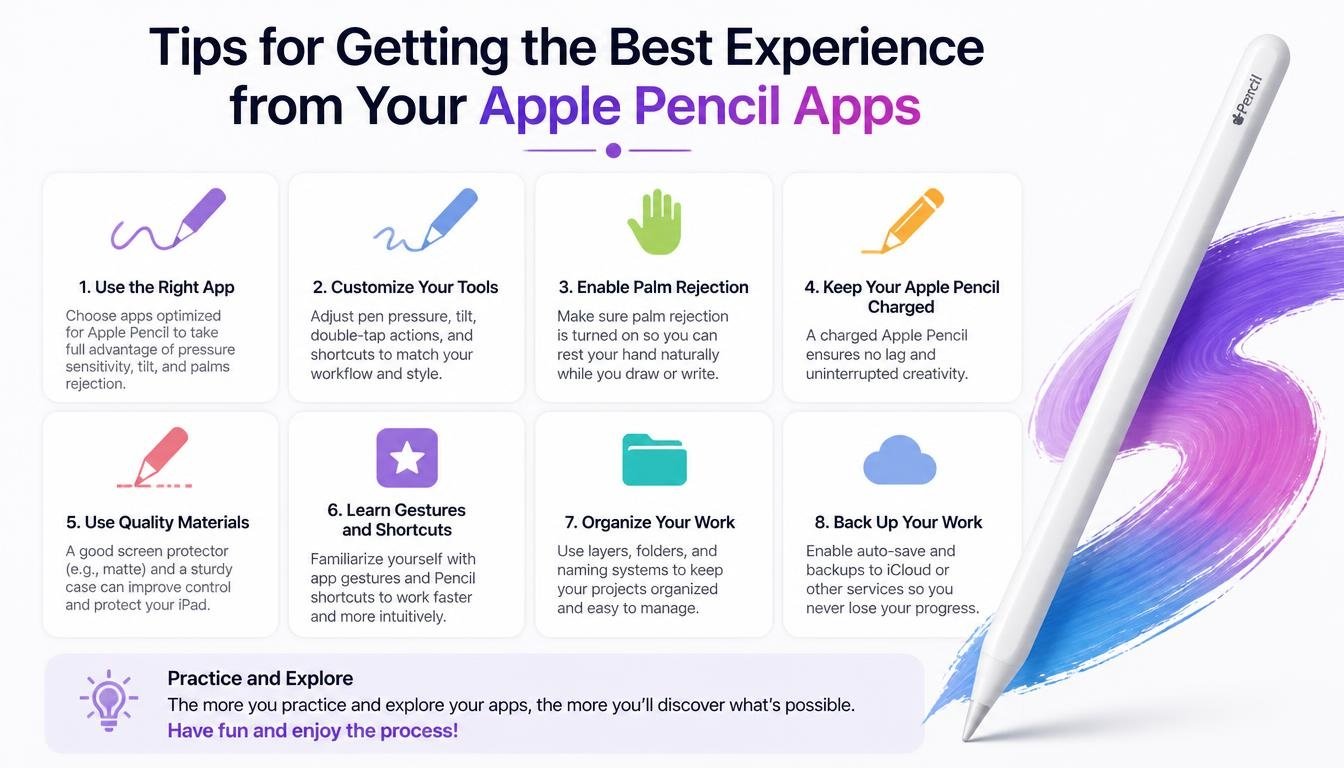
Even the best software won’t feel particularly impressive if your setup isn’t comfortable.
A few small adjustments can make your digital drawing and writing experience considerably better.
- Check Apple Pencil compatibility: Different iPad models support different Apple Pencil generations. Confirm that your stylus and iPad work together before purchasing an application.
- Experiment with pressure sensitivity: If your Apple Pencil supports pressure sensitivity, spend some time testing how different brushes respond to light and firm strokes.
- Explore palm rejection: Make sure your note-taking application handles palm contact properly so your hand can rest naturally on the screen.
- Use layers for artwork: When drawing or painting, separate important elements into layers. This makes editing much easier later.
- Organize your notebooks: Create separate folders for subjects, clients, projects, or personal notes.
- Check cloud synchronization: If you work across multiple Apple devices, look for applications that support convenient cloud syncing.
- Explore keyboard shortcuts: Some applications offer useful shortcuts that can make repetitive editing tasks faster.
- Keep your software updated: Newer versions may introduce performance improvements, compatibility updates, and additional features.
One more thing: don’t feel pressured to install all six applications immediately. Start with one or two that match your needs. Learn their features properly, and add more only when you have a genuine reason.
Frequently Asked Questions About the Best Apple Pencil Apps
Which is the best Apple Pencil app for drawing?
Procreate is one of the strongest choices for digital drawing, painting, sketching, and illustration. Artstudio Pro is another excellent option for users who want more extensive image-editing tools.
What are the best Apple Pencil apps for note-taking?
GoodNotes and Notability are two popular choices. GoodNotes is particularly useful for digital notebooks, while Notability offers an appealing combination of handwriting, document annotation, and audio recording.
Notepad+ is also worth considering for straightforward handwritten notes.
Can I use Apple Pencil apps on every iPad?
No. Apple Pencil compatibility depends on your particular iPad model and stylus generation. Some older iPads support only specific Apple Pencil versions, while newer models may support different features.
Always check Apple’s official compatibility information before purchasing an accessory.
Are there free Apple Pencil apps?
Yes. Some applications offer free downloads, free versions, or limited features without payment. Others require a one-time purchase or subscription to unlock their complete functionality.
Check the App Store listing for current prices and in-app purchase details.
Which Apple Pencil app is best for students?
GoodNotes and Notability are particularly suitable for students because they support handwritten notes, document annotation, and study-related organization.
The better choice depends on whether you prefer structured notebooks or a workflow that combines notes with audio recordings.
Is Procreate better than Artstudio Pro?
Neither application is universally better.
Procreate offers an approachable, illustration-focused environment, while Artstudio Pro provides a broader combination of painting and image-editing tools. Your artistic workflow should guide your decision.
Read More: https://techbiton.com/macbook-pro-usb-c-ports-not-responding/
Final Thoughts: Find the Apple Pencil App That Brings Your Ideas to Life
The best Apple Pencil app isn’t necessarily the one with the most tools, the fanciest interface, or the longest feature list. It’s the one that makes your everyday work feel easier and your creative ideas more enjoyable to explore.
Procreate offers an impressive digital painting experience, Notepad+ provides a handwriting-focused option, and Brushes brings attention to the pleasure of brush-based artwork.
GoodNotes 5 and Notability make digital note-taking more organized, while Artstudio Pro gives creative users another powerful environment for painting and image editing.
Each application has its own personality, and that’s precisely what makes exploring the Apple Pencil ecosystem worthwhile.
If you’re just getting started, try a note-taking application alongside a drawing tool. If you’re already an experienced artist, explore more advanced brush settings, layers, and editing features.
Give yourself time to discover what works rather than expecting to master everything on the first afternoon.
Most importantly, remember that technology should support your creativity, not get in its way. Your next favourite illustration, perfectly organized notebook, or brilliant project idea might begin with nothing more than an iPad, an Apple Pencil, and the right application.
So, which of these six apps are you excited to try first? Share your favourite Apple Pencil application and your experience with it in the comments. Someone else might discover their next creative companion through your recommendation!