
Choosing an HDMI cable for a projector might seem like one of those tiny technical decisions that don’t deserve much thought.
Until, of course, you walk into a meeting room, connect your laptop, switch on the projector, and find a stubborn “No Signal” message staring back at you. Suddenly, that little cable becomes the most important thing in the room.
Whether you’re preparing a classroom lesson, arranging a home cinema, delivering an office presentation, or connecting a tablet to a larger display, the right cable can make the whole experience easier.
A dependable connection means less fiddling with settings and more time focusing on what you actually came to do.
The good news is that choosing the right HDMI cable for projector use isn’t nearly as complicated as it may appear.
You don’t need to become a technical expert or memorise every specification printed on a cable’s packaging. You simply need to understand your devices, the picture quality you want, and the distance between your equipment.
This guide explains what matters, from HDMI versions and 4K resolution to cable length, USB-C compatibility, and common connection problems.
By the end, you’ll have a much clearer idea of which cable suits your projector and why some seemingly similar cables perform differently.
Why Choosing the Right HDMI Cable for Projector Use Matters
An HDMI cable carries digital video and audio signals from a compatible source, such as a laptop, computer, streaming device, or gaming console, to a projector. It provides a straightforward way to display presentations, films, photographs, and other content on a much larger screen.
However, not every projector setup is identical. One person might use a Full HD projector in a small classroom, while another has a 4K home theatre system with equipment installed several metres away. Both need an HDMI connection, but their requirements aren’t necessarily the same.
A suitable cable helps you achieve reliable HDMI signal transmission, appropriate resolution support, and a connection that remains stable during use.
Buying a cable that is unnecessarily expensive won’t automatically improve the picture, either. The aim is to match the cable to your actual setup, rather than pay for specifications you’ll never use.
Think of it this way: your projector, source device, and cable work as a team. If one part cannot support the desired display settings, the entire connection may be limited.
Do You Need a Special HDMI Cable for a Projector?
In most situations, no. A projector with a standard HDMI input can usually work with an ordinary HDMI cable, provided the cable supports the resolution, refresh rate, and other features required by your equipment.
For example, a basic Full HD projector used for slideshows may work perfectly well with a suitable High Speed HDMI cable. A modern 4K projector, particularly one displaying high-refresh-rate content or HDR video, may require a cable with greater bandwidth.
The important point is that the cable must meet the needs of the entire connection. A projector labelled 4K doesn’t magically make every attached cable suitable for every 4K format.
Before purchasing, check three things:
- Projector HDMI compatibility: Confirm the type of HDMI input and the resolutions supported by the projector.
- Source device output: Check whether your laptop, computer, or streaming device can output the required resolution.
- Cable performance: Choose a cable certified or specified for the bandwidth needed by your setup.
This simple check prevents a surprising amount of frustration. There’s little point buying an advanced cable if the source device only outputs Full HD, and an older cable may become a limitation if you’ve upgraded to a demanding 4K system.
Understanding HDMI Versions and Cable Categories
HDMI specifications can feel like a maze of numbers, labels, and marketing language. Fortunately, you can simplify the decision by concentrating on cable performance instead of assuming that a higher version number on a package always means better results.
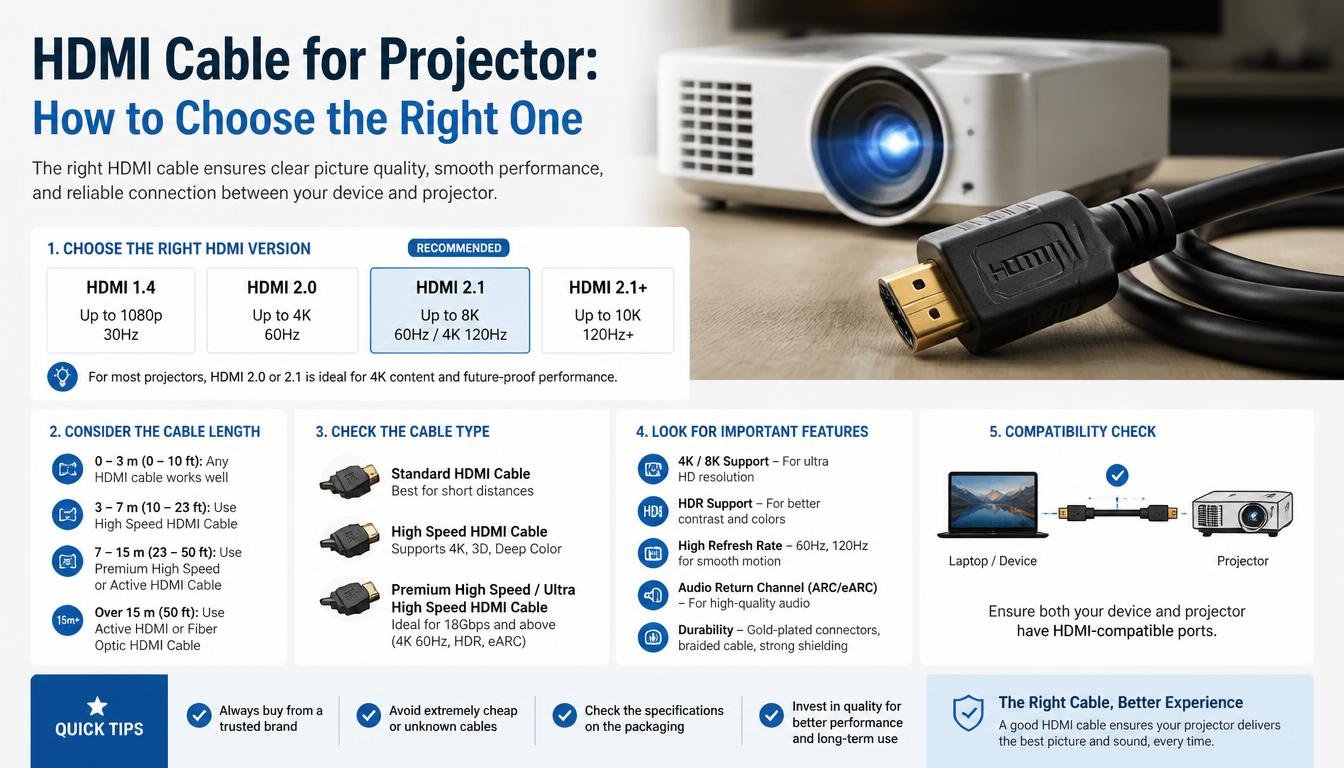
Standard HDMI and High Speed HDMI
Standard HDMI cables were designed for earlier, lower-bandwidth applications. They may be adequate for some older equipment, but they aren’t the safest general choice when buying a new cable for an unknown projector setup.
High Speed HDMI cables support higher bandwidth and are suitable for many Full HD applications, including 1080p video and certain 4K formats at lower bandwidth requirements.
If you’re connecting an older laptop to a classroom projector for presentations, a suitable High Speed HDMI cable will often do the job without any fuss. Still, check the supported display mode rather than relying on the label alone.
Premium High Speed HDMI
Premium High Speed HDMI cables are certified for bandwidth up to 18 Gbps. They are intended for demanding HDMI applications, including common 4K video formats at 60 Hz, depending on the complete equipment configuration.
This category can be a sensible option for a 4K projector used for films, detailed graphics, or presentations containing video. It offers more headroom than older cable categories, though it doesn’t guarantee that every possible HDR or display configuration will work.
Ultra High Speed HDMI
Ultra High Speed HDMI cables are designed for bandwidth up to 48 Gbps and support advanced HDMI 2.1-era capabilities, including suitable 4K high-refresh-rate and 8K formats.
You probably won’t need one for a basic classroom projector. However, it may be useful for a compatible high-end home theatre, gaming projector, or installation that requires more bandwidth.
Remember that the projector and source device must also support the desired features. An Ultra High Speed cable connected to equipment limited to an older HDMI specification won’t unlock capabilities that the equipment doesn’t possess.
How to Choose an HDMI Cable for Projector Resolution
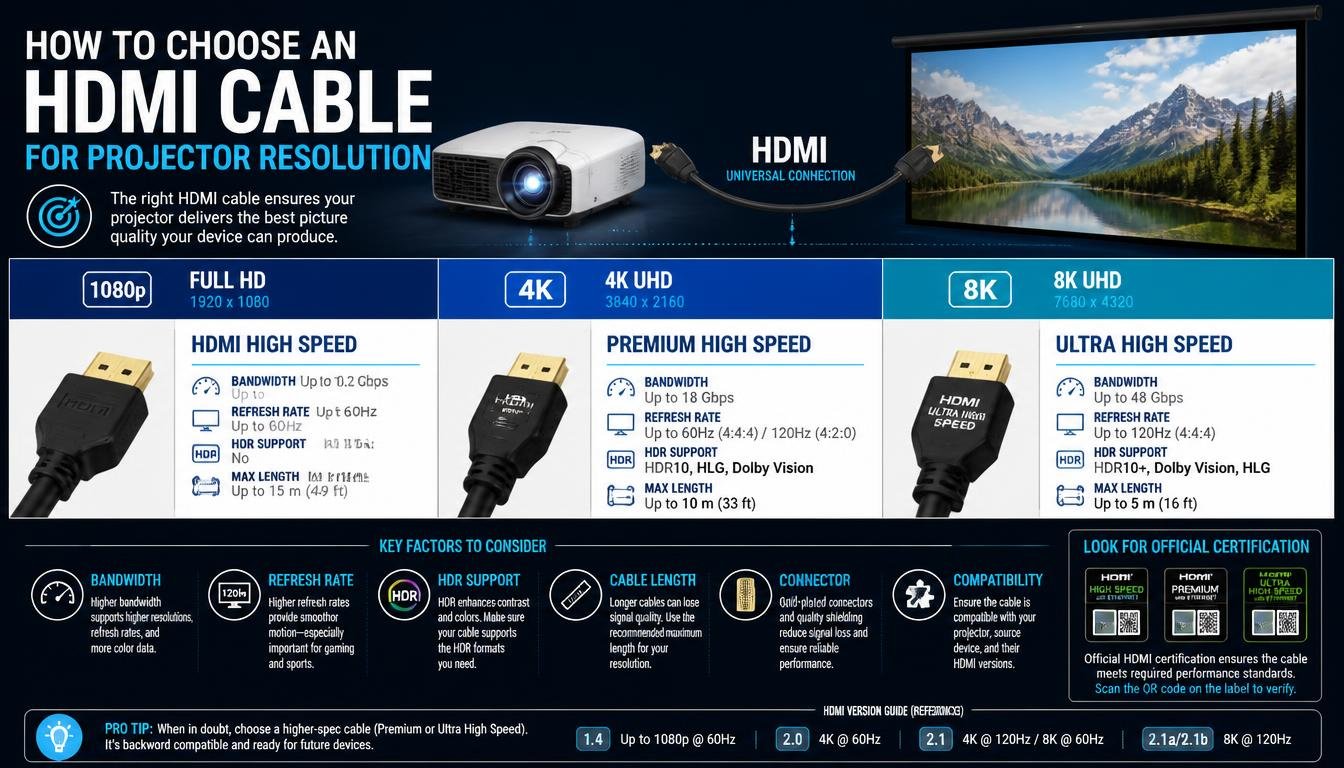
Resolution is one of the first specifications worth checking because it determines how much visual detail your projector can display. The cable needs sufficient bandwidth for the resolution and refresh rate being transmitted.
Full HD Projectors
Full HD generally means 1920 × 1080 pixels. It’s common in classrooms, meeting rooms, home entertainment setups, and budget-friendly projector systems.
For a Full HD projector used mainly for slides, documents, educational videos, or everyday films, a reliable High Speed HDMI cable is usually a practical choice. The most important considerations are compatibility, cable length, and dependable construction.
If your main job is displaying presentation slides, there’s no reason to pay extra for a cable intended for demanding 8K equipment unless you have another use for it.
4K Projectors
A 4K projector can display much more detail than a Full HD model, but the term 4K doesn’t describe every technical requirement of the connection.
A cable must support the bandwidth needed for the selected resolution, refresh rate, colour format, and HDR features. For common 4K-at-60-Hz applications, a certified Premium High Speed HDMI cable is often appropriate. More demanding modes may require an Ultra High Speed cable.
Check the projector’s manual for its supported HDMI modes, especially when purchasing a cable for a home theatre system. It’s better to confirm the exact requirements than guess based on the words “4K ready” printed on a box.
Refresh Rate and HDR Support
Refresh rate refers to how often the image updates each second. A 60 Hz signal refreshes 60 times per second, while higher rates may be important for gaming and other motion-heavy content.
HDR, or High Dynamic Range, can improve the range of brightness and colour when supported by the entire system. It doesn’t work simply because an HDMI cable advertises HDR compatibility.
For reliable HDMI cable resolution support, consider the full combination of resolution, refresh rate, colour depth, and HDR. The cable must carry the signal, while the projector and source device must support the corresponding features.
HDMI vs USB-C to HDMI: Which Connection Should You Choose?
One of the most common sources of confusion is the difference between a regular HDMI cable and a USB-C to HDMI cable. Although both can connect a source device to a projector, they are intended for different physical ports.
A conventional HDMI cable has HDMI connectors at both ends. It connects an HDMI output on your laptop or other source device to the projector’s HDMI input.
A USB-C to HDMI cable, on the other hand, connects a compatible USB-C video output to an HDMI display. It is particularly useful for modern laptops, tablets, and some smartphones that lack a full-size HDMI port.
The correct choice depends on what your device actually supports, not merely on which connector fits into it.
When a Regular HDMI Cable Is Best
Choose a standard HDMI-to-HDMI cable if both your source device and projector have compatible HDMI ports. It’s a straightforward HDMI projector connection with no extra conversion accessory required.
This setup is common with desktop computers, laptops that include HDMI outputs, streaming boxes, gaming consoles, and many media players.
For example, if your laptop has an HDMI output and the projector has an HDMI input, connect the two with an appropriate cable, select the correct input on the projector, and configure the display settings on your laptop.
In many cases, the connection is effectively plug-and-play. That’s one less thing to worry about before your presentation begins.
When a USB-C to HDMI Cable Is Better
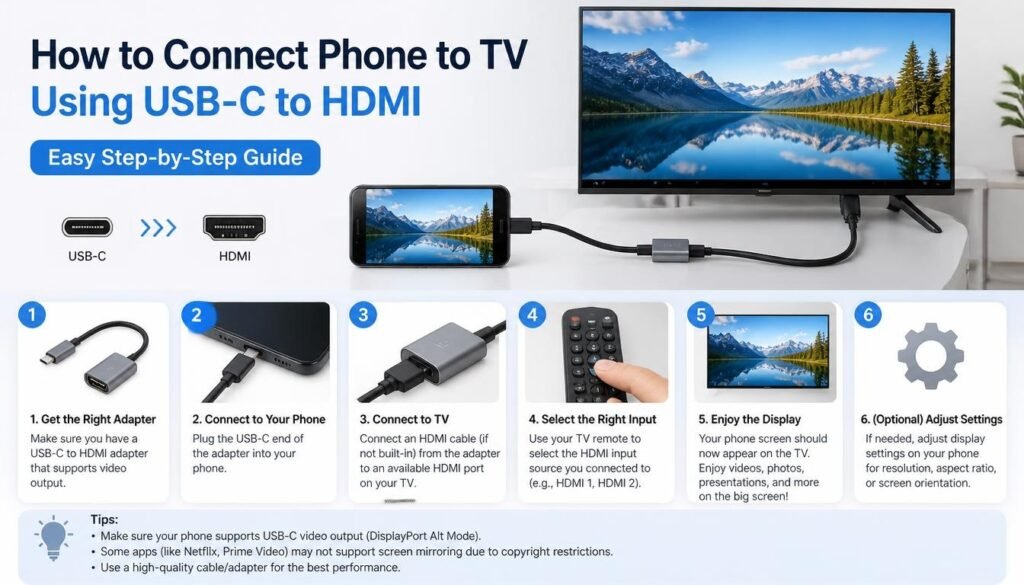
Many newer laptops and tablets use USB-C ports for charging, data transfer, and sometimes video output. A compatible USB-C to HDMI cable lets these devices connect to projectors that have HDMI inputs.
However, not every USB-C port supports video. Some provide only charging and data functions, so plugging in an adapter won’t necessarily produce an image.
Look for support for USB-C video output, often through DisplayPort Alt Mode, or another explicitly supported video-output method. Your device’s specifications should clarify whether its USB-C port can drive an external display.
This is especially useful when you want a clean laptop to projector connection without carrying several different adapters. Still, checking compatibility before travelling to a meeting is far better than discovering a limitation in front of an audience.
USB-C to HDMI Cable vs USB-C to HDMI Adapter
A USB-C to HDMI cable combines the connection into one accessory. One end plugs into the USB-C source, and the other connects to the projector’s HDMI input.
A USB-C to HDMI adapter provides an HDMI socket, allowing you to attach a separate HDMI cable. This arrangement can be convenient when you already own a long HDMI cable or regularly connect to displays with different distances.
Both options can work well. The right choice depends on portability, cable reach, the supported resolution, and whether the accessory is compatible with your device.
A direct cable usually means fewer separate components to carry. An adapter, meanwhile, offers flexibility when you need to change cables or reuse an existing installation.
Choosing the Correct HDMI Cable Length for a Projector
Cable length deserves more attention than it usually gets. A cable that is too short can turn a tidy presentation setup into an awkward arrangement of tables and equipment. One that’s far longer than necessary may create a cluttered space and become harder to manage.
Measure the distance between the source device and projector along the actual route the cable will follow. Include the distance needed to move around desks, reach wall-mounted equipment, or accommodate a laptop placed on a podium.
Short HDMI Cables for Desks and Small Rooms
Cables around 1–3 metres are often sufficient when the laptop and projector are close together. They are convenient for home entertainment, personal workspaces, and small meeting rooms.
A shorter cable also makes storage easier. If you regularly carry presentation equipment, choosing a practical length can save you from wrapping several unnecessary metres around your bag.
Medium-Length HDMI Cables for Classrooms and Offices
A cable around 3–7 metres may suit many classrooms, offices, and meeting rooms where the projector is mounted overhead or positioned away from the presenter.
At these distances, choose a cable with enough flexibility for the installation and a performance rating suitable for the intended signal. Avoid tight bends, strained connectors, and routes where people could trip over the cable.
Long HDMI Cables for Home Theatres and Permanent Installations
Longer cable runs may be necessary when a projector is mounted at the back of a room or connected to equipment stored in a cabinet.
As the distance increases, signal reliability becomes more dependent on cable construction, bandwidth, and the quality of the connection. For demanding high-resolution signals, an active HDMI cable or a suitable fibre-optic HDMI cable may be worth considering.
Don’t assume that every passive HDMI cable will carry every high-bandwidth signal over any distance. Check the manufacturer’s specifications for the length and display mode you need, and remember that active cables may have directional connectors or particular power requirements.
For a permanent installation, it’s wise to test the full cable run before concealing it behind walls or ceilings. Fixing a problem before the installation is finished is considerably less painful.
Build Quality, Flexibility, and Connection Reliability
A cable doesn’t need a luxurious finish to work well, but practical construction matters. Look for connectors that fit securely, a jacket that suits the installation, and a cable that can handle normal movement without being repeatedly strained.
Gold-plated connectors are sometimes advertised as a major performance advantage. In ordinary use, however, the plating itself doesn’t guarantee a better picture. Suitable bandwidth, proper construction, and sound connections matter much more.
For a portable setup, flexibility and resistance to everyday wear may be especially useful. For a fixed projector installation, cable routing and compatibility with the required display mode are likely to matter more.
A dependable HDMI connection for projector use should also be easy to reconnect without bending the cable sharply or putting pressure on the HDMI port.
Those small practical details can make equipment last longer, particularly in busy classrooms and shared meeting rooms.
Plug-and-Play HDMI Connection: What to Expect
Most compatible HDMI connections work without additional software or drivers. Once the cable is connected and the correct input is selected, the source device and projector should negotiate a supported display mode.
If you’re using a USB-C display cable or adapter, the process is still often plug-and-play, provided the USB-C port supports video output and the accessory supports the required signal.
After connecting the devices, you may need to open the display settings on your computer and choose whether to duplicate the screen or extend the desktop. Duplicating shows the same content on both screens, while extending gives you additional desktop space.
For presentations, mirroring is often the simplest choice. If you need speaker notes on your laptop while displaying slides to the audience, extended display mode may be more suitable.
It’s worth testing these settings in advance. A minute spent checking your setup at home can save several uncomfortable minutes when everyone is waiting for the first slide.
Connecting a Laptop or Tablet to a Projector
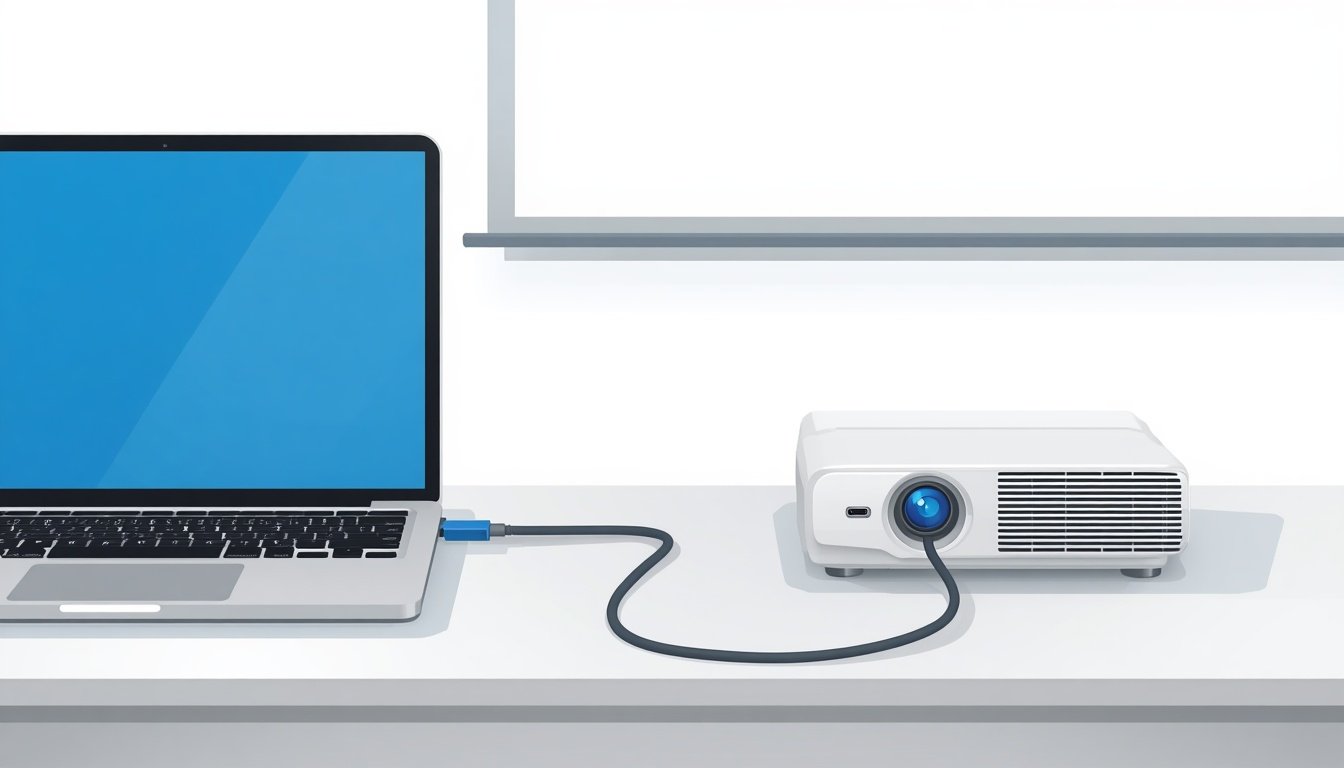
The precise steps depend on the ports available on your equipment, but the basic process is fairly simple.
For a laptop with HDMI, connect one end of the cable to the laptop and the other to the projector. Switch the projector to the corresponding HDMI input, then select the desired display mode on the laptop.
For a USB-C laptop, confirm that the port supports video output and use a compatible USB-C to HDMI cable or adapter. If the device has multiple USB-C ports, consult its documentation because their capabilities may differ.
A tablet to projector connection follows the same general principle. The tablet must support external video output through its relevant port, and any adapter must be compatible with the tablet’s hardware and software.
Some smartphones and tablets support external displays, while others have limited or no wired video-output capability. Don’t assume that USB-C alone guarantees compatibility.
If you’re using equipment in a classroom or office, it can be useful to keep a compatible adapter in your bag. Just make sure it’s the right kind for your device rather than relying on an unfamiliar accessory borrowed at the last moment.
Common Projector HDMI Connection Problems and How to Fix Them
Even a suitable cable can appear not to work when another part of the setup is incorrect. The trick is to troubleshoot methodically instead of immediately buying a replacement.
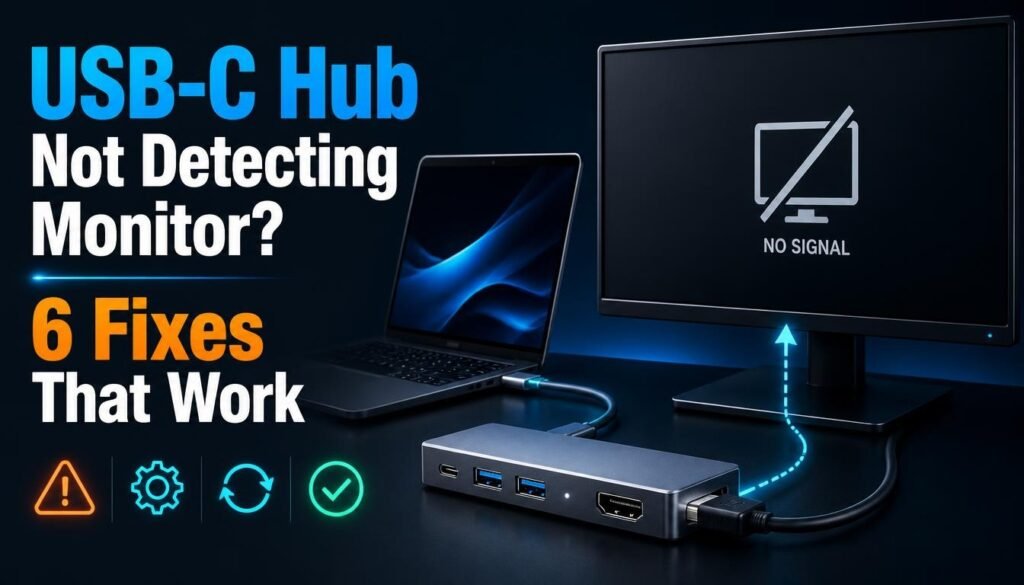
Projector HDMI No Signal
If the projector displays “No Signal,” start with the simplest checks.
- Confirm that the projector is switched to the HDMI input where the cable is connected.
- Check that both ends of the cable are inserted securely.
- Make sure the laptop or other source device is powered on and producing a video signal.
- Select the correct external display mode on the computer.
- Try another compatible HDMI port or cable, if available.
A projector HDMI no signal message doesn’t automatically mean the cable is faulty. The wrong input, a sleeping laptop, an unsupported display mode, or an incompatible adapter can cause the same symptom.
HDMI Projector Not Detecting Laptop
If the projector doesn’t appear in your computer’s display settings, reconnect the cable and check whether the operating system detects an external display.
On Windows, you can open Display settings and look for the option to detect another display. On macOS, check the Displays settings and follow the available instructions for external displays.
Restarting the projector and source device may also help establish the connection. If the laptop offers several output modes, try a supported resolution and refresh rate, such as 1920 × 1080 at 60 Hz, if both devices support it.
USB-C to HDMI Not Working
When a USB-C connection fails, first establish whether the port supports video output. A USB-C port that only supports charging and data transfer won’t become a video output simply because an HDMI adapter is attached.
Next, check the adapter’s specifications, confirm that it’s connected correctly, and try a different compatible display or cable if one is available. If the accessory requires external power, make sure that requirement is met.
Some devices may also need their display settings adjusted or their operating system updated. However, installing random drivers isn’t the right first step for every connection problem; many compatible USB-C display accessories work without additional drivers.
Flickering, Blank Screens, or Intermittent Connections
If the image appears and disappears, inspect the connectors and cable route. A loose plug, damaged cable, strained port, or signal that exceeds the cable’s capabilities may be responsible.
Try lowering the resolution or refresh rate temporarily to determine whether the connection becomes stable. If the problem disappears, review the cable’s bandwidth rating and the supported settings of both devices.
For long runs, test with a shorter cable near the equipment. If that works reliably, the longer cable or its installation may be the source of the trouble.
Change one thing at a time whenever possible. It makes identifying the real cause much easier, and it prevents perfectly good equipment from being replaced unnecessarily.
Is the LENTION USB-C to HDMI Cable Worth Considering?
LENTION is a brand associated with connectivity accessories, including USB-C display products. A LENTION USB-C to HDMI cable may be worth considering if your laptop or tablet supports video output through USB-C and you want to connect it to a projector with HDMI input.
Rather than choosing a product based on its brand name alone, inspect its stated resolution and refresh-rate support, compatible devices, cable length, and any special requirements.
Check whether the cable supports the exact display mode you intend to use. A product advertised for 4K output, for instance, should be checked for the refresh rate and conditions under which that output is supported.
Also consider the practical details: Will the cable reach your projector? Does it connect directly to your device? Does your USB-C port support video output? Are the connectors suitable for the equipment you already own?
Those questions are more valuable than assuming one brand or product must be right for everyone. The best cable is the one that works reliably with your particular setup.
Common Mistakes to Avoid When Buying an HDMI Cable for Projector Use
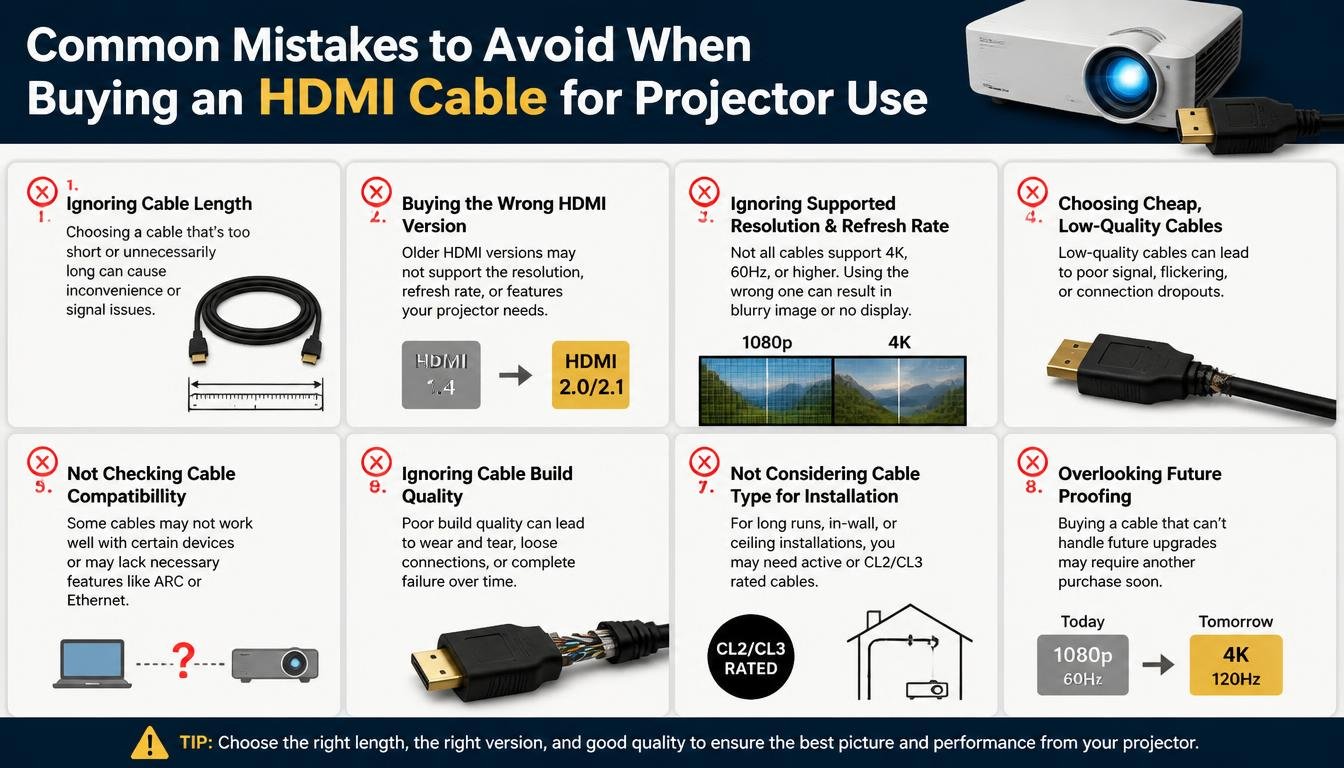
A few simple mistakes account for many disappointing purchases, and most are easy to avoid with a little preparation.
- Buying by price alone: A cheap cable may work perfectly for a modest setup, but price doesn’t prove that a cable supports the required bandwidth.
- Assuming every USB-C port supports video: Check for DisplayPort Alt Mode or another explicitly supported video-output method.
- Ignoring cable length: Measure the real route, including the extra reach needed around furniture and mounting points.
- Overlooking refresh rate: A cable that handles one 4K mode may not support every higher-bandwidth mode.
- Expecting a better picture from an unnecessarily expensive cable: Once a suitable digital connection is working correctly, a premium finish won’t automatically improve the image.
- Forgetting about audio: HDMI can carry audio as well as video, but audio behaviour also depends on the source device, projector, and connected sound system.
- Waiting until presentation time to test everything: Check the entire connection before the room fills up, especially when using an unfamiliar adapter.
These little checks take very little time. They can, however, save you from the sort of technical drama that nobody wants to explain to a room full of waiting people.
Frequently Asked Questions About HDMI Cables for Projectors
Do all HDMI cables work with projectors?
No, not in every situation. Many standard HDMI cables work with compatible projectors, but the cable must support the required bandwidth and display format. Very old, damaged, or unsuitable cables may fail to deliver a stable signal at higher resolutions.
Do projectors need HDMI 2.0 or HDMI 2.1 cables?
The answer depends on the projector and the display mode you want. For many 4K-at-60-Hz setups, a certified Premium High Speed HDMI cable is suitable. More demanding high-refresh-rate or higher-resolution modes may require an Ultra High Speed HDMI cable.
Focus on the required bandwidth and certification rather than choosing a cable based on a version number alone.
Can I connect a USB-C laptop directly to a projector?
Yes, if the laptop supports video output through USB-C and the projector has a compatible HDMI input. You can use a USB-C to HDMI cable or a USB-C to HDMI adapter with a separate HDMI cable.
How long can an HDMI cable be before signal quality becomes an issue?
There isn’t one universal maximum distance for every HDMI cable and display mode. The practical limit depends on bandwidth, cable design, signal quality, and the equipment involved. Higher-bandwidth signals over longer distances may require an active or fibre-optic cable.
Do USB-C to HDMI cables require drivers?
Many compatible USB-C to HDMI cables and adapters work without extra drivers. However, compatibility depends on the source device, the port’s video capabilities, the accessory, and the operating system.
Is an HDMI adapter better than a USB-C to HDMI cable?
Neither is universally better. A direct cable is convenient and has fewer separate components, while an adapter lets you reuse an existing HDMI cable and adjust the cable length more easily. Choose the arrangement that suits your equipment and installation.
What should I check first if my projector says “No Signal”?
Check the selected HDMI input, the cable connections, and the source device’s display settings. Then verify that the source port and any adapter support video output. Testing another known-working cable can help narrow down the cause.
How to Choose the Best HDMI Solution for Your Setup
Before placing an order, take a moment to match the cable to your equipment and the way you use it. You don’t need a complicated checklist, just a few clear answers.
- Identify the output port on your laptop, computer, tablet, or media player.
- Confirm that the projector has an appropriate HDMI input.
- Decide whether you need Full HD, 4K at 60 Hz, or a more demanding display mode.
- Measure the distance between the source device and projector.
- Choose a suitable cable category and check its specifications or certification.
- If using USB-C, confirm video-output compatibility before buying.
- Test the complete connection before an important presentation or movie night.
For a typical Full HD office projector, a good-quality High Speed HDMI cable of suitable length is often enough. For a 4K home theatre, a certified Premium High Speed or Ultra High Speed cable may be more appropriate, depending on the supported display mode.
For a modern laptop without an HDMI port, a compatible USB-C to HDMI cable can be a tidy and convenient solution. The important thing is to make the choice based on your equipment, not on assumptions about what every cable can do.
Frequently Asked Questions
1. Do All HDMI Cables Work with Projectors?
Most HDMI cables work with compatible projectors, but the cable must support the required resolution, refresh rate, and bandwidth for a stable connection.
Which HDMI Cable Is Best for a 4K Projector?
A certified Premium High Speed HDMI cable is suitable for many 4K-at-60-Hz setups, while more demanding formats may require an Ultra High Speed HDMI cable.
Can I Connect a USB-C Laptop to a Projector?
Yes, you can use a USB-C to HDMI cable or adapter if your laptop supports video output through USB-C and the projector has an HDMI input.
How Long Should an HDMI Cable Be for a Projector?
Choose a cable long enough to reach comfortably between your device and projector. For longer distances, check the cable’s specifications to ensure reliable signal transmission.
Why Does My Projector Show “No Signal” When Connected via HDMI?
Check that the correct HDMI input is selected, both cable ends are connected securely, and your device supports external display output. Try another compatible cable if the problem persists.
Read More: https://techbiton.com/can-you-connect-one-usb-c-hub-to-another/
Final Thoughts: A Small Cable Can Make a Big Difference
Choosing the right HDMI cable for projector use isn’t about buying the most expensive accessory or chasing every new specification. It’s about making sure your devices communicate properly, your picture displays at the intended quality, and your setup works when you need it.
Whether you’re sharing an important presentation, teaching a classroom full of curious students, enjoying a favourite film with family, or connecting a tablet to a large screen, a suitable cable makes the experience feel simple. And when technology works quietly in the background, you get to concentrate on the things that really matter.
Check your ports, match the cable to your resolution, choose a practical length, and verify compatibility before buying. If your setup needs USB-C video output, make sure the device and cable support it. Those straightforward decisions will take you a long way towards a dependable connection.
Ultimately, the best projector cable is the one you can connect with confidence, knowing the screen will light up and your content will appear without unnecessary fuss. A little preparation today can make your next presentation, lesson, or movie night feel wonderfully effortless.
Have you found a particular HDMI cable or USB-C adapter that works especially well with your projector? Share your experience and practical tips in the comments; your advice might help someone else avoid a frustrating setup and get straight to the good part.