
Have you ever sat down at your desk, ready to work, only to discover that your laptop has three USB ports and you need about eight? There is a keyboard, a mouse, an external SSD, a webcam, perhaps a microphone, and that little USB receiver you keep forgetting to unplug. Suddenly, your neat workspace feels like a puzzle with one missing piece.
That is where the idea of connecting one USB-C hub to another starts to make sense. Instead of replacing your existing equipment, you might be able to add a second hub and get the extra connections you need. It’s a simple idea, although there are a few technical details worth understanding before plugging everything together.
The good news is that USB-C hub daisy-chaining is often possible when the equipment supports the right connections. However, not every USB-C port works the same way, and adding another hub doesn’t magically double your data speed or available power. Knowing the difference can save you from frustrating disconnections, slow transfers, and devices that simply refuse to work.
In this guide, we’ll explain how to connect two USB hubs, which devices work best in a multi-hub setup, how power and bandwidth affect performance, and when a dedicated docking station may be the smarter choice.
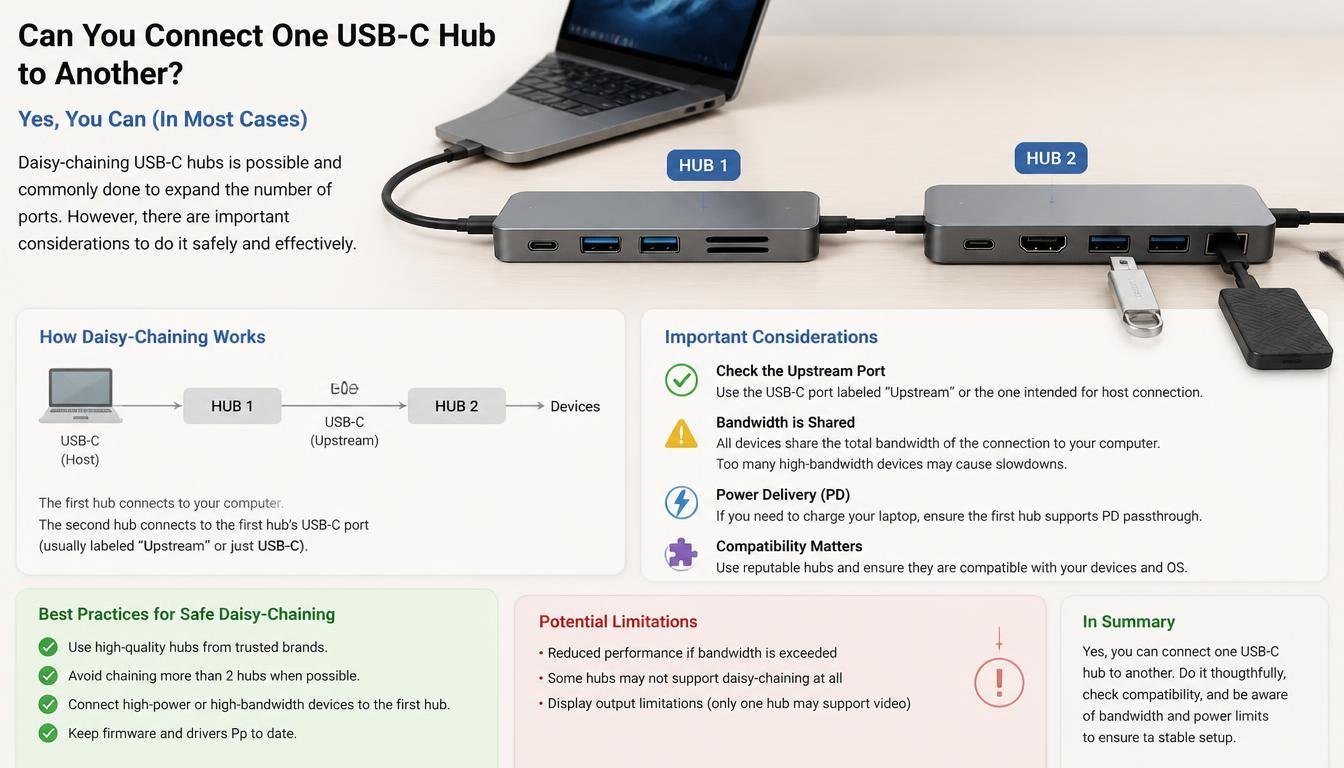
Can You Connect One USB-C Hub to Another?
Yes, you can often connect one USB-C hub to another, provided the first hub has a suitable downstream USB data port and the second hub has a compatible upstream connection. The laptop or computer remains the host, while the hubs expand the available connections for your peripherals.
A typical arrangement looks like this:
Laptop → Primary USB-C hub → Secondary USB hub → USB peripherals
For example, imagine your laptop is connected to a USB-C hub that already handles an HDMI monitor, an Ethernet cable, and a charging connection. The hub has one spare USB-A data port, so you connect a second USB hub to it. Now you have additional ports for a keyboard, mouse, printer, or wireless receiver.
This arrangement is commonly described as daisy-chaining USB hubs, although the term can also refer to other kinds of chained devices. In USB connectivity, the important question isn’t whether the hubs have matching connectors. It’s whether the ports support the required USB functions.
A USB-C connector is only the physical shape of the connection. The underlying port might support high-speed data, charging, video, or some combination of these features. Two ports can look identical and still behave very differently.
Before you connect anything, check the specifications of both hubs. A second hub should have an upstream connection designed to connect to a computer or another hub’s downstream data port.
How USB-C Hub Daisy-Chaining Actually Works
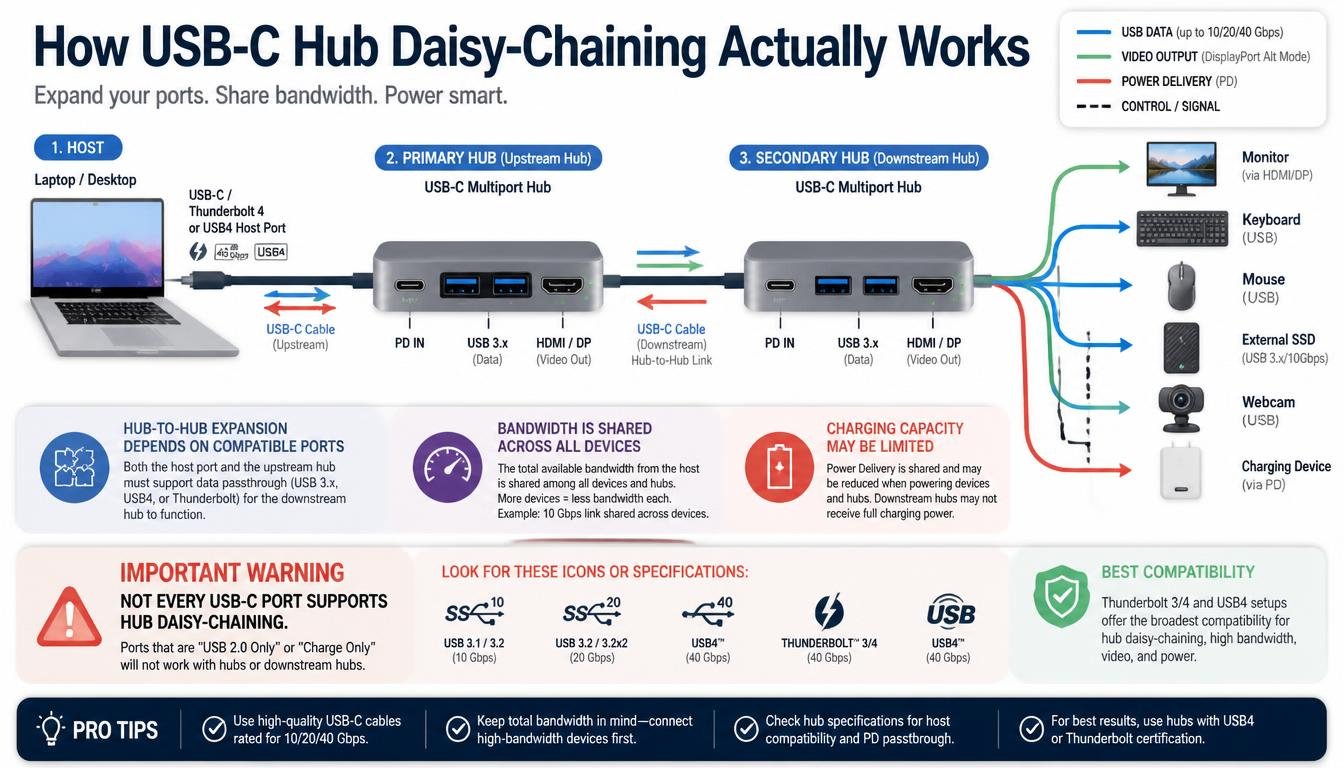
To understand a multi-hub arrangement, it helps to know how USB devices communicate with a computer. USB hubs organise connected peripherals into a structure in which the host controller manages communication with the devices.
The first hub connects to the laptop through its upstream port. Its downstream ports can connect to peripherals or to another compatible USB hub. The second hub then provides its own downstream ports for additional devices.
Think of it as adding another small branch to a tree. The tree has more branches, but every branch still depends on the original trunk.
Understanding the upstream and downstream connections
The upstream connection leads toward the host computer. A hub’s upstream port is generally the connection used to link it to the laptop or another hub’s downstream port.
A downstream USB port connects devices farther away from the host. Depending on the hub, that port may support USB-A, USB-C, or another connector type.
This distinction matters because a USB-C port on a hub may be intended only for charging input. Connecting a second hub to that port won’t necessarily create a working data connection.
The host controller still manages the devices
Your laptop’s host controller coordinates USB communication across the connected devices. Adding a second hub doesn’t create a completely separate connection to the computer; both hubs remain part of the same overall USB arrangement.
That means compatibility, supported device limits, bandwidth, and power availability all matter. Most ordinary setups work well when you use compatible equipment and sensible peripherals, but unusual combinations can encounter limitations.
What You Need Before Connecting Two USB Hubs
A successful setup starts with a quick equipment check. You don’t need an engineering degree to do this, thankfully, but checking a few specifications before connecting everything is a good habit.
- A primary USB-C hub: This connects directly to your laptop and provides the first set of ports.
- A compatible secondary USB hub: It should have a proper upstream connection and support the data functions you need.
- A suitable cable: Use a cable that supports the required USB data speed and connector type.
- Adequate power: If you intend to attach several peripherals, consider whether the second hub needs its own AC adapter.
- A compatible host port: Your laptop’s USB-C port must support the necessary data functions, and any required video or charging features must also be supported.
It’s worth checking the manuals for both hubs, especially if either one is a docking station with multiple specialised ports. Some ports are designed for a very particular purpose, even when they look like ordinary USB-C connections.
For the simplest arrangement, connect the primary hub to the laptop and then connect the secondary hub to a downstream USB data port on the primary hub. Start with a keyboard or flash drive before adding your more demanding devices.
USB Hub Bandwidth: Will Two Hubs Work at Full Speed?
One of the most important details in USB hub bandwidth is that adding more ports doesn’t increase the speed of the original connection.
Suppose your primary hub connects to the laptop using a USB connection rated for 5Gbps. The devices behind that hub generally share the capacity of that upstream link, subject to the actual USB protocol, device capabilities, and communication overhead.
If you attach a second hub, its devices also have to communicate through the same upstream path. You gain more connection options, but not more bandwidth from the laptop.
Why simultaneous transfers can become slower
Imagine copying a large video file to an external SSD while another drive is backing up photographs. Both storage devices may be fast individually, yet their combined traffic can compete for the bandwidth available through the hub connection.
The result might be lower transfer speeds than you would see when connecting each device directly to a suitable laptop port. This is especially noticeable with high-speed storage devices or other peripherals that send substantial amounts of data.
A keyboard and mouse, on the other hand, use very little bandwidth during normal operation. Adding them to a secondary hub usually has a negligible effect on the performance of an external SSD.
The slowest link can become the bottleneck
A USB-C hub might advertise USB 10Gbps support, while the cable or port connecting it to the laptop supports only 5Gbps. In that case, the faster hub cannot make the entire connection operate at 10Gbps.
The same principle applies to a multi-hub setup. Your real-world performance depends on the supported speeds of the laptop port, both hubs, the cables, the connected devices, and the USB protocol being used.
For the best results, connect high-bandwidth devices such as external SSDs directly to the laptop whenever possible. Reserve the secondary hub for low-bandwidth peripherals unless testing shows that your storage devices perform well through the chain.
Powered USB Hub vs. Bus-Powered USB Hub
Power is another major consideration when connecting multiple hubs. Every attached device needs enough electricity to operate reliably, and the power available through a laptop’s USB port is not unlimited.
A bus-powered USB hub draws its operating power from the host connection. It may be perfectly adequate for a keyboard, mouse, USB receiver, or flash drive, but several power-hungry devices can push it beyond its comfortable limits.
A powered USB hub, sometimes called a self-powered hub, uses a separate power supply, usually an AC adapter. This allows it to supply more power to supported downstream devices without relying entirely on the laptop’s USB port.
When a powered hub is the better option
Consider using a powered USB hub when connecting multiple external hard drives, demanding audio equipment, capture devices, or other peripherals that require more power than a bus-powered arrangement can comfortably provide.
An external hard drive that spins up when connected, for instance, may draw more power at startup than it uses during ordinary operation. If the hub cannot supply enough current, the drive may repeatedly disconnect or fail to appear.
A powered hub can improve stability in such cases, although its specifications still matter. Not every powered hub can deliver the same amount of power to every port.
Does a powered hub increase USB speed?
No, not by itself. A dedicated power supply can help prevent power-related failures, but it doesn’t automatically increase USB bandwidth or improve the rated data speed of the upstream connection.
If you need faster transfers, look for a suitable high-speed USB connection and compatible cables. If you need more reliable operation for several peripherals, a powered hub may be the more useful upgrade.
USB-C Power Delivery: Can Two Hubs Charge a Laptop?
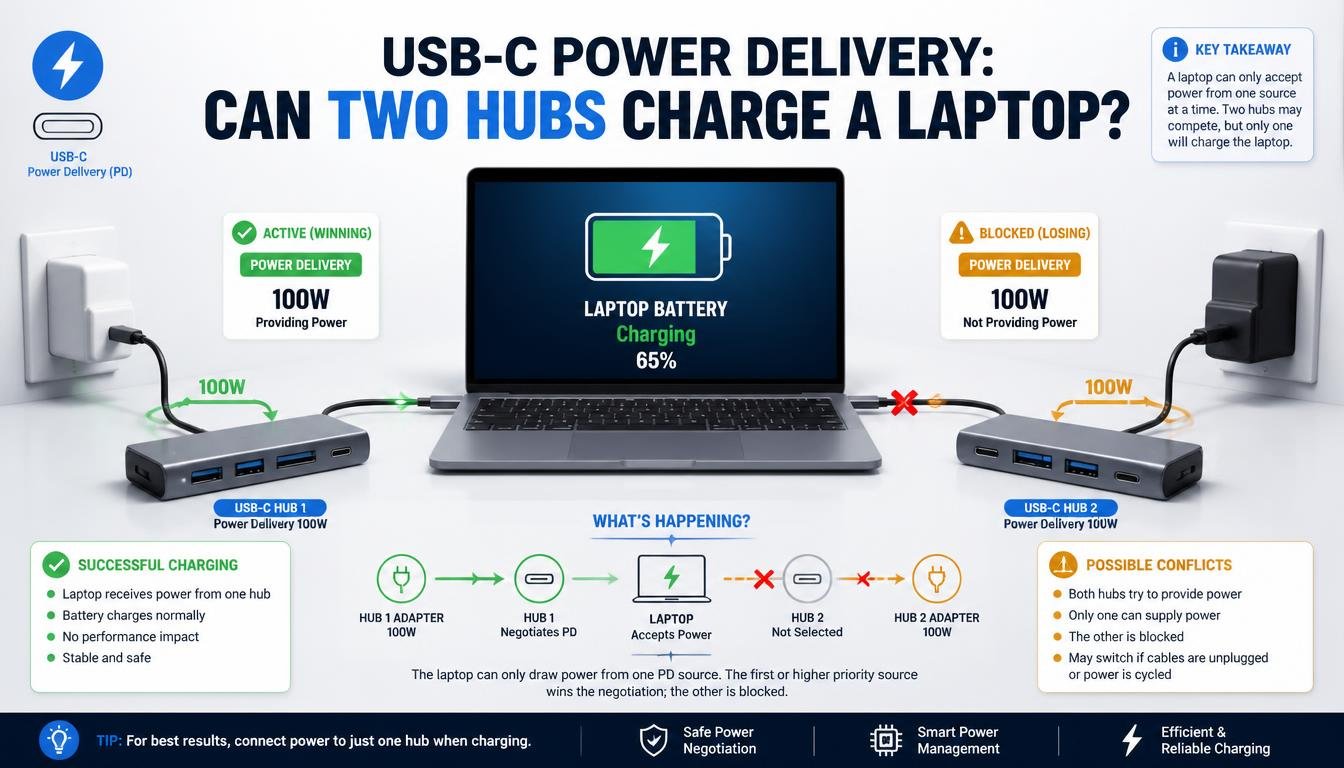
USB-C Power Delivery (PD) introduces another layer of complexity because USB-C hubs may handle charging and data through different ports and pathways.
Many USB-C hubs include a PD pass-through port. This is commonly intended for connecting a compatible charger to the hub so that the hub can pass supported charging power to the laptop.
However, that charging input is not necessarily a general-purpose USB data port. Plugging a second hub into a PD-only port will not make the second hub function as a data expansion device.
How charging pass-through works
In a typical arrangement, you connect the charger to the primary hub’s designated PD input and connect the hub to a compatible USB-C port on the laptop. If the laptop, charger, cable, and hub support the required charging profile, power can pass through to the computer.
The actual charging wattage may be lower than the charger’s advertised output because the hub itself consumes power and may reserve some power for connected peripherals.
Adding another hub does not automatically improve this arrangement. A secondary hub with its own power adapter can supply its supported downstream devices, but that does not mean it can charge the laptop through the entire chain.
Can two USB-C hubs with PD be connected safely?
Potentially, yes, for data connectivity when the ports and equipment support the arrangement. But you should not assume that connecting two hubs with PD ports creates a valid charging path.
Follow the manufacturers’ instructions for charging inputs and outputs. Avoid connecting chargers or power sources to ports that aren’t designed to accept them, and don’t assume that every USB-C port supports bidirectional power in every configuration.
For a laptop that needs reliable charging and several peripherals, a single properly specified USB-C docking station is often easier to manage than a complicated chain of hubs.
Can HDMI Work Through a Second USB-C Hub?
This is where things can get a little tricky. A USB-C hub with an HDMI output may depend on DisplayPort Alt Mode, Thunderbolt, USB4, or another supported display technology to deliver video from the laptop to an external monitor.
An ordinary downstream USB data port on a hub doesn’t automatically carry a display signal. Therefore, connecting a second USB-C hub to the first hub’s USB data port does not guarantee that the second hub’s HDMI output will work.
DisplayPort Alt Mode and video output
DisplayPort Alt Mode allows supported USB-C connections to carry DisplayPort video signals. The laptop, cable, and hub must support the required video functionality for the arrangement to work.
If the first hub has a USB-C port that supports only data or charging, it may not pass the video signal required by a second hub’s HDMI output.
What about Thunderbolt and USB4?
Thunderbolt and USB4 can support sophisticated combinations of data and display connectivity, but the capabilities depend on the particular device, port, cable, and protocol implementation.
Some Thunderbolt docking stations support connecting additional compatible Thunderbolt devices, including certain downstream docks or display adapters. That is different from connecting any two ordinary USB-C hubs and expecting their video outputs to work.
If you want to run multiple monitors, check the laptop’s supported display count and resolution, the dock’s video specifications, and whether the proposed connection topology is supported.
For a workstation with two monitors, Ethernet, charging, and several USB peripherals, choosing a dock designed for the entire arrangement is usually the least frustrating option.
Which Devices Work Best on a Secondary USB Hub?
The type of device matters just as much as the hub itself. Some peripherals are well suited to daisy-chaining, while others benefit from a direct connection to the laptop.
Keyboards, mice, and wireless receivers
These are excellent candidates for a secondary hub. Keyboards and mice typically use very little bandwidth, and their power requirements are generally modest.
A USB wireless receiver can also work well through a hub, although its position may affect wireless reception if it sits close to interference-producing equipment. If a mouse begins stuttering, try moving the receiver onto a short extension cable.
USB flash drives and card readers
Flash drives and SD or microSD card readers often work perfectly well through a secondary hub. However, transfer speeds can be affected when several devices share the same upstream connection.
If you’re copying large video files from an SD card while writing to an external SSD, using separate suitable laptop ports may produce better results.
External SSDs and hard drives
Storage devices deserve more attention because they can use substantial bandwidth and may have specific power requirements.
A high-speed external SSD may work through a chain of hubs, but its performance can fall below expectations when the upstream connection becomes a bottleneck. For intensive editing, large backups, or frequent file transfers, a direct laptop connection is often preferable.
External hard drives may also be sensitive to inadequate power. If a drive clicks repeatedly, disconnects, or vanishes during use, check the power supply and cable before assuming the drive itself is defective.
Webcams, capture cards, and audio interfaces
A webcam used for ordinary video calls may work well through a secondary hub. But a high-resolution webcam, video capture card, or professional audio interface can be more demanding.
Multiple video streams and audio devices may compete for bandwidth, and an underpowered hub can cause interruptions. For live streaming, recording, or professional audio work, test the complete setup under realistic conditions before relying on it.
Printers, security keys, and optical drives
Printers, authentication keys, and many other everyday USB peripherals usually need relatively little bandwidth. They are often suitable for a secondary hub, provided the operating system and device drivers support them.
Optical drives and other mechanically active peripherals may have higher power needs, so check their specifications. A powered hub may be useful if the laptop’s USB connection cannot provide enough power.
How to Connect Two USB Hubs Safely
A sensible setup is usually straightforward, and a few careful steps can prevent many common problems.
- Check the port functions. Confirm that the primary hub has a downstream USB data port and that the secondary hub has a compatible upstream connection.
- Check the connection speed. Make sure the hubs and cables support the speed required by your most demanding devices.
- Connect the primary hub to the laptop. Use the appropriate USB-C port and cable.
- Attach the secondary hub. Connect it to a supported downstream data port on the primary hub, using a suitable cable or adapter.
- Connect low-power devices first. Start with a keyboard, mouse, or flash drive to confirm that the connection works.
- Add demanding devices gradually. Connect external storage, webcams, or audio equipment one at a time and observe how the system behaves.
- Use external power when appropriate. If the secondary hub supports a dedicated power adapter and your peripherals need it, use the correct adapter specified by the manufacturer.
- Test the complete arrangement. Copy a file, test the webcam, play audio, and check other important peripherals before treating the setup as finished.
Don’t unplug an external drive during a transfer just to test whether the hub works. Finish the transfer and eject the drive properly before disconnecting it. This small habit can help protect your files from corruption.
Common USB Hub Problems and How to Fix Them
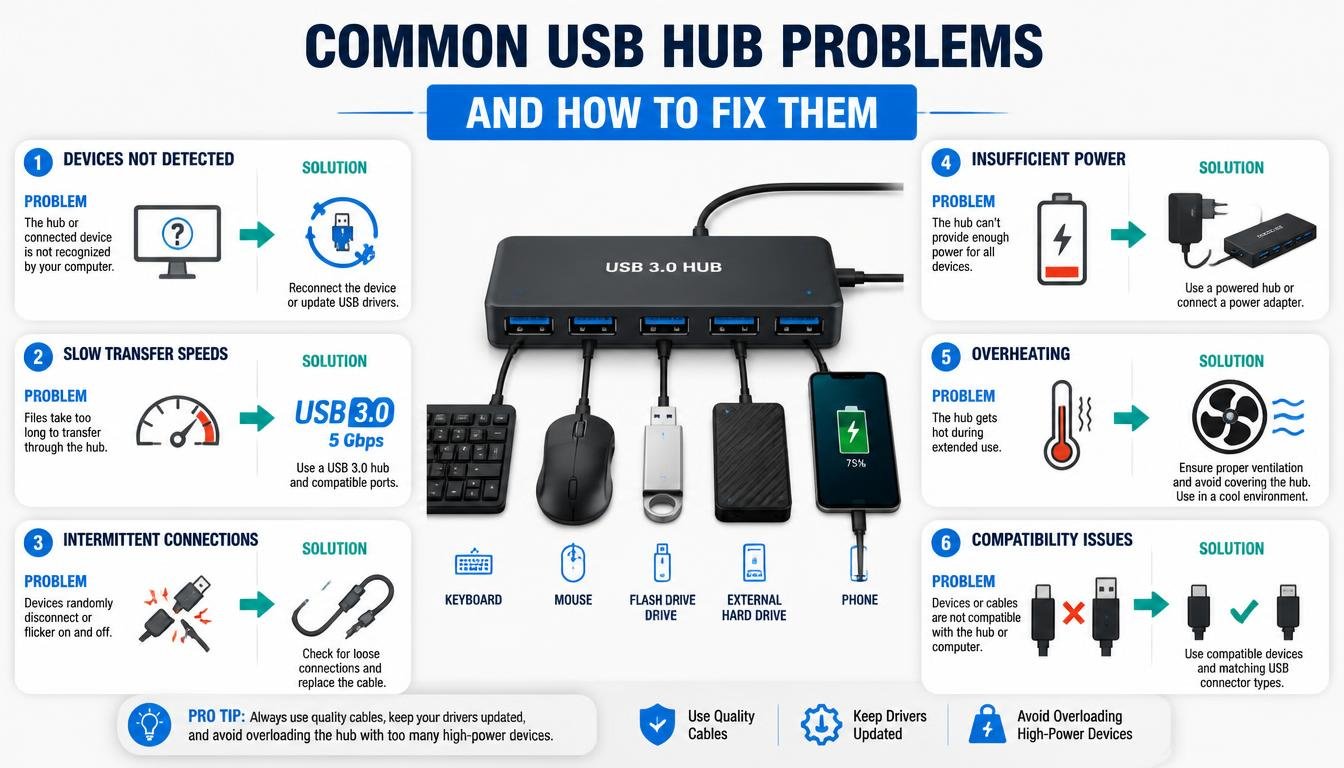
Even a compatible setup can misbehave occasionally. The useful trick is to identify whether the issue involves power, bandwidth, the cable, or a port that doesn’t support the function you expected.
USB devices keep disconnecting
Repeated disconnections can indicate insufficient power, a damaged cable, a loose connection, or an unstable hub.
Try connecting the affected device directly to the laptop. If the problem disappears, reconnect the device through a powered hub or replace the questionable cable. Test one device at a time rather than changing the entire arrangement at once.
File transfers are slower than expected
Slow transfers may result from shared bandwidth, a lower-speed cable, an older USB port, or the limitations of the storage device itself.
Check the rated speed of each connection in the chain. If a large file transfer slows dramatically when other storage devices are active, move one drive to another suitable host port and compare the results.
A powered hub won’t solve a pure bandwidth bottleneck, so don’t buy one expecting it to double your transfer speeds.
The second hub isn’t recognised
First, verify that the port connecting the hubs supports data. A USB-C PD input or charging-only port will not necessarily recognise a second hub.
Then try a known-good cable, another compatible downstream port, and a direct connection to the laptop. If the second hub works directly but not through the first one, consult the manufacturers’ specifications for supported configurations.
HDMI or external monitors don’t work
If an external monitor remains blank, check whether the relevant USB-C port supports video output. DisplayPort Alt Mode, Thunderbolt, or USB4 support may be necessary depending on the hardware.
Test the monitor directly with the laptop or through the primary dock’s designated display output. If the monitor works there but not through the secondary hub, the video pathway may not be supported by the chained configuration.
The hub or laptop reports a power warning
Disconnect unnecessary peripherals and check whether the hub requires an external adapter. If it does, use the recommended power supply rather than an arbitrary charger with a matching connector.
If a hub or device becomes unusually hot, emits a burning smell, or shows visible damage, disconnect it from power and stop using it until the cause has been identified. Ordinary warmth can occur during use, but signs of damage shouldn’t be ignored.
USB-C Hub vs. USB-C Docking Station: Which Is Better?
A second hub is a convenient option when you only need a few extra ports. A docking station may be a better investment when your desk setup has become a permanent part of your working day.
A simple USB hub usually focuses on adding USB connections. Depending on its design, it may provide USB-A ports, USB-C data ports, or card readers.
A USB-C docking station can combine USB connectivity with Ethernet, HDMI, DisplayPort, audio, card readers, and laptop charging. Some models support multiple displays and high-speed networking, while others offer a more modest selection of features.
The right choice depends on the equipment you use, not the number of logos printed on the box.
When a second hub makes sense
Choose another hub if you mainly need extra ports for a keyboard, mouse, printer, security key, or other low-bandwidth devices. It’s often an affordable way to expand an existing setup without replacing everything.
This is particularly useful for temporary workstations or people who move between different desks and don’t want to carry a large dock.
When a docking station is worth considering
Consider a dedicated dock if you regularly use multiple monitors, external storage, Ethernet, audio equipment, and laptop charging at the same time.
A compatible dock can simplify the cabling and reduce the number of separate connections to your laptop. Just make sure the model supports your computer’s display capabilities, required USB speeds, and charging needs.
A more expensive dock isn’t automatically better, though. Buy for the features you genuinely use, rather than assuming every extra port will somehow make your laptop faster.
How to Choose the Best Setup for Your Laptop

Before buying another hub, make a quick list of the devices you intend to connect. Separate them into low-bandwidth peripherals, high-speed storage, video equipment, and devices that may require additional power.
Next, inspect the laptop’s USB-C ports and the specifications of your existing hub. Confirm which ports support data, which support charging, and whether any support video through DisplayPort Alt Mode, Thunderbolt, or USB4.
Then decide whether another hub solves your actual problem. If you only need ports for a mouse, keyboard, and printer, a basic secondary hub may be enough. If you need fast external storage, multiple monitors, Ethernet, and dependable charging, a purpose-built docking station may provide a cleaner solution.
Finally, test the setup with the devices you use most. Real-world performance matters more than an impressive list of theoretical speeds, and a configuration that works reliably every day is worth far more than one that looks clever but disconnects during an important task.
Frequently Asked Questions About USB-C Hub Daisy-Chaining
Can I plug a USB-C hub into another USB-C hub?
Yes, if the first hub provides a compatible downstream USB data connection and the second hub supports the required upstream connection. A charging-only USB-C port isn’t sufficient for ordinary USB data expansion.
Do two USB hubs share bandwidth?
Yes. Devices connected through the same upstream USB connection share its available bandwidth, although the exact allocation depends on the USB architecture and the devices’ activity. Connecting a second hub adds ports, not extra upstream capacity.
Can I connect a powered USB hub to another hub?
Often, yes. A powered hub can provide additional power to its own supported downstream devices, but the upstream data connection still determines how those devices communicate with the computer.
Always use the hub’s recommended power adapter and check its port specifications before connecting everything.
Can I connect an external SSD to the second hub?
Yes, provided the hubs, cables, and laptop support the SSD’s connection requirements. However, its transfer speed may be lower than when connected directly to the laptop, particularly during simultaneous data transfers.
If you’re working with large files or making frequent backups, test the performance before settling on the arrangement.
Can I charge my laptop through two USB-C hubs?
Not necessarily. Charging pass-through depends on the supported Power Delivery implementation, charging inputs, cables, and the laptop’s requirements. Two hubs with PD ports don’t automatically form a valid charging chain.
For reliable laptop charging, follow the manufacturer’s connection instructions or use a compatible docking station designed to deliver the required power.
Does daisy-chaining USB hubs damage a laptop?
A correctly connected, compatible USB hub arrangement should not ordinarily damage a laptop. Problems are more likely to involve inadequate power, faulty equipment, unsuitable cables, or connecting devices to ports that aren’t designed for the intended purpose.
Use reputable equipment, follow manufacturer guidance, and disconnect anything that shows signs of electrical or physical damage.
How many USB hubs can I connect together?
There isn’t one universal number that applies to every setup. USB specifications define limits on hub depth and device topology, while host controllers, operating systems, and particular hardware can impose additional practical constraints.
For everyday use, a short chain is generally easier to manage than several hubs connected one after another. If you need many ports, a single well-designed hub or docking station is often the more dependable solution.
Read More: https://techbiton.com/best-tech-company-gift-ideas/
Conclusion: More USB Ports Without the Unnecessary Hassle
So, can you connect one USB-C hub to another? In many cases, absolutely. USB-C hub daisy-chaining can be a practical way to expand your laptop’s connectivity, keep your peripherals organised, and make better use of the equipment you already own.
The key is understanding what a second hub can and cannot do. It can provide additional ports, but it doesn’t automatically increase USB bandwidth, solve every power limitation, or pass video through a connection that doesn’t support it.
Choose compatible hubs, use the correct cables, provide adequate power, and keep high-bandwidth devices on the most capable connections available. If your setup becomes too complicated, a suitable USB-C docking station may be the simpler answer.
A well-planned workstation shouldn’t require you to unplug half your desk every time you want to connect one more device.
With the right arrangement, your laptop can remain the centre of a tidy, dependable workspace, and all those little peripherals can finally get along without competing for the same precious port.